
It’s tough to keep specific parts of your WordPress website protected without locking users out altogether. And with many different ways to create a WordPress password protect page, it’s easy for beginners to feel overwhelmed.
But if you don’t do it right, you risk leaving unfinished, paywalled, or sensitive parts of your website exposed. That’s where we come in.
Read on to learn how to add a password protected page in WordPress – and how to get the help you need if you’re struggling.
What Is Password Protect in WordPress?
Password protection in WordPress allows you to restrict access to certain pages or areas of your WordPress site. With password protection, you ensure that only the proper parties can access protected content.
When they navigate to a password protected page, users are prompted to enter a password via the WordPress login form to view your content. If they don’t have the password, they can’t get to the page – it’s as simple as that.

There are ways to password protect individual pages, multiple pages at once, or even just parts of a page. It all depends on what you need from your site.
You can introduce password protection natively via WordPress, via external plugins, or via your web hosting provider. We provide tutorials for all these approaches below, so read on to learn more.
Why Set Up a Password Protected Page on WordPress?
It might not seem intuitive, but there are some great reasons to password protect a page in WordPress:
- Keep new content under wraps: Make sure users don’t stumble onto new, upcoming web pages before you’re ready to launch them
- Set up exclusive content: Offer certain audience members the password so they can view exclusives like PDF files, new articles, or special announcements
- Work collaboratively: If you’re working on new content for a client, password protection makes it easy to share your work in progress with them while keeping other viewers out
- Boost security: Keep sensitive information or pages out of public view while still making it available to people who need it
- Offer parental control: Protect underaged users from viewing more sensitive content that may not be suitable for all audiences
- Bypass search engines: Password protected pages on WordPress won’t be indexed by search engines, so you can keep them out of the general public view
It all comes down to making sure that your customers have the right level of access to your content. Password protection ensures that the people you want to see the page can see it easily, but other people don’t have a way in.
Pros and cons of using WordPress password protected pages
Making a WordPress page password protected comes with advantages and disadvantages. Here are some of the biggest ones at a glance:
| Pros | Cons |
| Managing your audience: Password protected pages ensure your customers see only what you want them to see when browsing your site | Choosing the right password: A simple password is easy for attackers to compromise, but a complex password is hard for users to remember |
| Improving security: With cyber threats on the rise, protecting access to your content has never been more important | Updating your password: It’s a good security practice to update your passwords regularly, but this risks leaving users locked out |
| Many different approaches: Whatever you need from your password protection, there’s probably a tool to help you achieve it | Alienating your audience: Too many password protected pages put hurdles in your viewers’ way, hindering the user experience and making them likely to turn to your competition |
Password Protect WordPress Pages: 3 Ways
Ready to learn how to create a password protected page in WordPress? Depending on what you need from your password protection, there are three ways to lock down your page.
Let’s review them one by one.
1. Built-in password protection tool
WordPress’s built-in password protection feature works on pages, posts, and WooCommerce products. Because it’s totally built-in, it’s the easiest way to restrict your WordPress posts.
Here’s how to password protect a WordPress page using this method:
- Log into your WordPress admin dashboard as an administrator
- After the login page, go to “Posts”, then “All Posts” (or, if you’re using WooCommerce, go to “Products”, then “All Products”) on the left sidebar
- Click on the title of the page, post, or product you want to protect – this will open the page builder
- In the page builder, navigate to the Visibility option
- Click “Public” and change it to “Password Protected”

- Enter the password you want to use in the password form
- Click “Publish” or “Update”

Then, if you want to turn it off later, just navigate back to the “Visibility” section and change the setting to “Public”. It’s that easy.
This method doesn’t require you to use any external plugins or workarounds. It’s simple, effective, and fully achievable within the WordPress back-end. Users only need to enter the correct password to access your password-protected post.
That’s not to say that it’s perfect. As you can see, this approach only allows you to password protect one post, page, or product at a time. There’s no way to password protect entire categories or types of posts.
So while this is the ideal approach if you only need a single password-protected page, it works less well if you’re trying to restrict content en masse. Can you imagine following these steps over and over again to protect an entire section of your site?
Obviously, there are better ways to handle that situation. Let’s take a look at those.
2. Password Protected Categories plugin
If your WordPress site offers some types of content exclusively to certain user groups, category password protecting pages by their post types is the way to go. This is a great approach if you want to:
- Offer parental controls on specific pages inappropriate for minors
- Make exclusive password-protected content available to subscribers, purchasers, or other groups of user
- Keep incomplete or in-progress pages out of public view until they’re ready
The Password Protected Categories plugin lets you apply password protection by WordPress categories. Here’s how to set it up:
- Search for the plugin in the WordPress plugin repository, and install it
- Navigate to “Posts”, then “Categories”, in the sidebar
- Depending on your preferences, click the option to either create a new category or edit an existing one

- Tick “Password Protected” and enter your desired password

- As needed, check the “User roles” or “Users” boxes, and enter the roles or specific users you want to be subject to password protection
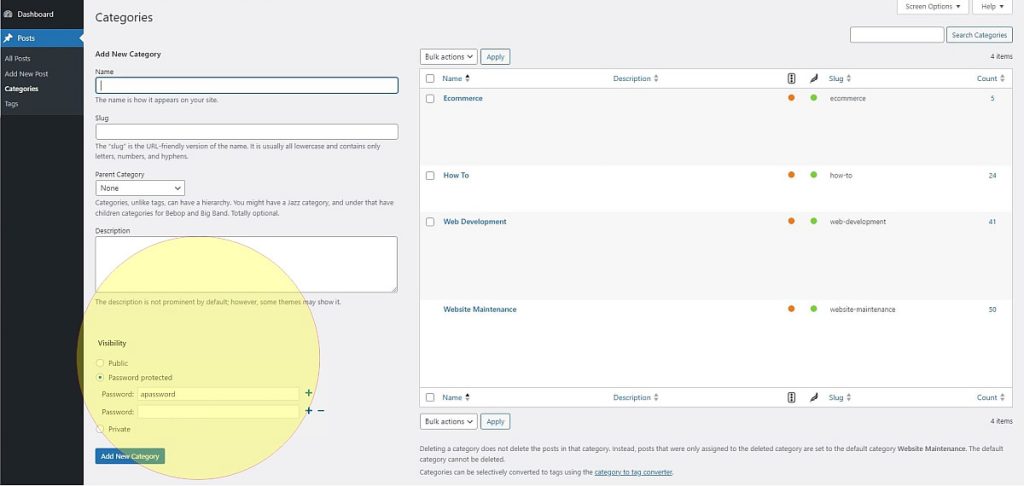

If you want to turn off password protection later, simply uncheck “Password Protected”. You can also uninstall the plugin, though that could create more work for you if you plan to turn on password protection again in the future.
Password Protected Categories is a real time saver if you need to password protect lots of similar posts. It’s much faster than individually protecting each post, and it means that new posts in the protected category are automatically password protected, saving you work.
But if you only need to protect a few posts, and you don’t see yourself needing to add more posts to that category, Password Protected Categories is pretty unwieldy.
Plus, with both built-in protection and Password Protected Categories, you can only password protect the whole page. If you only want to protect part of it, you need an alternative.
3. Passster plugin
The Passster plugin is a highly adaptable method of password protection. It offers users the ability to restrict part of any given post so that only users with the password can access the protected area.
This is useful if a blog post contains both free and premium WordPress content because it enables you to tailor access finely without locking down entire pages or leaving free users feeling alienated.
It also means you don’t have to create a separate post to ensure your exclusive content stays protected.
Here’s how to set it up:
- Install and activate the Passster plugin.

- From your WordPress dashboard, click on Passster in the sidebar, then on “Protected Areas”.
- Click “Add New”.
- This takes you to a page that looks like a regular WordPress page editor. Give the area you want to protect a memorable name, so you can identify it easily later.
- Add the content you want to protect to that area. Remember, this won’t be visible on the front end of your WordPress site until you grant access to it.
- If necessary, use a theme builder to customize your protected area, so it matches the overall design of your entire website.
- When you’re ready, publish your new protected area.
- Once you’ve published your area, navigate to the right-hand sidebar and click “Copy Shortcode”. This generates a short amount of text and numbers in square brackets and copies it to your clipboard.
- Go to the post or page where you want to add the protected area, and paste the shortcode into your chosen location.
- Click “Publish” or “Update”.


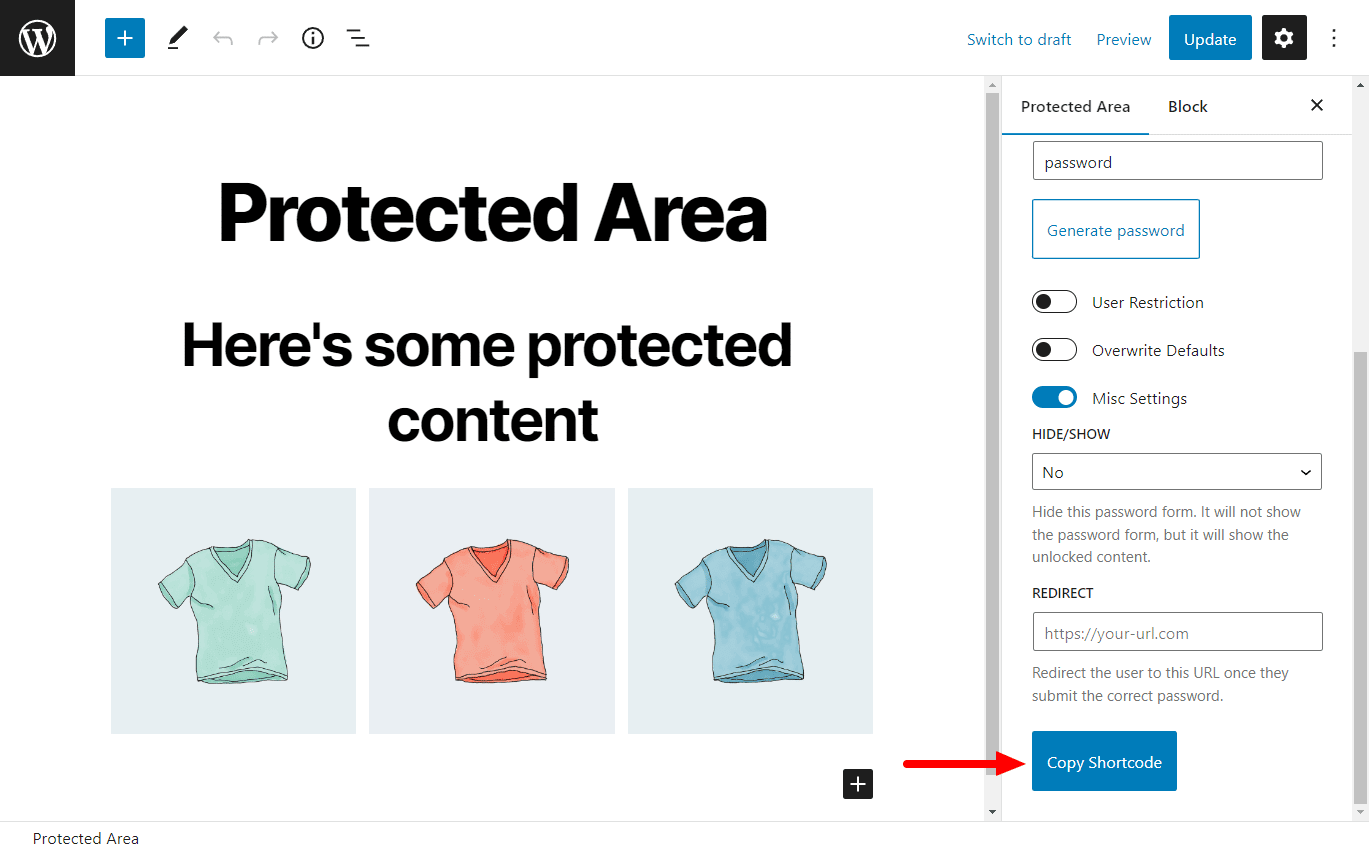
Passster offers highly granular control over what users can and can’t access on your site. However, there are only limited use cases for a solution like Passster. Most of the time, it’s simpler to offer pagewide password protection instead.
Plus, setting Passster up to your specifications is a tricky, work-intensive process. Unless you need the specific features Passster offers, it’s worth using a simpler solution.
Password Protect Your Entire Site: 2 Methods
A WordPress password protected page is one thing, but what if you need to apply password protection to your entire site?
Sitewide password protection is a great short-term measure in case of a data breach, a site-wide redesign, or a private demonstration of a WordPress website project to a client.
Although WordPress doesn’t offer sitewide password protection natively, these two methods offer great ways to password protect your whole site.
Try a purpose-built plugin
The WordPress Password Protect Page plugin (or PPWP) is the simplest way to protect your entire WordPress site. It’s popular, easy to use, and continually updated by its developers.
Here’s how to set it up:
- Install the WordPress Password Protect Page plugin from the repository and activate it
- From your WordPress dashboard, navigate to the Password Protected option in the sidebar
- Within the WordPress password protection plugin settings, choose a password people can use to access your site
- If you want to, you can whitelist certain types of users (such as WordPress admins) or IP addresses, so those users can access your site without a password
- You can also create a customized landing page that users will see when they access your site so they see any instructions regarding password access right away
- Lastly, you can turn on reCAPTCHA to prevent bots from trying to access your site repeatedly

It’s as simple as that!
It’s just as easy to turn off again if you need to. Just uncheck the “Enabled” box in the plugin settings, and anyone will be able to access your site again.
PPWP comes with plenty of helpful features, including insight into who’s trying to access your password protected pages. It also offers customer support – not bad for a plugin!
However, as a plugin, it’s susceptible to breaking temporarily when WordPress releases new version updates. If you don’t manage your updates carefully, that could lead to security breaches for your website.
Use HTTP authentication
HTTP authentication adds an extra layer of protection before users even load your site. That makes it practical for sites that are undergoing wide-ranging maintenance, though it’s more technical than the above solutions.
Here’s how to set it up:
- Log in to your server using the command “ssh user_name@ipaddress”.
- Enter your password when prompted.
- Use the command “ls -a” to list the files on your site.
- Check for a file named “.htpasswd” and copy it. If you can’t find it, create it by executing the command “htpasswd -c .htpasswd user_name”.
- Remove the -c parameter from your .htpasswd file, and run the command as “htpasswd .htpasswd user_name”.
- You will be asked to create a password for the user “user_name”, which will be stored in the file. You will see the encrypted password if you reopen the file.
- Save and exit the file with the command “!wq”.
- From the main directory, type in the command “pwd” to get the full directory path. Copy this path, as you will need it for the next step.
- Edit the .htaccess file in the public_html folder, adding the following code:
“AuthType basic
AuthName “Protected Directory”
AuthUserFile /full_path_to/.htpasswd
Require valid-user”
Replace “full_path_to” with the full directory path from the previous step.
If you’re wondering, “How secure is a WordPress password protected page?”, HTTP authentication offers the best answer: Very. It’s all handled through code, so it’s more secure than any other method listed.
But unless you understand the code, this method is hard to implement safely. Any misplaced changes to the files in your directory could break your site, so approach it carefully.
WordPress Password Protected Page Not Working: Troubleshooting Guidance
If your WordPress password protected page isn’t working as expected, don’t panic! Use this guide instead.
Here are some common reasons why your password protect page on WordPress might not be working properly, along with what you can do about it.
| Problem | Solution |
| WordPress won’t accept the password | Choose a password with less than 20 characters |
| Some users can’t access the password protected page, even with the right password | Encourage affected users to clear their cache and cookies or try a different browser |
| The password protected page works in some browsers but not in others | Clear your cache and cookies in the browser where your password protected page doesn’t work |
| Your password protected page won’t work, and you’re using WordPress caching plugins | Stop caching your WordPress, or (if possible) set your caching plugin to exclude password protected pages |
| Your password protected page won’t work, and you’re using an external template for pages | Stop using your external template, or (if you have the skills) customize your template to work with password protected pages |
Best Way To Secure WordPress Sites: Hire Professional WordPress Maintenance
If all these options and potential issues have your head spinning, you’re not alone. Handling the day-to-day tasks involved with keeping your site secure is tricky – especially when you have a thousand and one other things to do.
That’s doubly true when you consider that password protection is just one part of proper WordPress site security. You can’t ignore tasks like updates, bug reports, and backups that help keep your site healthy (and drive revenue to your business).
That’s why WordPress site owners everywhere are hiring WordPress maintenance providers to handle the secure, efficient running of their sites.
A team of expert WordPress site maintainers can help you:
- Resolve site errors and troubleshoot problems
- Update your site with new content
- Create regular backups
- Handle updates to your site, plugins, and themes
- Manage WordPress security – including sitewide protection with secure passwords
All of those routine tasks cost you time, money, and peace of mind. By hiring WordPress maintenance providers, you save on all three.
StateWP offers comprehensive WordPress site support through one simple program – Proto, a one-stop WordPress dashboard where you can manage help requests, see in-depth site analytics, and more. From security to SEO, we can handle anything.
We also offer 24-hour uptime monitoring, and we always answer your questions or concerns within a day. There’s no need to hang around on the phone or wait for an email back. Just log your query through Proto, and we’ll respond as soon as possible.
Whatever aspect of site security you’re concerned about, we’re ready to help you tackle it without the headaches that come with finding and maintaining a solution on your own.
Make Your Password Protected Page on WordPress Painless with StateWP
It’s crucial to make sure that your customers have the right level of access to your content. Too many restrictions, and you risk alienating them and losing their business; too few, and they might stumble across something not intended for them.
But with a maintenance provider, you’ll never need to worry about your WordPress password protect page needs again. With experts on hand 24/7, all you have to do is reach out, ask for password protection, and watch it appear.
Learn about other ways to boost site security on our blog – or for perfect peace of mind right away, get in touch with StateWP today.
WordPress Password Protect Page FAQs
Still have questions in need of answers? Read on to learn the answers to the most common queries about WordPress password protect pages.
Can you password protect a WordPress page?
Yes, you can password protect WordPress pages via the following methods:
- WordPress’s built-in password protection
- A plugin like Password Protected Categories that protects many posts at once
- \\A plugin like Passster that protects certain areas of your posts
Choose your preferred method depending on how many pages you want to protect, and whether you want to have both protected and unprotected content on the same page.
How do I lock a page on WordPress?
The easiest way to lock a single page on WordPress is to use the built-in WordPress password protection functionality. Go to edit the post you want to lock, then under its Visibility settings, turn on password protection, and input your chosen password.
Learn how to do this step by step here.
How to make a page private in WordPress?
It’s easy to make a page private in WordPress. Go to edit the post you want to make private, then find its Visibility settings. Change its visibility from “Public” to “Private”, and nobody will be able to see that page. You can also turn on password protection for that page if you still want certain people to be able to view it.
Why won’t my password protected page work on WordPress?
WordPress password protection may not work for a variety of reasons, including:
- Your password isn’t allowed by WordPress
- Your browser cache and cookies need to be cleared
- Your external plugins or templates aren’t compatible with password protected pages
Check out our quick and easy troubleshooting guide to learn how to tackle these problems.