
With WordPress giving you zero details on how to stop these errors, it’s easy to get frustrated!
But don’t worry. It’s simple even for beginners to fix WordPress update failed and publishing failed errors, and we show you how below.
Or, if you’d prefer an expert to fix the problem for you, jump ahead and contact StateWP.
What Is the WordPress Update Failed Error?
The WordPress update failed error appears when you try to update posts or pages through your dashboard, but there’s a communication problem. You might see this message appear:

This error prevents you from changing your content until you find out what’s blocking communication. Problems with your server, WordPress plugins, and API connectivity are usually to blame.
What Is the WordPress Publishing Failed Error?
This error occurs when an internal communication problem stops you from publishing posts and pages in WordPress. It looks slightly different, but it’s the same as the updating failed WordPress error above:
Both errors are treatable with the same fixes!
The Causes of WordPress Updating Failed and Publishing Failed Errors
There are a few reasons why your content update failed in WordPress or why you can’t publish. Let’s run through the most common causes of the WordPress update failed error.
| Potential cause | What this means |
| REST API issues | REST API helps WordPress elements communicate with each other – if it’s restricted, your site can’t update or push new content |
| Server errors | Low server memory, slow responses, or downtime can temporarily prevent updates and publication |
| Plugin and theme conflicts | Older WordPress plugins and themes can cause WordPress functionality or compatibility errors |
| Custom coding errors | Poor coding confuses WordPress and causes miscommunication, producing these errors |
| Security and firewall problems | Your firewall or security plugins might have strict rules preventing you from updating and refreshing your site’s content |
| Internet connectivity issues | Your internet connection simply might not be stable enough to push content |
6 Steps For Fixing the WordPress Update Failed and Publishing Failed Errors
Before starting, back up your site so you have a save point to reload in case you make a mistake or need help. You could also activate automated backups in case there are any future problems.
WordPress update failure errors are relatively easy to diagnose and fix. However, if you don’t have time, don’t feel confident fixing the issue step-by-step yourself, or would prefer expert help, you can contact StateWP for assistance.
How to fix the WordPress update failure / publishing failure error
| Step | In brief |
| 1. Try basic troubleshooting | Make sure your internet connection is stable, disconnect from any VPNs, and check your WordPress URLs are correct |
| 2. Use the Site Health Tool to check your REST API status | Use “Tools” and “Site Health” in WordPress to look up errors |
| 3. Re-enable your REST API status | Boost your PHP memory limit using FileZilla, check your firewall settings, ensure your plugins and themes don’t conflict, re-save permalinks settings, and undo custom code |
| 4. Enable WP debugging mode and review your PHP error logs | Add code to wp-config.php to create the debug log, and check it for information on the errors |
| 5. Try the Classic Editor for WP as a temporary workaround | Install the Classic Editor plugin and switch to classic mode when you edit and publish posts – but aim to switch back to the block editor after the problem’s resolved |
| 6. Reach out to a WordPress expert for a solution | Contact your hosting provider and/or a StateWP expert to resolve the error for you |
1. Try basic troubleshooting
Poor connectivity can prevent you from updating and publishing, so make sure your internet connection is stable when changing your content.
If you’re using a VPN, try disconnecting from it to see if things change.
Beyond this, try the following:
- Clear your cache (both on your browser and on your website if you have a caching plugin like WPRocket)
- Fix incorrect URLs within WordPress that can also cause updating and publishing problems.
To check and fix them, head to “Settings” and “General” in WordPress:
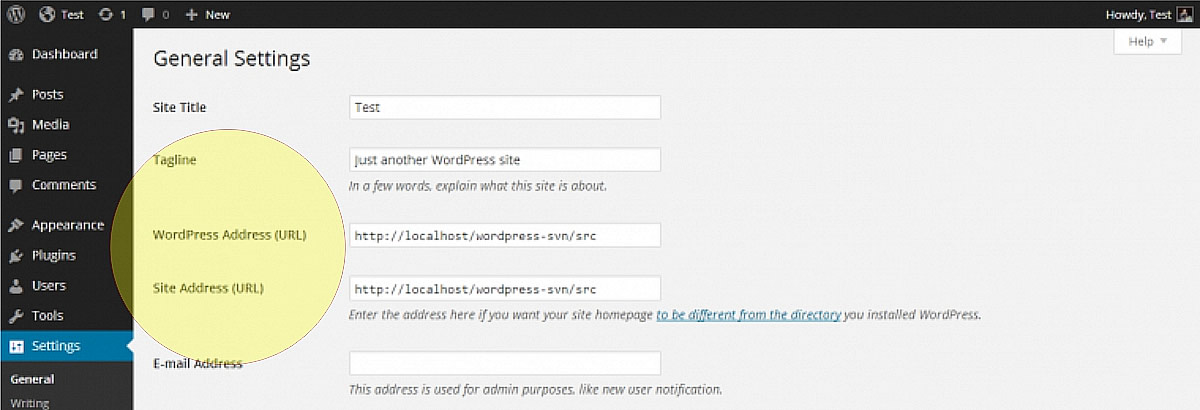
Make sure the addresses listed here reflect your live site URL You should generally have the same address in both boxes.
Now, try updating or publishing content again. If there’s still an error, read on.
2. Use the Site Health Tool to check your REST API status
Your WordPress REST API helps your site and its database to communicate. You can’t update or publish content properly without it!
So, use the Site Health Tool within WordPress to check if the REST API is blocked or faulty. Head to “Tools” and “Site Health” in the dashboard.
On the tool page, WordPress tells you if there are any errors or faults with your REST API. For example, you might see this error message:

The tool tells you more about your site’s status and recommends potential fixes, too. We cover how to bring REST API back to health in the next step.
However, if the tool suggests there are no problems with the REST API, skip to step four for further diagnosis.
3. Re-enable your REST API status
The Site Health Tool usually tells you what’s blocking REST API and causing unexpected results. It also advises you on the steps to re-enable it.
However, just to be safe, here’s a list of common WordPress checks you can try:
Increase your PHP memory limit
Your PHP memory limit determines how capable WordPress is of publishing content and processing updates. With too little memory, your site encounters errors.
Thankfully, you can increase your PHP memory limit using the file manager in cPanel or, even better, a file transfer protocol (FTP) client such as FileZilla.
However, before raising the limit, make sure your hosting provider allows you to, as some hosts have PHP memory limits.
Once you have permission to raise the limit, ask your host for FTP client login credentials and log into Filezilla.
Now, look for the root folder in the file manager, usually called public_html, and find the wp-config.php file. Right-click and save a copy to your drive as a backup in case you need to replace it.
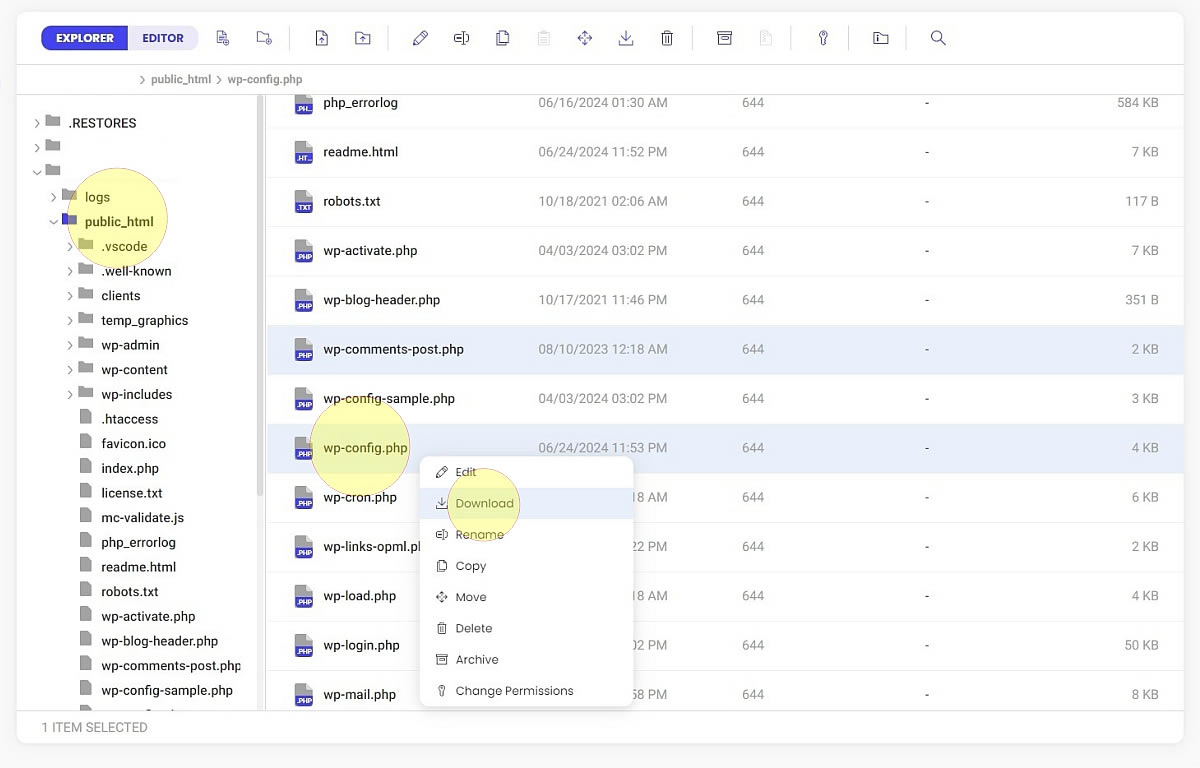
Open wp-config and look for the line starting:
| define( ‘WP_MEMORY_LIMIT |
Usually, WordPress sets a limit of 128MB. Edit “128M” to “256M” in the line, then save and close the file.
Now, check the Site Health Tool again for REST API issues and try updating your site or publishing content. If problems continue, keep reading.
Check Cloudflare
If you use Cloudflare’s firewall to protect your WordPress website, it may be blocking the REST API. To stop this, you need to view and potentially edit its firewall rule set.
A word of warning, though, that this can get pretty technical. Check out Cloudflare’s guide, or contact its customer support team for advice.
Check the local firewall
If you don’t use Cloudflare and have a different firewall installed, temporarily disable the service to check if it’s blocking the REST API.
For example, if you use Sucuri, you can temporarily disable the firewall by logging into your Sucuri dashboard, heading to firewall settings, and looking for the “Firewall Status” option.
You should see an option to deactivate your firewall. Do this, and try updating or publishing content again.
If you can update or publish content when the firewall is down, reactivate it so your website is protected again and raise the issue with your provider.
Check plugin or theme conflicts
There’s a chance that your plugins are conflicting and causing communication problems for REST API.
To check, head to “Plugins” in your WordPress dashboard and open the list of installed software. From the “Bulk Actions” dropdown menu, select “Deactivate”, then “Apply” to save changes.

This temporarily disables all your WordPress plugins. Try publishing or updating a post – if you can, a plugin update is likely at fault.
Using the “Bulk Actions” menu, reactivate your plugins. Now, deactivate the first plugin in the list using the button beneath its name.
Now, try updating or publishing content again. If the problem continues, reactivate that plugin, and deactivate the next one in the list.
Once you can publish or update successfully, you should know which plugin is causing the conflict. Keep it deactivated and look for an alternative option in WordPress.
If plugins aren’t to blame, switch your WordPress theme using the “Appearance” and “Themes” menus in your dashboard.
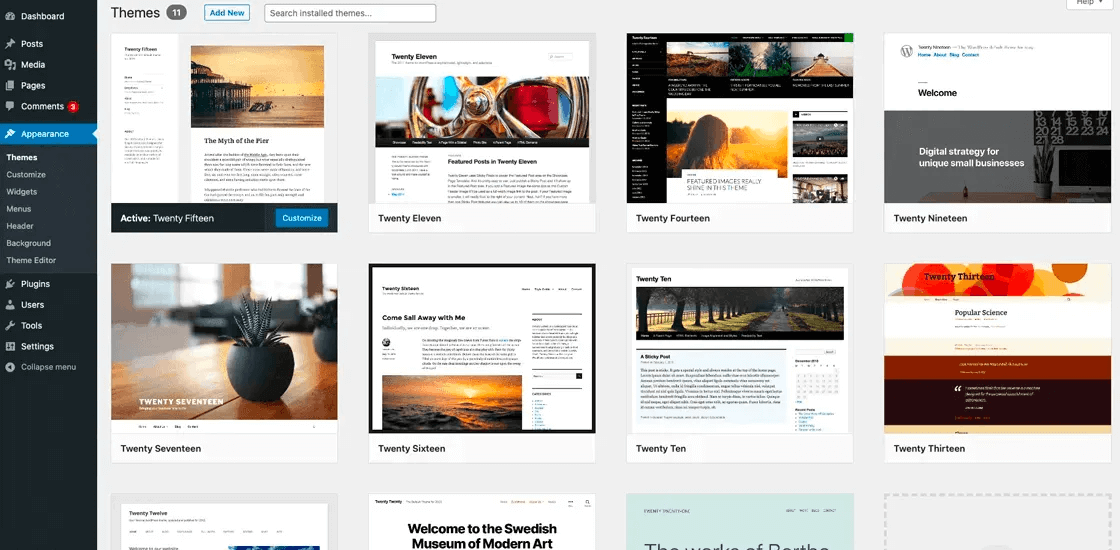
Choose a default theme from WordPress’s browser, activate it, and try updating or publishing.
If the problem’s solved, it means your theme was to blame, so you’ll have to find an alternative.
Check .htaccess
.htaccess is one of WordPress’s most important core files, and it’s possible you need to re-authenticate REST API by re-saving its settings.
Head to your WordPress dashboard and select “Settings”, then “Permalinks” to bring up this screen:
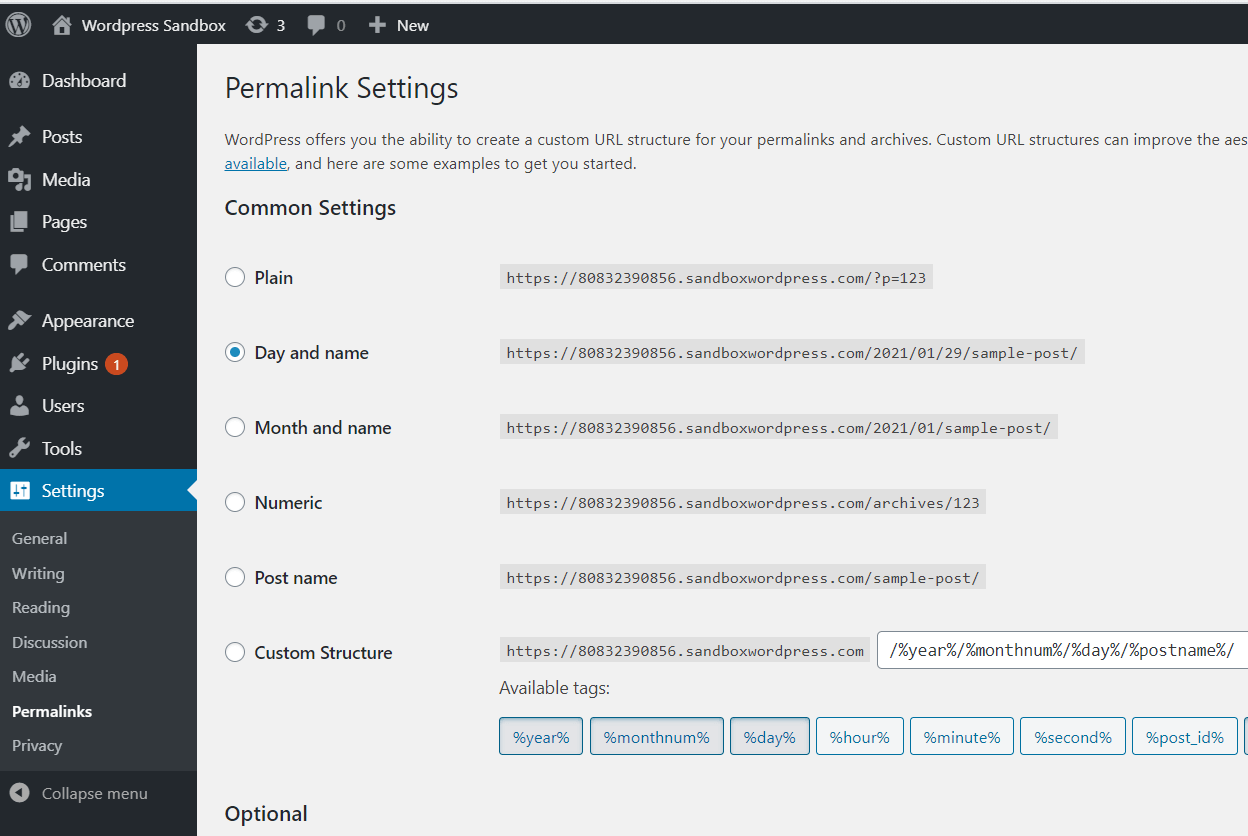
Then, scroll to the bottom of the page and click “Save Changes” to update the .htaccess file.
If your WordPress update failed error persists after this, you may need to add or edit code in .htaccess. At this point, we suggest you contact our developers for advice because we’ll be diving into the tricky world of coding next.!
Check custom code
If you recently added custom code to your website, it may have caused an error that is affecting the REST API. Where possible, delete the code you recently added and save.
Alternatively, roll back your website to a previous WordPress version with a backup through a plugin or your web host.
If rolling back doesn’t help, it’s time to debug.
4. Enable WP debugging mode and review your PHP error logs
WordPress’s debug mode and error logs give you more information about what’s causing errors.
In fact, we have a complete guide on accessing your WordPress error log, but here’s a quick rundown.
Head to FileZilla and make a copy of wp-config.php, then open the original file.
Before the final line of code that reads “/* That’s all, stop editing! Happy blogging. */”, add the following line:
| define( ‘WP_DEBUG’, true ); define( ‘WP_DEBUG_LOG’, true ); define( ‘WP_DEBUG_DISPLAY’, false ); @ini_set( ‘display_errors’, 0 ); |
Save the file and exit.
Now, try updating your site or publishing content again. This should recreate the error.
Head back to FileZilla and open the wp-content folder, then the “debug_log” file.
You should now see a list of errors combined with dates and times of when they occurred. Here’s what a typical debug log file looks like:

You can use this to narrow down what’s causing problems. For example, an error log might tell you there’s an “undefined index” in a specific WordPress core file, such as functions.php.
You can also find out which line of the code is at fault. And, if it’s a “fatal” error, it’s usually caused by a typo or poor coding.
Meanwhile, a “parse” error means the code lacks syntax or characters, such as missing semicolons.
Regardless, you can now head to the core file in FileZilla and make the necessary edits, provided you know what you’re doing! If you’re unsure how to edit code so it functions correctly, contact a WordPress developer to walk you through the process.
5. Try the Classic Editor for WP as a temporary workaround
If the publishing failed in WordPress error persists, try installing the Classic Editor plugin. This lets you revert to the traditional style of writing and editing in WordPress.
Start by installing and activating this free plugin as you usually would. Now, when you open posts to write or edit in the future, the option to “Switch to Classic Editor” appears in the block editor:

Ideally, use this as a temporary option until the error is fixed. While Classic Editor is functional, the block editor is much more intuitive, and WordPress continues to update it.
6. Reach out to a WordPress expert for a solution
If you are unsure about making changes to your site or simply don’t have time, you can always seek help from an expert.
To start with, consider asking your web host for help – for example, with backups and firewalls. WordPress support forums are also an excellent avenue for guidance.
Beyond this, the experts at StateWP are always on hand to help you start updating and publishing content again.
When registered as a partner with StateWP, you can access our unique user dashboard, Proto, to keep tabs on your site’s health and settings at a glance.
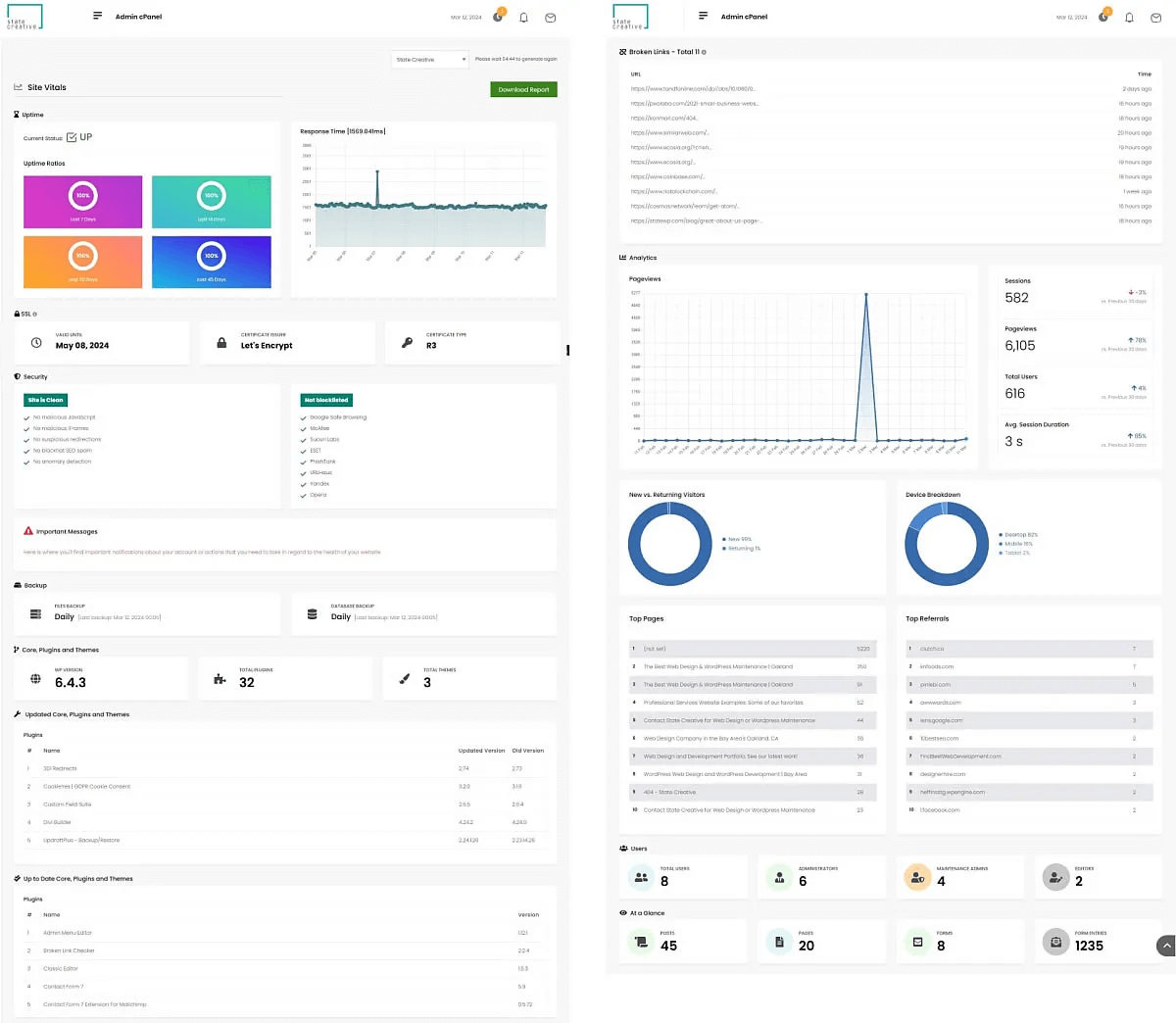
More specifically, Proto is immensely helpful when you experience annoying errors and just need to get some expert advice.
Simply raise a “Service Request” with our team for a diagnosis (and usually a fix) within a day.
Whether you already tried the steps above or prefer expert advice, StateWP is always on your side. Contact us to learn more.
WordPress update failed? Get fixed and back up to speed
Without the ability to update and publish WordPress posts, your site’s going nowhere fast. If you’re getting the WordPress update failed or publishing failed error, it’s time to fix up your site.
Thankfully, fixing these errors is quick and easy, usually with some behind-the-scenes tweaks.
However, if you need help solving this content problem or don’t have the time to fix it yourself, you can always call a StateWP expert to patch things up. We’re on your side whenever you need us with 24/7 WordPress support.
And, once the fault’s fixed, you can read more about WordPress content editing with our guide to how to add pages.