
Unfortunately, WordPress is infamous for developing all kinds of errors and bugs. A WordPress fatal error, in particular, could take your site offline or stop you from logging in!
The longer you leave fatal errors to fester, the more time and potential customers you lose.
Below, we explore ten simple ways for troubleshooting WordPress fatal errors, and step-by-step tutorials for resolving them – and if you need help, the StateWP team has got your back.
What Is the WordPress Fatal Error?
A WordPress fatal error happens when there’s a problem with your website’s PHP script. Essentially, an internal problem is causing your scripting language to crash.
There are multiple errors that can cause different fatal problems. There’s no single definition of a “fatal” error – some can stop you logging in, while some can take your WordPress site offline entirely.
They can produce messages such as these:

Or, they can occur without any kind of warning or explanation, such as with the White Screen of Death:
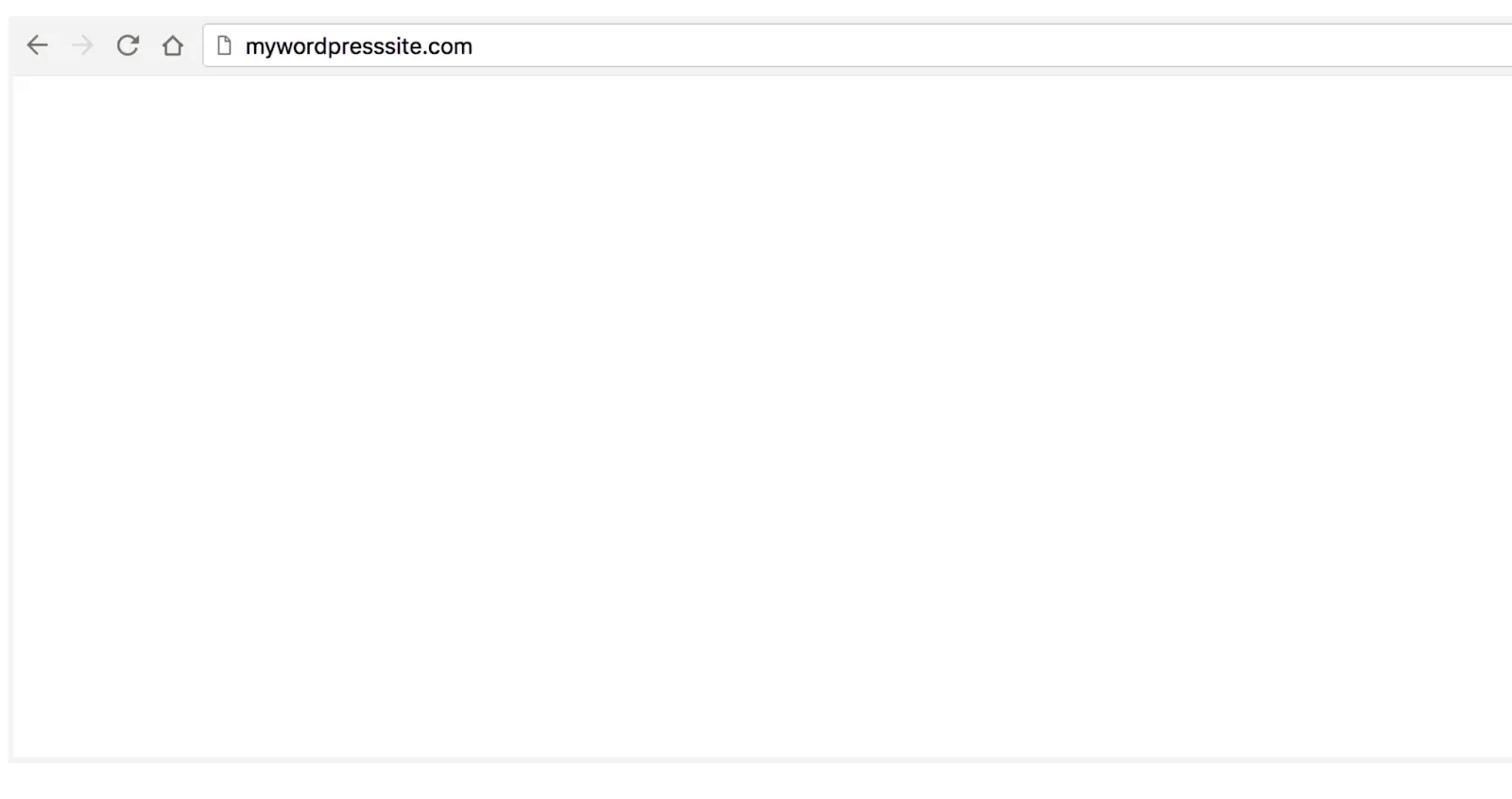
Ultimately, a fatal WordPress error is something you want to fix ASAP, as it prevents potential customers from interacting with your website.
Because fatal errors come in all shapes and sizes, the way you fix them varies, too. That’s where this guide can help!
What Errors Can Trigger a WordPress Fatal Error?
Some of the most common problems that cause a critical error on WordPress are:
- 500 Internal Server Error: When your server wants to give you access to your website, but something unexpected is stopping it
- Error Establishing a Database Connection: When your website can’t communicate properly with your WordPress database
- White Screen of Death: When an internal fault or conflict causes your site to display a blank page
- Memory Exhausted Error: When your website has exceeded PHP memory limits set by core files and/or your web hosting provider
- 403 Forbidden Error: When misconfigurations, infections, permission problems, or corruptions stop people from accessing your site
- 404 Not Found: When certain pages on your site no longer display, sometimes because they no longer link up or exist or because of internal conflicts
- Image Uploading Error: When cache, plugin, or memory limit issues stop you from uploading images and other media
Below, we take you through some general ways to fix WordPress fatal errors in sequence.
10 Proven Ways To Fix a Fatal Error in WordPress
We’ve arranged the following WordPress fatal error fixes from easiest and most convenient to most technical and time-consuming.
Before you start, however, back up your website! You can do so through your host or a free plugin like UpdraftPlus.
We suggest you set up automated backups to reload an older version of your site just in case something goes wrong.
You should also download a File Transfer Protocol (FTP) client like FileZilla. This lets you log in and make changes if you can’t access your site’s cPanel (in the case of, for example, a “can’t log into WordPress” fatal error).
If you don’t feel confident running through these fixes yourself, or simply don’t have much time, StateWP’s expert developers can handle fatal errors for you.
How to fix a fatal error in WordPress: A quick summary
| How to fix the error | In summary |
| 1. Clear your website’s cache | Use the WP Fastest Cache plugin to erase old files |
| 2. Disable your plugins | Switch off all your WordPress plugins to see if the error stops, then test them individually |
| 3. Switch to a default theme | Try using a default WordPress theme in case custom code causes the problem |
| 4. Increase your PHP memory limit | Edit code in FileZilla to boost your website’s memory potential |
| 5. Increase the maximum upload file size | Use FileZilla to edit code and boost your site’s capacity |
| 6. Regenerate your .htaccess file | Resave permalinks settings or regenerate your .htaccess file in case it’s corrupted |
| 7. Check for malware or signs of hacking | Use a security plugin to scan your website and isolate potential threats |
| 8. Check error logs | Turn on debug mode via FileZilla and look for error messages |
| 9. Roll back to a previous backup | Reload your site from a save point via your hosting provider or a plugin |
| 10. Contact an expert | Save time and effort by asking a StateWP pro to handle the error for you |
1. Clear your website’s cache
Temporary data stored in your WP cache may be outdated, slowing down your site and causing many common WordPress errors, including fatal errors.
Luckily, you can delete unwanted WordPress files by installing a free plugin like WP Fastest Cache.
Once installed, refresh your WordPress dashboard and look for “WP Fastest Cache” in the sidebar.
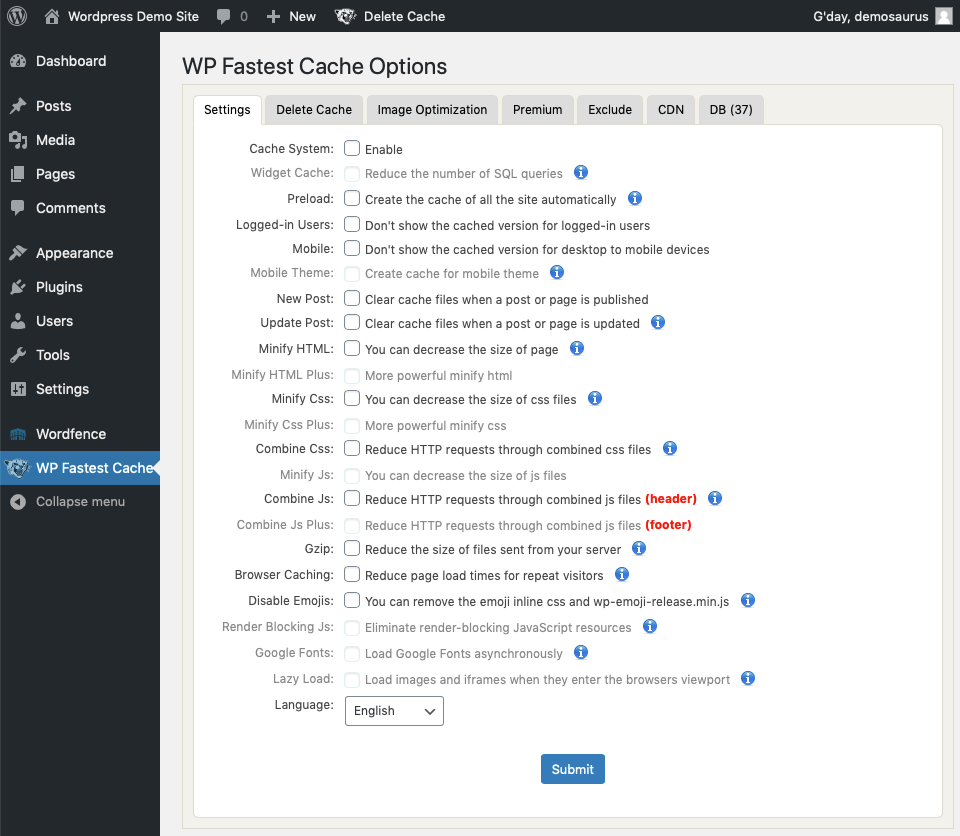
From here, select “Delete Cache” and “Clear All Cache” on the next page. Refresh your website to see if the problems persist.
If you don’t have access to WordPress for this process, log into your site via FileZilla with details from your host.
Head to your root folder, usually called “public_html”, and open “wp-content” – you should see another folder called “Cache”:
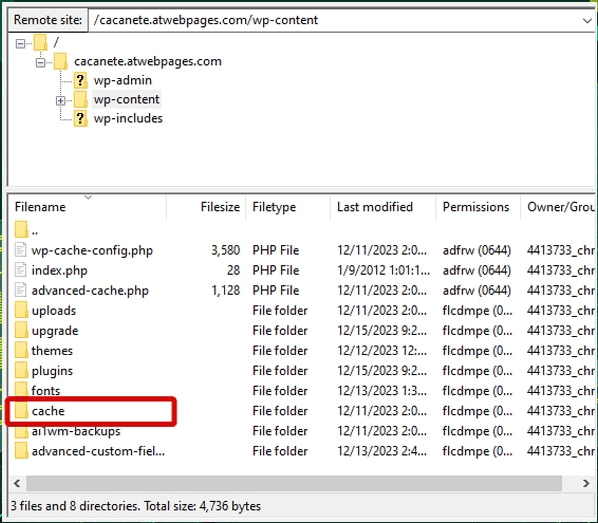
Open the folder and delete all the files within it, then try your website again.
2. Disable your plugins
Plugin conflicts can cause a variety of common WordPress issues. So, it’s time to see if any software is at fault.
In WordPress, head to “Plugins” and select “Active” to filter your list.

Now, use the “Bulk actions” dropdown box and select “Deactivate”:

Click “Apply” and refresh your website. If you’re still experiencing the error, that means it’s not a plugin issue, so you can reactivate your plugins and move to step three.
If the issue is fixed, though, reactivate your plugins again and deactivate them individually. You do this by clicking “Deactivate” underneath a plugin and then refreshing your website. If there’s no change, go back and reactivate it. Follow this process for every plugin in the list to isolate the problem plugin.
If you’re using FileZilla, head to wp-content and look for the plugins folder:
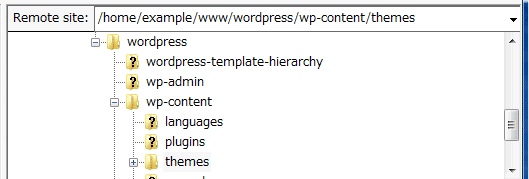
Deactivate all your plugins by temporarily renaming the folder. Then, refresh your website. Again, if the problem remains, move to step three.
If the error’s gone, rename the folder back to “plugins”. Open it, and start renaming each plugin in the folder individually, refreshing the site until you find the rogue plugin.
3. Switch to a default theme
Some custom themes can cause conflicts that result in scripting errors. So, for this step, you need to move to a default theme.
In WordPress, select “Appearance” and “Themes”:
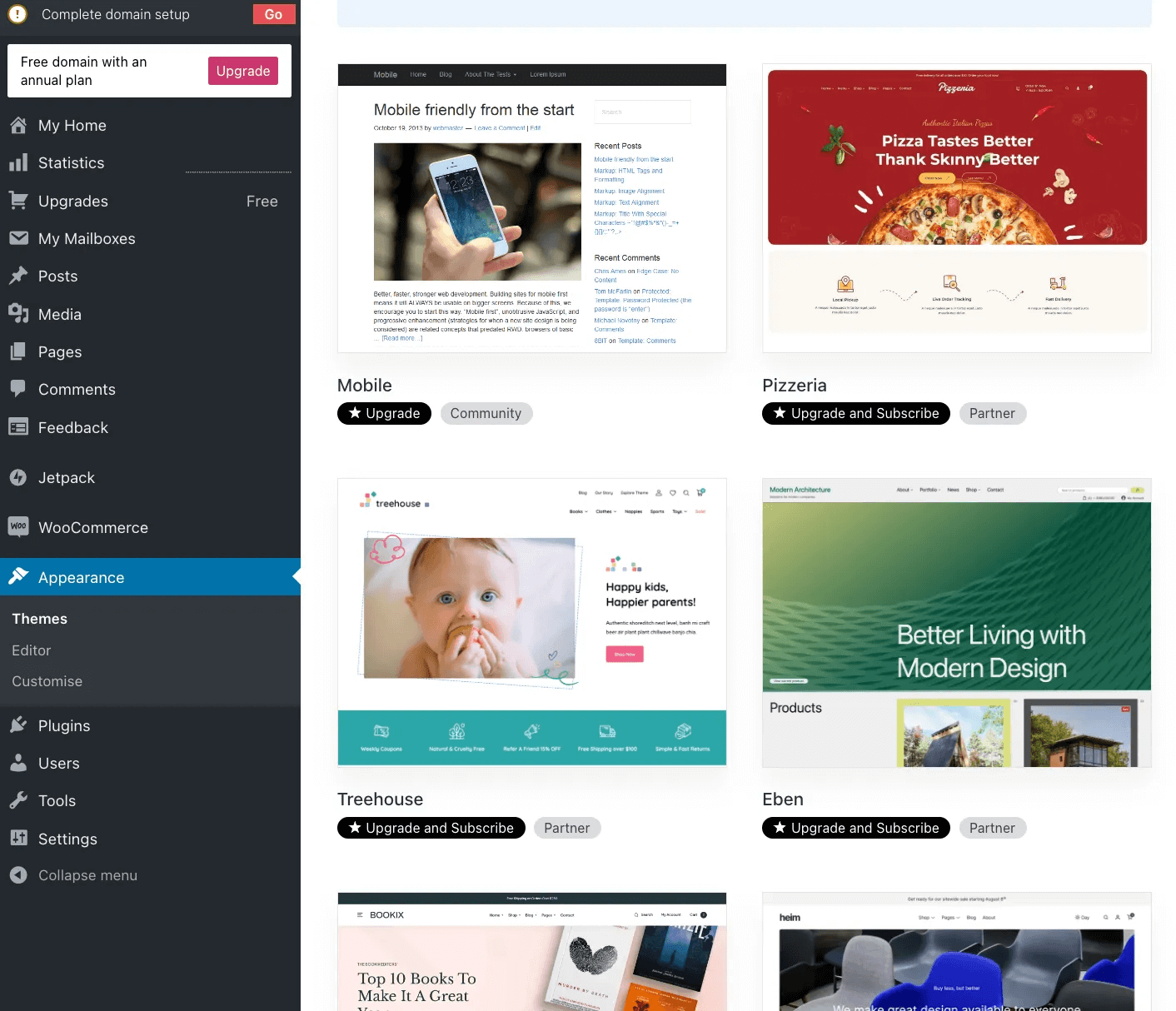
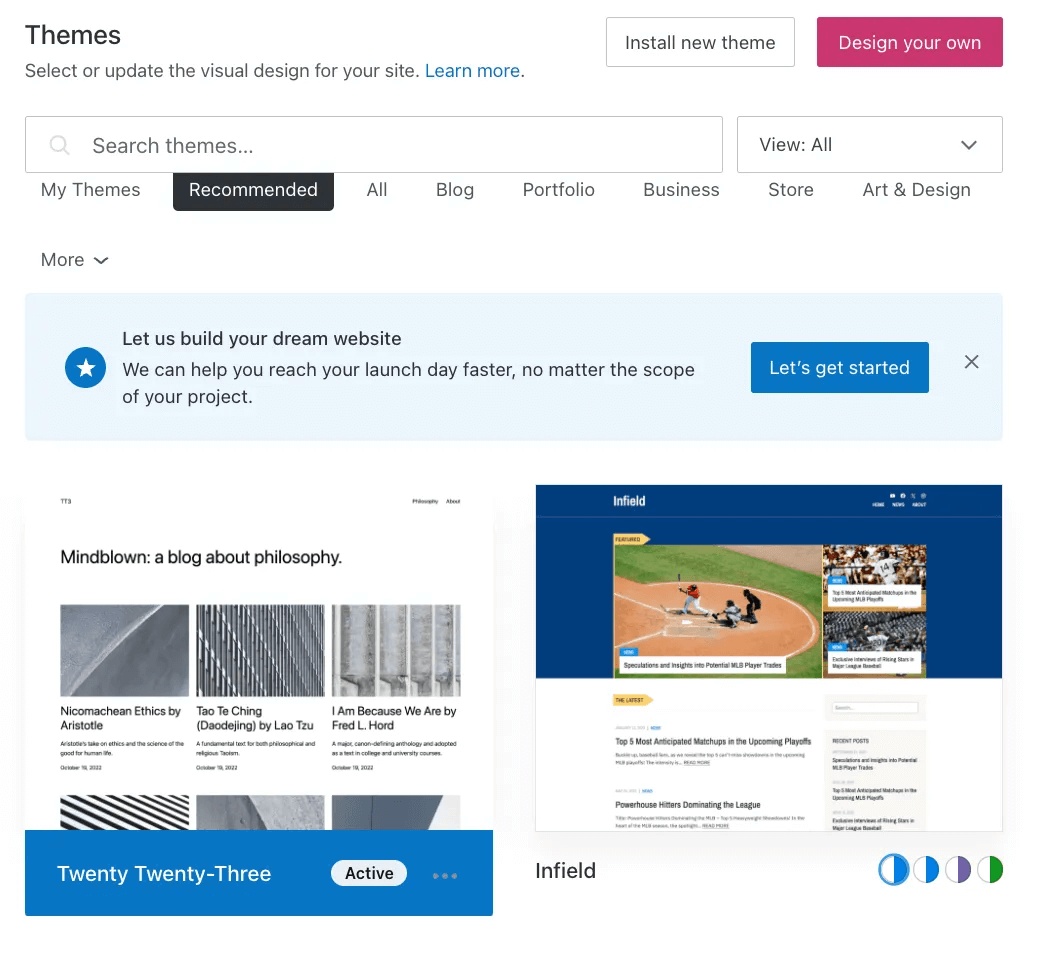
Now, look for a default theme. We suggest “Twenty-Twenty Three”, so open it, activate it, and refresh your site.
If you’re using an FTP client, head to wp-content, “Themes”, and then rename your active theme folder. Refresh your site, and if it’s back up, you know your original theme was at fault. Head to WordPress and choose a different theme.
4. Increase your PHP memory limit
Most web hosts set PHP memory size limits, and exceeding them can cause fatal errors. Before you attempt this step, check that your web host allows you to do so, as some do not.
Head to FileZilla and open public_html, then find the wp-config.php file:

Right-click the file and save a backup to your drive. Now, open the file in your root folder.
In the code listed, look for a line with the phrase “define{ ‘WP_MEMORY_LIMIT’” – this should have a number next to it. For example, it might say “256”, meaning you have a limit of 256 MB.
In this case, change the number to 512. That means you should now have a PHP memory limit of 512 MB, double your previous. If your numbers are different, again, check your host’s limits and get permission before making changes.
If you can’t see the memory line in the code, copy:
define(‘WP_MEMORY_LIMIT’, ‘512M’);
Now, paste it just above this line:
/* That’s all, stop editing! Happy blogging. */
Save the file and refresh your site.
If that doesn’t work, you can edit another WordPress core file, “.htaccess”, with a similar code. Open it and add:
php_value memory_limit 512M
Save the file and refresh your site.
5. Increase the maximum upload file size
If your fatal error specifically mentions file sizes, you can change the limit to how much you can upload to WordPress.
The quickest way to increase your file upload limit is to simply speak with your web host. For example, if you use WP Engine, log into your User Portal and click the chat bubble icon.
Type “support” to speak to a human agent and explain your concerns. Your host may be able to increase your limit.
Other methods of increasing your limit can be lengthy and sometimes risky – we recommend speaking to our devs for help.
6. Generate a new .htaccess file
A corrupted .htaccess file may be causing fatal errors. In this case, you need to generate a new one.
In the WordPress control panel, head to “Settings” and “Permalinks” to bring up this page:
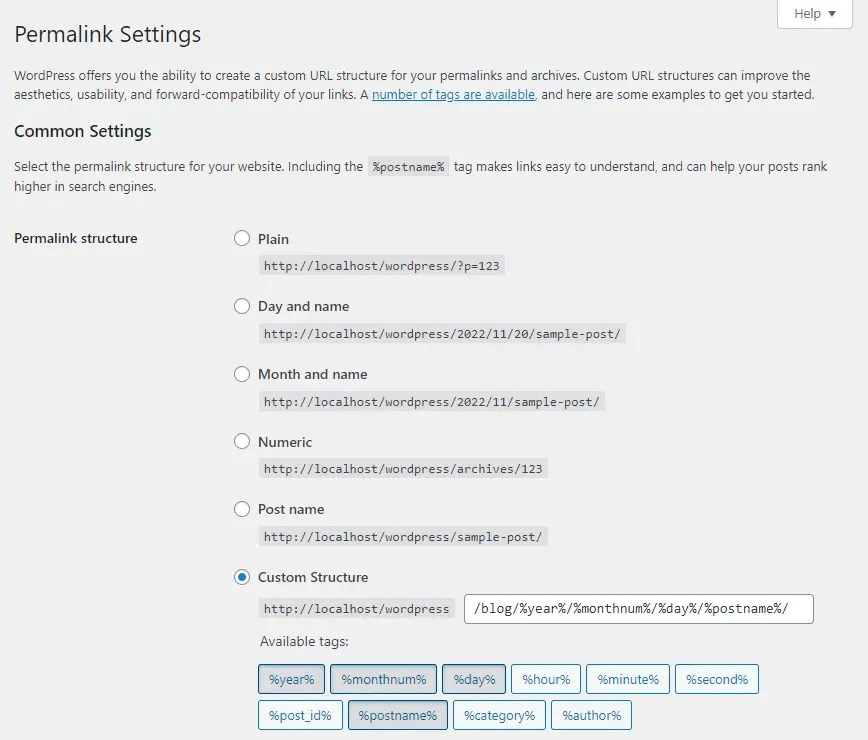
In the Permalinks page, scroll to the bottom and click “Save Changes” – this refreshes your .htaccess file.
If you’re using FileZilla, find .htaccess and save a copy. Rename the file that’s in your root folder.
To create a new .htaccess file, right-click inside the root folder and select “Create new file”:
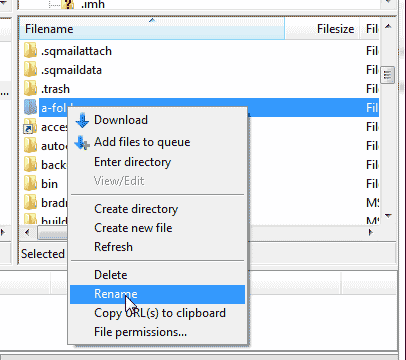
Rename this “.htaccess” and then OK it. Open to edit it, and paste this code:
# BEGIN WordPress
RewriteEngine On
RewriteBase /
RewriteRule ^index.php$ – [L]
RewriteCond %{REQUEST_FILENAME} !-f
RewriteCond %{REQUEST_FILENAME} !-d
RewriteRule . /index.php [L]
# END WordPress
Save the file and upload it to the server in FTP, then refresh your site.
7. Check for malware or signs of hacking
Your site could be infected or hacked without you even knowing it!
We run through how to check for malware and repair your site with our complete WordPress malware removal guide.
For now, however, here’s a quick summary:
- Back up your files and database
- Use a malware scanner such as Sucuri to check if your site’s safe
- Use a malware removal plugin to isolate and delete rogue files
- Delete files in your root folder
- Redownload and reinstall WordPress
- Resave permalinks settings and reinstall any themes or plugins
- Reupload your media
8. Check error logs
WordPress’s error logs can give you more insight into why fatal problems occur, though you need to turn on WordPress’s debug mode through FTP to access them. We have a full guide on setting up and reading error logs here.
In FileZilla, look for “wp-config.php” in your root folder. Save a copy and open the original file.
Look for “WP_DEBUG” in the list of code. If you see any phrases starting with this line, edit phrases that read “false” to “true” and then save.
If there are no WP_DEBUG lines, add the following code before the last line:
define( ‘WP_DEBUG’, true );
define( ‘WP_DEBUG_LOG’, true );
define( ‘WP_DEBUG_DISPLAY’, false );
@ini_set( ‘display_errors’, 0 );
Save the file and refresh your site. This by itself won’t have fixed the error – but reaccessing your site recreates the problem, making it appear in your error log.
Head back to FileZilla and and within the file manager, open “error_log” and you should see something like this:
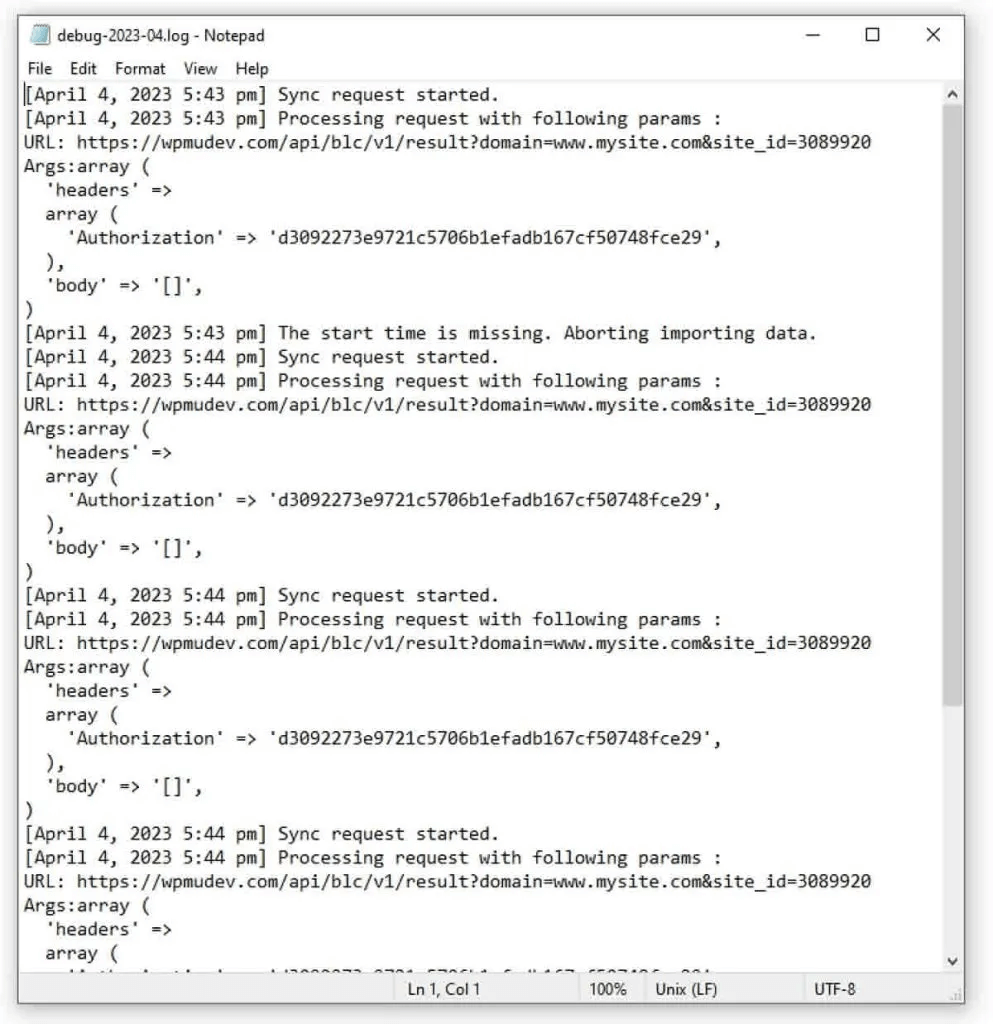
The fatal error should appear as the most recent entry. It might give you background information on what’s caused the issue, such as a PHP memory problem or a conflict over permissions.
If you’re unsure what to do here, share the information with a developer who can investigate for you.
9. Roll back to a previous backup
Rolling back can remove a problem; however, that won’t necessarily stop it from recurring.
Rolling back your site is the “nuclear” option, as it can undo new posts, pages, and any important edits you’ve made recently.
Consider rolling back using a plugin like UpdraftPlus or logging into your web host’s server.
10. Contact an expert
As you can see, diagnosing and fixing a WordPress fatal error can be long and arduous.
What’s more, if you’re unsure of what you’re doing, you could create more downtime, keeping your customers waiting.
Unfortunately, web hosts can’t diagnose and fix everything. Therefore, reach out to developers at StateWP instead!
We work with all WordPress.org sites and are experienced with common platforms like WooCommerce and Elementor.
As a partner, you can raise any WordPress errors you encounter through our dashboard, Proto.
Just raise a service request, let us know what’s going on, and we will get back to you in one calendar day.
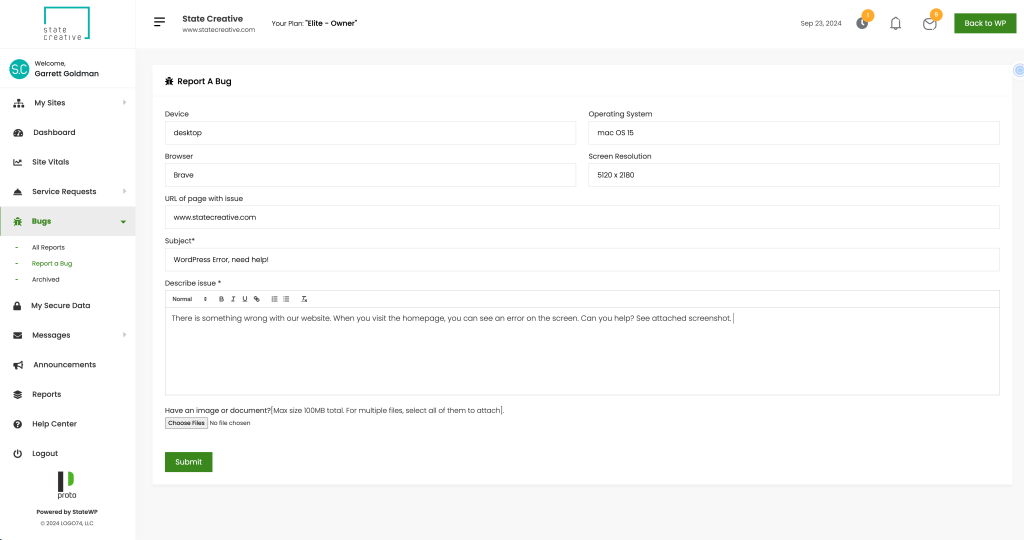
If you’re experiencing a “cannot access WordPress” fatal error, you can call us instead!
Banish that WordPress Fatal Error and Get Back on Track
Bouncing back from a WordPress fatal error isn’t as taxing as it might initially seem. However, fixing these problems still costs you time that you could spend better running your business!
Therefore, consider teaming up with StateWP. With our expert developers on standby, you can raise a fatal error and get your site back online on the same day.
While you’re here, take the time to check your website’s fitness and health with our complete WordPress maintenance checklist!