
Was it something you said?
Or, is WordPress not sending emails, period?
If so, it’s a major hitch to interacting with your readers and potential customers.
So, we’ve rounded up four common reasons for WordPress emails not sending, and how to get your mail moving in the right direction.
And, if you need help from an expert, StateWP is always on standby!
Why Is WordPress Not Sending Emails?
Your WordPress website might not be sending emails because your server is misconfigured, there’s a problem with your contact forms, or your emails are going straight into the recipient’s spam folder.
It could also simply be that you’re using incorrect email settings, which is an easy fix when you know how.
These are the four main reasons for an email not being sent from WordPress – and here’s how to address them.
Problem #1: Incorrect WordPress Email Settings
To start, always check your email settings within WordPress. Sometimes, the fix is as easy as making sure the address you entered for admin purposes is correct.
Check and fix your email settings
Head to Settings and General in your WordPress dashboard, like so:
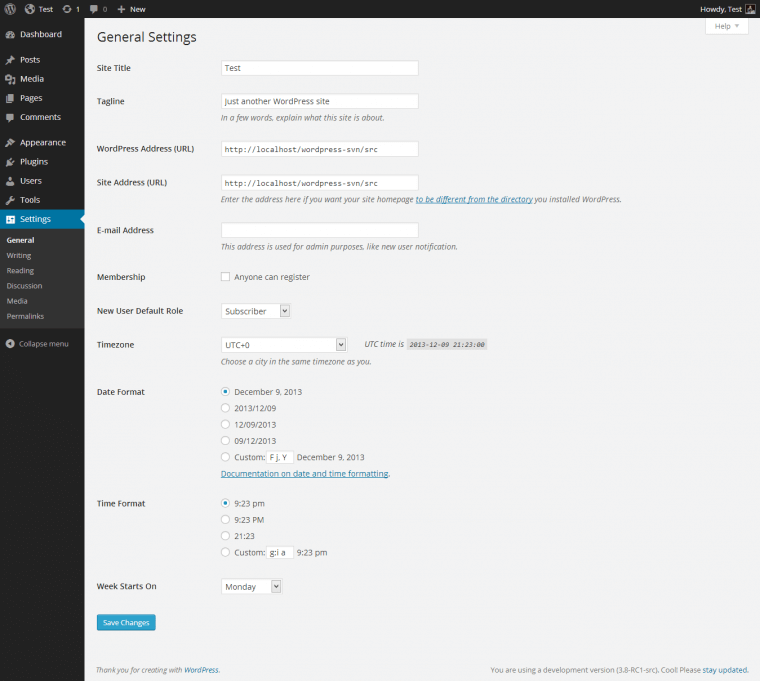
Check the email address entered in the form. If there’s no address, or it doesn’t show the email you want to send from, enter in your correct details and save the changes. Check your emails for a verification request, follow the instructions, and the new address should be live.
From now on, any emails you send should arrive with that email address as the sender, meaning recipients and spam filters should let you through.
Try adding a private email to your mailing list and sending a test message. That way, you can see if problems are likely to be related to individual settings, or if it’s a deeper issue.
Problem #2: WordPress Emails Are Going to Spam
One of the most common reasons emails aren’t getting through is that email clients are flagging you as spam.
Some WordPress users might warn you directly, or you might find that your engagement and clickthrough rates are dropping. Alternatively, you could send a test email to your own address to check they’re going through.
Here’s how to make sure you’re avoiding spam flags.
Check your email address
Some email addresses might flag as spam simply because they appear unprofessional or related to marketing activities.
For example, if you use a default address with a prefix such as “sales@” or “info@”, some inboxes might assume you’re sending junk mail.
What’s more, personal or private email providers such as Gmail or Outlook can be used by anyone and might trigger spam filters.
So, try to use a professional email address instead. If you have an official domain name for your website, use a service such as Google Workspace to create an address with your name as the prefix followed by @yourdomain.com.
Once you have a more suitable email, enter it in the General settings screen and save the changes.
Ensure your domain is authenticated to send emails
If you’re using a custom domain, you need to authenticate it fully so you can send emails from it. By authenticating your domain, any email servers you send mail to can verify that you are a legitimate sender.
The way you authenticate emails depends on where you manage your DNS, or Domain Name Server. If a domain provider or a hosting server manages your DNS, contact their support team for guidance.
If you manage your DNS through WordPress.com (not .org), you can use the “Diagnostics” section under “Upgrades”, “Domains”, and then “Diagnostics” in your dashboard to automatically fix authentication issues.
However, you can also do this manually by adding and configuring three records:
- DMARC (for larger emailing needs of more than 5,000 per day)
- DKIM
- SPF
This means navigating to “Upgrades” and “Domains”, then selecting “DN records” and “Manage” – where you need to “+ Add a record” and enter a set of specific values based on the above.
If this all sounds complex, don’t worry. WordPress’s complete guide to authentication guides you through each of these processes for all three records.
Remember, this process applies if you’re managing a domain with WordPress.com. If you use .org, ask your WordPress hosting provider for support, or contact SWP for a quick fix!
Make sure your email address is whitelisted
If the above fixes fail, you can also reach out to users and ask them to whitelist you. When recipients whitelist your email address, they ensure your mail goes to their inbox instead of spam.
It’s easy enough for people to whitelist email addresses through services such as Outlook, Yahoo, and Gmail. With the latter, it’s as simple as dragging a spam email into the inbox.
Get the word out about whitelisting your emails by:
- Sharing a message on social media (if it seems none of your emails are passing spam filters)
- Adding a message to all future emails to new subscribers, asking them to whitelist you
- Leaving a short message above the “subscribe” button on your website – warning that recipients might need to whitelist your address to receive mail properly
Problem #3: Your Server Is Misconfigured
There’s also a chance your web server isn’t sending mail properly, normally because it isn’t using a specific function, such as PHP mail( ).
In our experience, mail server faults are the most common reasons WordPress emails go unsent.
Check for email misconfiguration
Start by installing Check & Log Email and access the plugin via “Tools” and “Check & Log Email” in your WP dashboard.
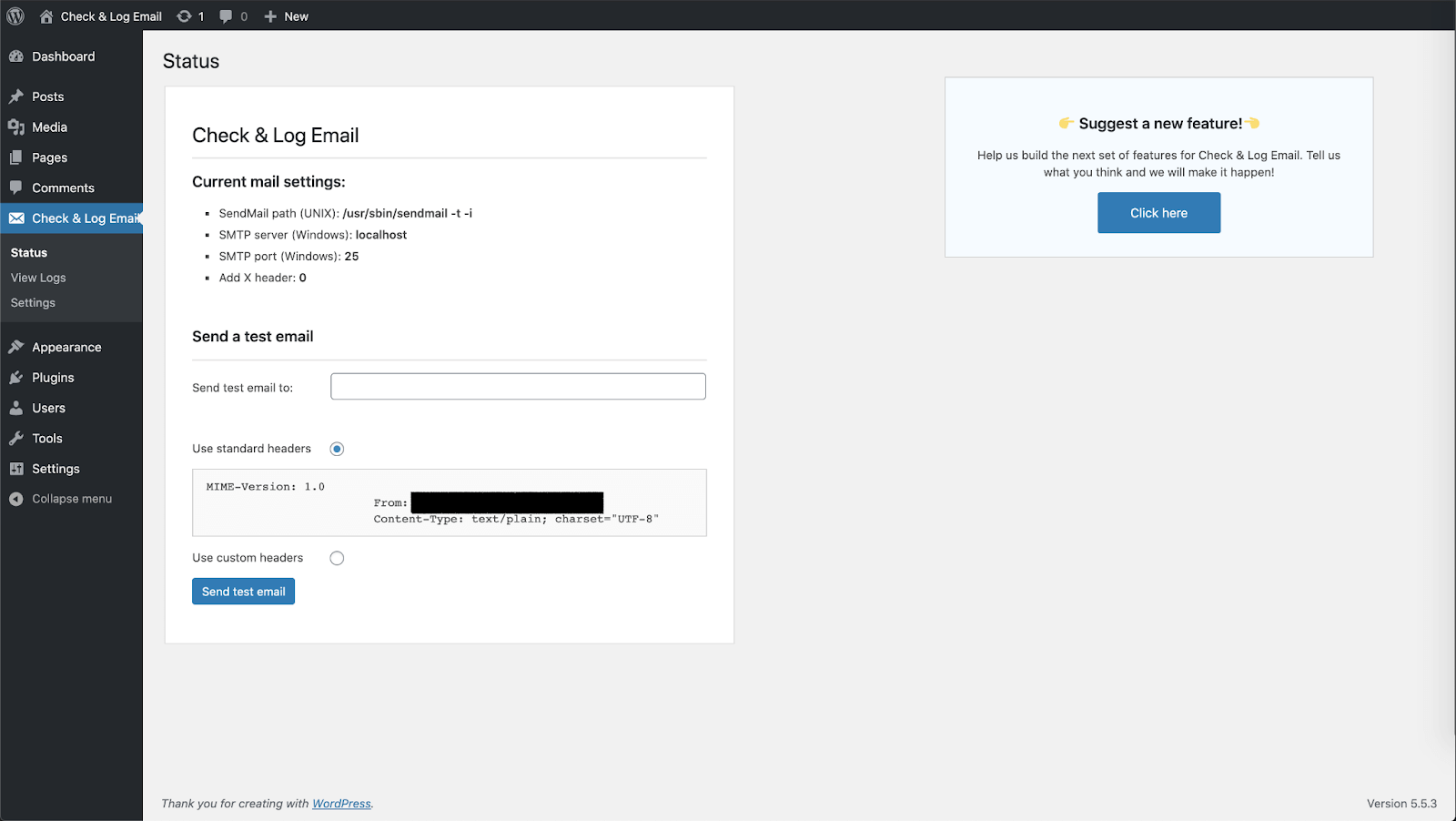
Enter an email address in the “Send test email to:” box, and then click the send button.
You should then see a confirmation message in WordPress, though this doesn’t mean the email reached the other end. So, access the inbox you sent to, and you should see a confirmation message in your inbox or spam folder.
If you don’t receive the email, you need to reconfigure your server.
Reconfigure your server
Some web hosts have their own email servers and can help you troubleshoot errors such as PHP mail( ) problems automatically. These include SiteGround, Hostinger, and Bluehost.
Others require you to use a third-party server plugin that can handle your email instead. Thankfully, setup is usually straightforward when you use a protocol such as SMTP, or the Simple Mail Transfer Protocol.
Processes vary depending on your email hosting provider and the SMTP route you take, so make sure to follow specific instructions offered by your provider.
We recommend using the WP Mail SMTP plugin for this process. It has an easy-to-use setup wizard, and supports many SMTP protocols such as:
- Gmail SMTP
- Amazon SES
- Mailgun
- SendGrid
- Brevo (formerly Sendinblue)
- Microsoft SMTP
With WP Mail SMTP, here’s a tutorial for how to set up a Gmail SMTP mailer.
Head to the plugin page, install the software, and look for “WP Mail SMTP” in your dashboard.

If you choose the premium version of the software, enter your license key to activate it.
Scroll down to “Mail” and enter the “From Email” and “From Name” you want to send from.
Then, choose “Google / Gmail” (for this example) or “Other” to select from a list of other SMTP protocols.
For Gmail, add “smtp.gmail.com” as the SMTP host, switch off TLS, switch on SSL, and add your Gmail account name and password.
Save your settings. Check this has worked by sending a test email (for example, by filling out a newsletter form). If emails still aren’t sending, move to step four if you use a form plugin – or reach out to SWP for help.
Problem #4: There’s an Issue With a Contact Form Plugin
There’s a chance that you have a WordPress contact form not sending emails properly.
For example, some plugins use “spoof” email addresses that recipient servers believe to be spammers, stopping them from getting through.
This often happens if you send emails from a different address than the one you added to the contact form plugin.
So, you need to check your WordPress plugin settings and make sure the “From:” field shows the correct email address. It’s not the only reason for a contact form not sending email from WordPress, but it’s a good launching pad for your investigation.
Reconfigure your contact form plugin
Here’s how to reconfigure the most popular contact form plugins for WordPress so you can avoid emails not sending errors.
Contact Form 7
Reconfigure Contact Form 7 by heading to “Contact” and “Contact Forms” in your dashboard.
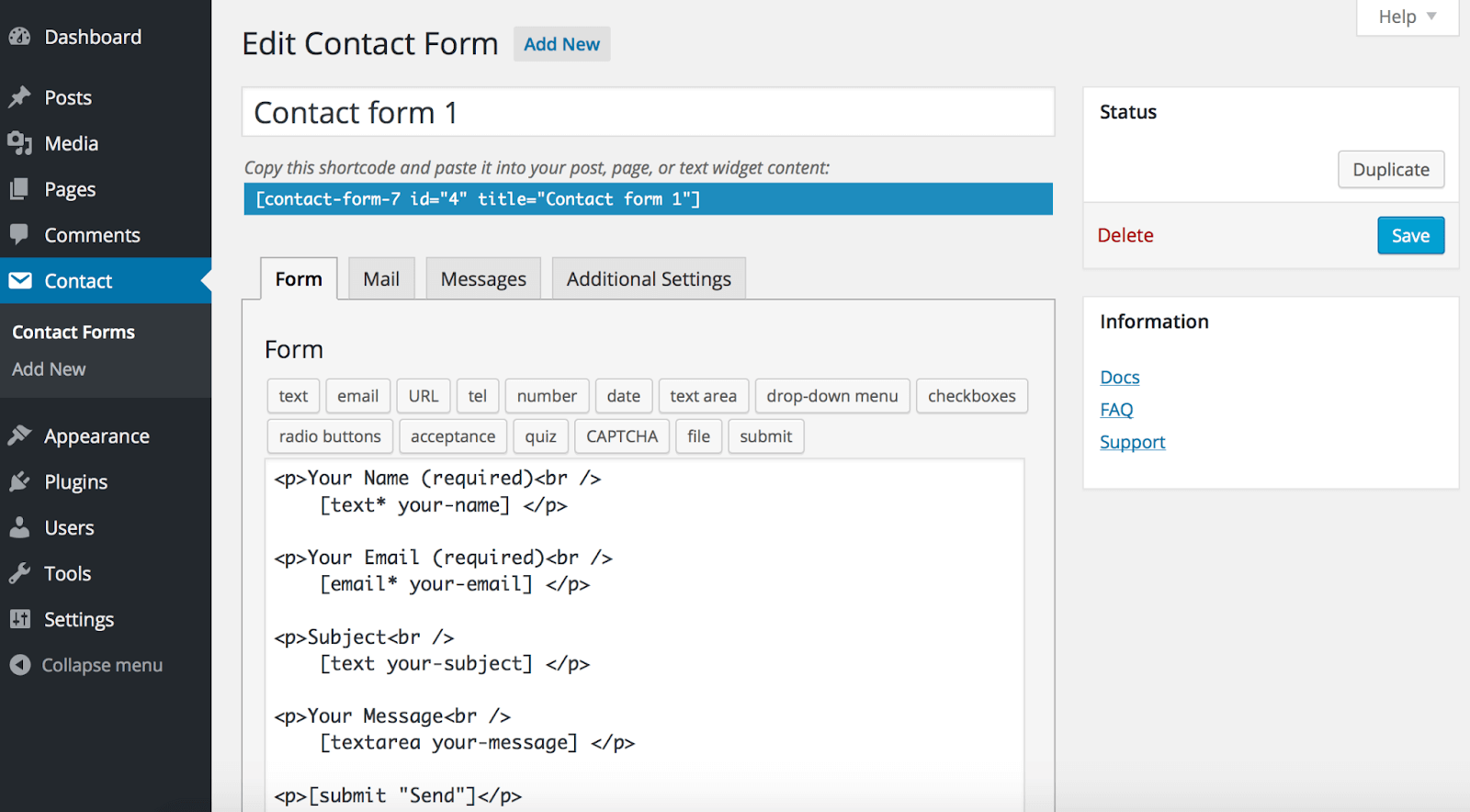
Open your form and select “Mail”, then enter your WordPress site’s admin email in the “From” field. You might find it’s pre-filled with a recipient’s email, which could be the source of your problem. Save the changes.
Now, fill out your own form with your private email account and see if the problems persist.
Gravity Forms
Gravity Forms is one of the most comprehensive contact form plugins available. So much so, it has its own email troubleshooting guide.
We recommend you check out the guide because the process is quite in-depth. But, ultimately, you need to:
- Make sure you update WordPress and your plugin
- Check your email details are free of typos and spaces
- Use a valid address and make sure “From:” and “To:” are different
- Adjust routing settings
Ninja Forms
To start, look for “Ninja Forms” in WordPress, then select “Dashboard”:
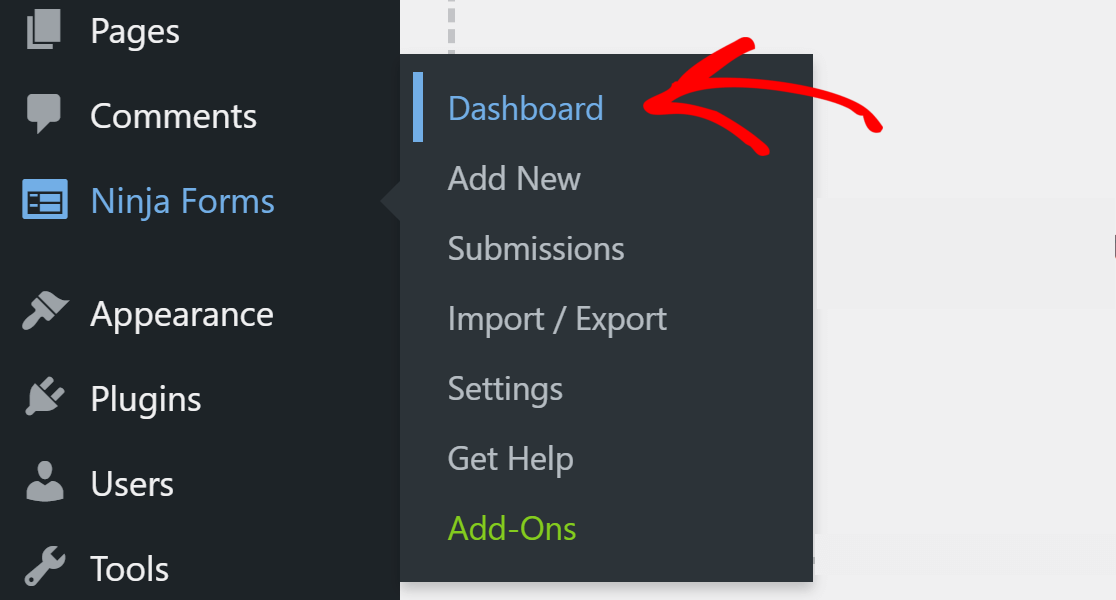
Select “Edit” on the form you want to check, and click on the cog symbol to open settings. Make sure that notifications are switched on for all four of the actions listed.
Head back to your contact forms list and click “View Submissions”. Here, check that your recipient email address is typed correctly in the “To” box:

From here, Ninja Forms advises following its own troubleshooting process. However, its walkthrough hasn’t been updated for some time – meaning we’d recommend you contact the StateWP team if you need help at this stage!
HappyForms
Editing your settings in HappyForms’ is fairly straightforward. Head to “HappyForms” and “All Forms” in your dashboard and then open “Email”. Here, you can change “To:” and “From:” addresses.
Save the changes by clicking “Update”, and your contact form should now be fixed.
weForms
If you use the premium version of weForms, you can switch off its internal SMTP settings if emails aren’t going through.
Before doing this, make sure you have an SMTP plugin installed – which we covered in step three.
Now, head to “weForms” and “Settings”, then select “General Settings”. Within this menu, select “WordPress” in the “Send Email Via” dropdown box. The form now uses the plugin’s settings instead.
Jetpack Contact Form
Jetpack is a little different from other plugins in this list mainly because there’s less room for configuration problems – and there are no “To” or “From” fields.
You can, however, edit the contact details Jetpack uses in its forms when you create one from scratch. Click on the pencil symbol and add in an appropriate email address to send to.
To change the “from” address, head back to your general WordPress settings (see step one) and change your default admin address.
Formidable Forms
Formidable Forms’ developer generally recommends adding an SMTP service to fix WordPress email deliverability issues. However, there’s another workaround.
Head to “Formidable” and “Forms” in your WordPress dashboard and choose the form you believe is at fault.
Then, select “Settings” and “Actions & Notifications”. There’s another box here reading “Email Notification” which takes you to further settings.
On the next screen, you can edit “From” and “To” emails and save the changes.
The Easiest Solution: Outsource Your WordPress Maintenance
If WordPress isn’t sending emails properly, you’re missing out on important interactions, risking revenue and reputation.
Plus, you might not even realize there’s a problem unless you’re checking your email delivery 24/7!
Rather than tear your hair out and waste time figuring out how to get transactional emails working on your own, it’s much easier to have an expert developer on standby.
StateWP is a WordPress maintenance company that helps site owners solve all kinds of technical problems. For example, issues such as email configuration and spam flags are easily fixed within a day of you raising a request.
Rather than waste time and energy trying to solve email delivery problems, you can send a service request through Proto, our WP dashboard, and get a fix within a few hours. That’s fewer business hours wasted and fewer headaches for you and your team.

Contact StateWP and find out more about becoming a partner. You can skip all four of the steps listed above!
WordPress Not Sending Emails? Get Back In Touch, Fast
As you can see, WordPress emails might be going astray for plenty of annoying reasons. Thankfully, there are at least four ways you can diagnose and potentially fix a WordPress email issue – and it’s usually just as easy as using a plugin!
However, having a team of experts like StateWP on standby is even more convenient.
If you ever notice WordPress not sending emails in the future, just make a request through Proto, and we can get you back in touch with the people who matter to your business.
While you’re here, why not take a moment to learn more about WordPress’s most common errors (and how to fix them)? We also recommend you check out our WordPress maintenance checklist to ensure your site’s as healthy as possible.
WordPress Not Sending Emails FAQs
Let’s close this guide with a few final questions and answers that might help you if WordPress is not sending emails.