
To keep your WordPress site running smoothly, it pays to update your plugins. But what if an error message stops you from downloading the latest versions?
Failed plugin updates not only affect functionality and task execution time, but they can also leave your site vulnerable to hackers exploiting your outdated software, meaning the heat is on to get back up to date!
Thankfully, there are a few update failed WordPress plugin fix methods that are easy to follow. Let’s dive in and take a look at some step-by-step tutorials (or jump ahead if you’d prefer expert help!).
Why Do WordPress Plugin Update Failures Happen?
WordPress plugin update failures usually occur because of software conflicts, incorrect permissions settings, server limitations, internal plugin problems, or internet stability.
If your WordPress plugin failed to update, you might see red error notifications underneath the affected plugins stating the update was unsuccessful. Or, you might see an update failed error that suggests you’re “unauthorized” to update your plugin. That could mean there are internal permissions issues.
Regardless, the error you see when updating a plugin might not always be so helpful in pointing out the root cause. That’s why we’ve put together a quick troubleshooting guide.
Before starting, back up your site via your WordPress hosting provider or by using a plugin like UpdraftPlus. While you’re at it, you should also set up automated backups! You never know when you might need to reload from a save point.
And remember, if you feel uncomfortable making any big changes to your website, you can always call a developer at StateWP to take the reins for you.
Let’s start with the simplest reason your WordPress plugin update failed.
Problem #1: You Have Internet Connectivity Problems
Yes, seriously. Automatic plugin updates can be unpredictable if you have an unstable internet connection.
Depending on the update size required, you might need your connection to remain stable for several minutes.
Check your connection
Always make sure you’re connected to a secure, stable network when you’re updating WordPress. For instance, public Wi-Fi is easy to hack and often isn’t efficient because people share the bandwidth.
Check your network settings (in Windows, you can find this on the right side of your taskbar). If you have a firewall, you may want to disable it and retry, as some firewalls can block the REST API used to update WordPress.
For maximum stability, we recommend you stick to your home or office broadband when trying to update WordPress plugins.
Problem #2: Your File and Directory Permissions Are Incorrect
If you see an “unauthorized” error message below a plugin that’s refusing to update, there’s a good chance WordPress’s permissions settings are incorrect.
Your permissions tell WordPress who to give access to certain features and who to block.
There are a few reasons why your site’s permissions could be incorrect. For example, you might just be getting started with a new web host, and your WordPress settings haven’t moved across correctly.
It’s one of the most common reasons why plugins fail to update properly, so even if you haven’t knowingly changed these details, always check them out.
Change permissions via FTP
You can change site permissions using an FTP client (File Transfer Protocol). It’s a program that helps you edit WordPress core files.
We recommend using either FileZilla or Cyberduck. Both are free to use and easy to get to grips with.
To change permissions settings in FileZilla, you need to enter a specific three-digit code. These codes tell WordPress who has the right to read, write, and execute file changes, such as updating plugins.
First, log into FileZilla with FTP credentials provided by your host. In your root folder, which is usually “public_html”, you should see three core folders:
- wp-admin
- wp-content
- wp-includes
Highlight all three of these folders, then right-click and select “File permissions” to open the permissions menu. Here’s what it looks like (using “public_html” permissions as an example):

Make sure your “Owner” permissions column has all three boxes for Read, Write, and Execute ticked, then enter “755” into the “Numeric value” field. This number is WordPress’s default code to grant administrators access to make site-wide changes to folders.
Tick the box reading “Recurse into subdirectories” and make sure the bullet marked “Apply to directories only” is selected.
Click “OK” and wait for FileZilla to finish setting permissions.
You now need to set permissions for your files. Select all the files in your root folder, right-click, and select File permissions again.
Here, enter “640” or “644” into the Numeric value box, tick Recurse into subdirectories, and make sure the bullet for “Apply to files only” is selected. Click OK.
Now, head back to WordPress and your plugins and try manually updating your plugin(s) again. Click “Update” underneath your chosen plugin(s).
If you still can’t update plugins successfully, there is one more trick to try that gives total access to updating the plugins. Open the wp-content folder in your root directory and look for the folder named “Upgrade” – right-click and enter the permissions screen, and this time, enter “777” in the Numeric value, then click OK.
Try to update your plugin(s) in WP again. Regardless of the outcome, head back to FileZilla and change the upgrade permissions code back to 644. Using 777 is the “emergency” option, and WordPress recommends 644 as standard for folders.
Problem #3: There Are Plugin or Theme Conflicts
Unfortunately, not all plugins and WordPress themes get along. For example, you might have installed a new plugin only for others to start crashing and fail to update.
This can occur when you install third-party or custom-coded plugins from sources outside of WordPress.
Usually, we advise you to only install plugins and themes approved by WordPress and WooCommerce simply because these receive regular updates, have strong communities, and are less likely to cause conflicts.
It’s also good practice to check the compatibility between the plugin and your WordPress version before updating – but sometimes, you don’t get a chance because automatic WordPress updates happen in the background and you need to 1) switch off auto-updates and 2) resolve the issue, instead.
Disable conflicting plugins
If it’s one or two plugins that are refusing to update, you might be able to fix the problem by deactivating them and reinstalling the latest versions.
Alternatively, plugins can sometimes get “stuck” during automated updates, meaning they need some encouragement. You can help them along by deactivating then reactivating rogue plugins in the WordPress dashboard.

If disabling and re-enabling specific plugins doesn’t work, try deactivating all your plugins at once, then reactivating them again. You can do this using “Bulk actions” in the Plugins directory.
Now, try updating your faulty plugins again. If there’s still no progress, move to the next step.
At the absolute worst, you might have to deactivate your faulty plugin(s) completely and look for an alternative. But, don’t give up hope just yet!
Problem #4: There Are Internal Limitations
There’s a chance your WordPress plugin update problem might not even be your fault. In some cases, your server might be restricting updates, or throttling how much memory your site can use.
This might be the case if you see the following:

Check you have adequate server resources
It’s rare that a lack of web host resources causes plugin update failures, but in the event they do, you should reach out and ask for advice.
We assume you’re running a site on WordPress.org, not .com for this step – because if you’re running your own server, you should follow general troubleshooting to make sure you have enough bandwidth and disk space.
Contact your web host and ask its support team about the plugin update issue. Host support teams can frequently help by removing blocks on the server side (i.e., check the host’s PHP version matches the plugin’s requirements), and can free up disk space and memory to support your updates.
Make changes to internal folders and files
If your host helps you as far as they can and you still can’t update your plugin(s) without seeing an error, it’s time to start making some internal changes within FileZilla.
The following steps can get a little technical and risky, so make sure you have a site backup saved. If you don’t feel comfortable continuing or would prefer a developer to fix the problem for you, skip ahead and contact us.
1. Manually reinstall your plugin
Head to the installation page for your chosen plugin and click “Download” to save a .zip file (this only applies if you’re using WordPress.org). Save the file somewhere convenient, and head back to FileZilla.
Open wp-content and the Plugins folder, then delete the plugin(s) that won’t update.
Unzip your downloaded plugin and transfer it to the Plugins folder. Check WordPress once FileZilla finishes processing to see if the latest version is installed in your plugins list.
2. Manually install your plugin in a different folder
Sometimes, saving a new version of your plugin in the “mu-plugins” folder can solve the update error.
As above, download a .zip file containing your plugin and head to FileZilla. Look for mu-plugins in the wp-config directory, and transfer the file across. Check WordPress again to see if the update’s worked.
3. Edit wp-config.php
wp-config.php is an important core file that helps to configure your WordPress website. You can slightly edit the code in this file to help push the plugin update process.
This is especially worth trying if you get the message “download failed” or an equivalent.
Find the wp-config.php file in cPanel or your file manager:
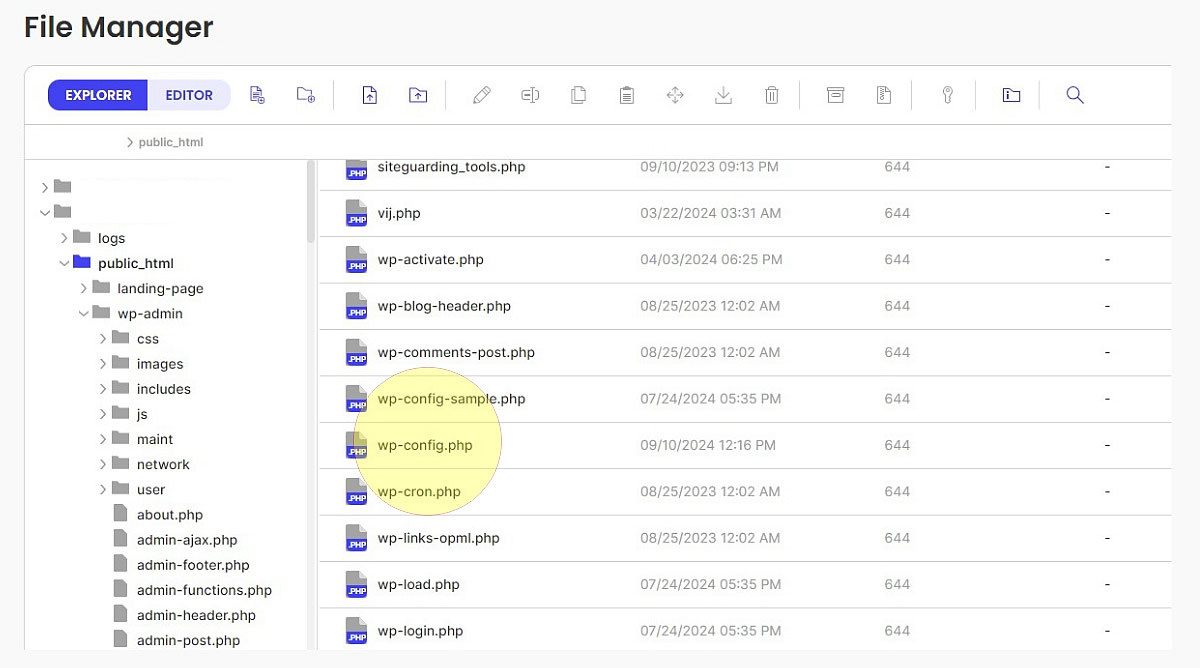
Drag the file across to a local folder on your device so you have a backup copy. Now, open the original wp-config.php file. You should see a list of code.
Within this list, look for the following lines:
|
*@package WordPress */ //**MySQL settings – You can get this info from your web host**// /**The name of the database for WordPress*/ define(‘DB_NAME’, ‘demo_wpdt’); |
Below the */, you need to place a new line of code:
| define(‘WP_TEMP_DIR’, ABSPATH . ‘wp-content/’); |
Now, save the file and check to see if your plugin’s updated.
4. Access the error log
WordPress’s debugging feature lets you produce an error log, which gives you a little more detail on what might be causing problems behind the scenes. You can then use these details to narrow down what’s causing faults.
We have a complete guide on how to activate and manage WordPress error logs, but here’s a quick runthrough:
- In FileZilla, create a backup of wp-config.php, then open the original file to edit
- Add the following line before the “stop editing” message:
define( ‘WP_DEBUG’, true );
define( ‘WP_DEBUG_LOG’, true );
define(‘WP_DEBUG_DISPLAY’, false );
@ini_set( ‘display_errors’, 0 );
- Save the file
- Head to WordPress and Plugins, and try reinstalling the problem plugin to recreate the error so it appears on the error log
- In FileZilla, open “debug_log”
- You should see a timestamped error that was triggered when you tried updating the plugin
If you’re unsure what to do with this error detail, reach out to StateWP for advice!
Problem #5: There Are Specific Plugin Issues
Very rarely, there are problems with specific plugins that prevent them from updating properly. For example, an issue with the Starter Templates plugin for WordPress resulted in many people wondering why the error “Update failed: -1” kept appearing and why their site kept going into maintenance mode.
If your WordPress plugin updates are failing and you’ve tried all of the fixes above, it’s possible that your plugin simply needs a patch so it’s compatible with modern versions of WordPress.
Get help from plugin developers and other users
We recommend speaking to the plugin developer directly in the event of any specific software issues.
You can usually find developer and community support via links on plugin download pages, like so:

On the support forum, use the search bar to look for any mention of the problem, or log in and create a new post.

WordPress Plugins Update Failed? Here’s How StateWP Can Help
You can avoid muddling around with any internal fixes simply by partnering with an experienced WordPress developer at StateWP!
When you register with us, you can raise requests about any faults and issues through Proto, our dedicated dashboard.

If plugins just aren’t updating and you’ve tried all of the above, our team can dive into the problem and get back to you with a fix within a day of your request.
With 24/7 support, you can rest assured that any potential internal issues always have an eye on them and an expert hand at the ready to get things patched up and maintain your site health.
Update Failed WordPress Plugin Fix: Time to Get Back on Track
Has your plugin update failed in WordPress? It’s probably tempting to just leave it for now. What harm could it do, right?
Plenty of harm, actually!
Whether it be a crucial security plugin or a simple SEO tool, outdated plugins affect your site health and open it to unnecessary vulnerabilities.
Thankfully, as you’ve seen, there are a few ways you can easily push plugin updates that fail. However, it’s even easier just to have a team of developers on-side who can monitor and update your plugins for you.
Instead of tearing your hair out over troubleshooting, partner with us and let us handle your plugin maintenance and optimization.
In the meantime, learn more about why updating your website is so important, plus how to fix a WordPress publishing failed error in a flash.