
PHP errors are some of the most infuriating problems your WordPress site can face.
If left unfixed, these errors can slow your frontend pages down, freeze your plugins, affect your SEO ranking, and even take you offline.
The longer you leave them, the more business you lose. But where do you even start fixing PHP errors?
Fear not. In this guide, we give you some tutorials on how to fix PHP errors in WordPress in a matter of minutes. We can help, too – if you need us!
What Are PHP Errors?
PHP errors are problems your WordPress site experiences when there are conflicts or mistakes in its PHP code. PHP is WordPress’s scripting language – your website and its content are built around it.
PHP errors can:
- Slow down your website and frustrate your visitors
- Cause your site to crash
- Affect website visibility and SEO
- Restrict access to certain pages
- Prevent plugins from working properly
- Increase server resource consumption, reducing performance
- Leave your code and website vulnerable to attack
What are the most common PHP error types?
There are many common WordPress errors that could affect your site, but the following are most likely to arise as a result of PHP issues:
- Fatal errors, which usually indicate there’s a major internal server error
- Parse errors, where there’s typically an error in your code (such as a typo)
- Notifications and warnings, which produce errors when elements of your code are undefined (i.e., inaccessible)
- Deprecated errors, which suggest your website is outdated in some way
- Undefined index errors, which indicate your site is trying to retrieve data from something inaccessible
- Division by zero errors, where your PHP is attempting an impossible calculation
- Type errors, where your site is trying to run an operation on an incompatible data type
Several of these errors occur because of code typos and oversights. However, your site could be slowing down or crashing for various reasons, and you need to narrow down the cause.
Identifying PHP Errors
PHP errors aren’t always easy to identify.
In the best of cases, some present lengthy error messages on your website like this:

Some may not show on the site at all, or you may have unknowingly disabled their display.
So before troubleshooting, let’s learn three ways to get them to display and how to identify whether or not you’re facing PHP errors.
1. Switch PHP reporting on
To make WordPress display PHP errors, you need to use a hosting control panel like cPanel or download an FTP client (File Transfer Protocol) like FileZilla or Cyberduck. This free software helps you edit WordPress’s code.
Let’s assume you’re using FileZilla. Login with credentials from your host, and look for a file called “wp-config.php” in your root folder (usually public_html):
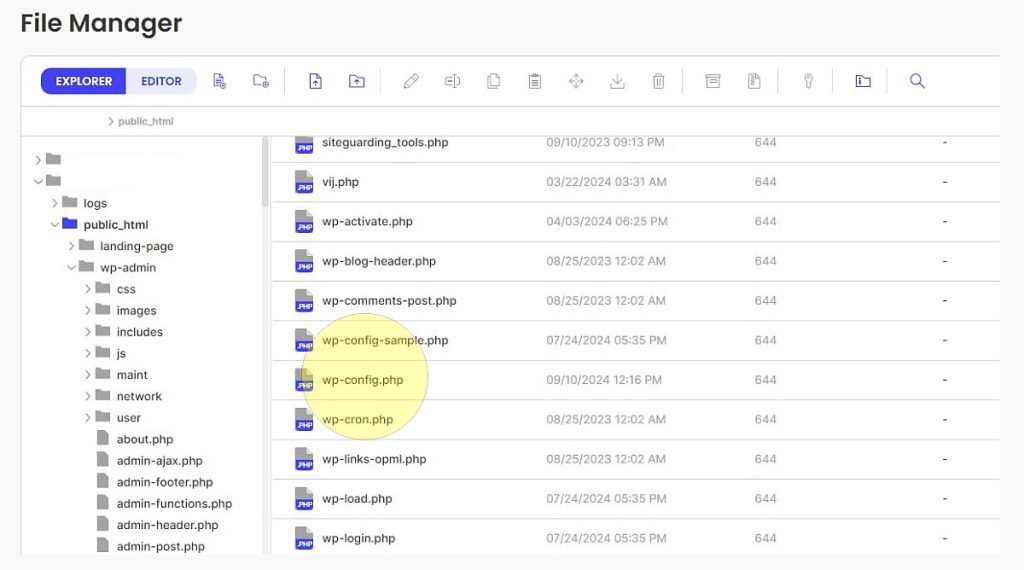
Create a copy of this file so you have a backup. Now, open the original file in the FileZilla file manager, and lines of code should appear in your text editor.
Scroll down and look for the following line of code:
| define(‘WP_DEBUG’, true); |
If the code says “false”, change it to “true” – this switches the error displays on. Then, add the following code underneath:
| define(‘WP_DEBUG_DISPLAY’, true); |
Now, save the file. You should now see WordPress PHP display errors on your website.
P.S. Make a note now so you remember to go back and change this line back to “define(‘WP_DEBUG’, false);” once you have finished troubleshooting and resolved the issue.
1.1. Generate the WordPress PHP error log and recreate the error
The WordPress error log is a hidden list you can activate in FTP that gives you more information on why errors occur.
To make WordPress log PHP errors, start by opening the wp-config.php file again and look for the same lines as before:
| define(‘WP_DEBUG’, true); define(‘WP_DEBUG_DISPLAY’, true); |
Replace these lines with the following:
| define(‘WP_DEBUG’, true); define(‘WP_DEBUG_LOG’, true); define(‘WP_DEBUG_DISPLAY’, true); @ini_set(‘display_errors’, E_ALL); |
Save the file and look in FileZilla for “debug.log”, and open it to see a list of recent errors.
If you’ve been experiencing problems lately and don’t see any recent errors listed, you need to recreate the problem in debug mode.
Try some general actions. Open different pages, search your website, and fill out forms. Now, reopen debug.log and see if a new error has appeared.
Some PHP errors are easier to diagnose than others. For example, syntax errors and parse errors usually advise where certain code lines need fixing.
2. Install and run Query Monitor
If you’d prefer not to edit code or to show visitors error messages, we recommend using Query Monitor. It’s a reliable developer plugin that alerts you when PHP errors arise.
Install and activate the WordPress plugin from the above link. Head to “Plugins” on your WordPress dashboard, and you should see Query Monitor like so:
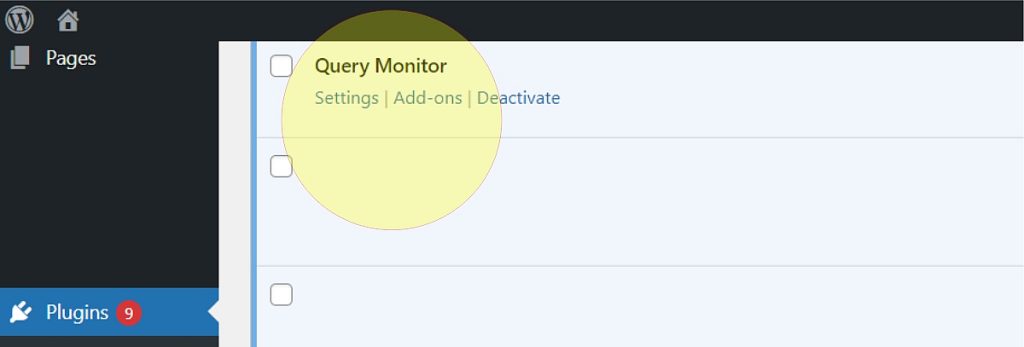
Click “Settings”, and then “Set authentication cookie”. The plugin should now be active and ready to use.
It sits in the top toolbar, and clicking it produces a dropdown menu. If there are PHP errors, they appear as “Warnings” or “Notices”:
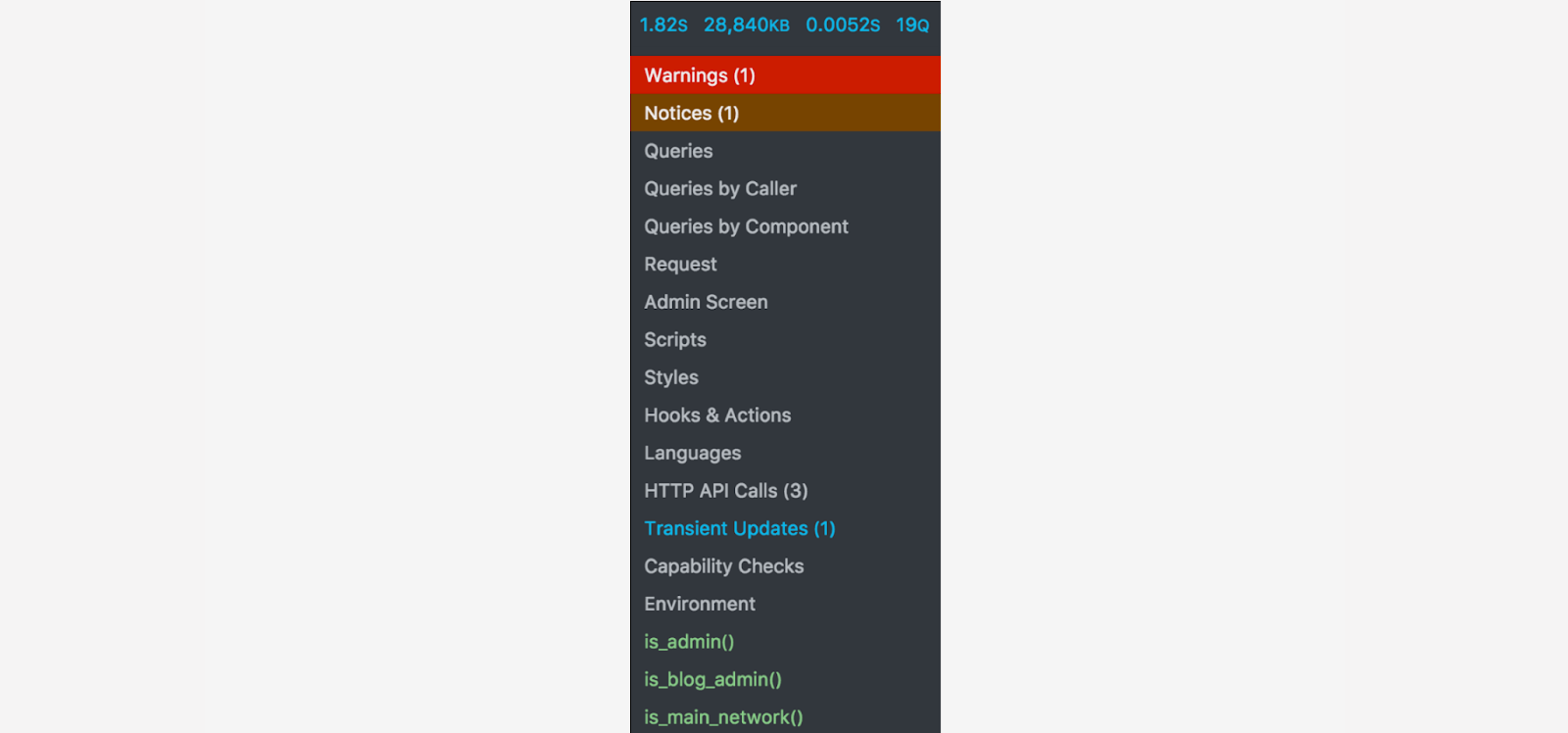
Clicking “Warnings” in the dropdown list opens up more information about PHP warnings and errors. You can use this to diagnose and fix any problems. For example, it might suggest certain plugins are causing PHP issues.
3. Run the WordPress Site Health tool
Sometimes it’s easy to spot and diagnose PHP errors and other problems within WordPress itself using the Site Health tool.
You can find this built-in diagnostic feature under “Tools” and “Site Health” – and your dashboard breaks down your site’s performance under two tabs, “Status” and “Info”:

Under Status, there may be a list of recommendations made by WordPress to help keep your site healthy. These refer to critical issues.
For example, in the screenshot above, you might need to remove inactive plugins (which can be a trigger for PHP errors).
Under Info, you should see a list of drop-down menus where you can read specific details about your site and its WordPress version:

There’s plenty of useful information here that can help resolve your PHP errors, including your PHP version and memory limit (which can be found under “Server”). Keep this info on hand for our next step.
If you’d like to know more about using the Site Health tool for overall management and fault diagnosis, check out WordPress’s official guide.
How To Troubleshoot WordPress PHP Errors: 5 Methods
If error logs leave you scratching your head for potential fixes, don’t worry. There are a few general PHP troubleshooting steps you can follow.
If you don’t feel comfortable following these checks or simply don’t have time, contact StateWP, and an expert developer can take care of your PHP woes.
1. Have you checked if your PHP version is compatible with WordPress?
Sometimes, the PHP version you’re running lacks compatibility with your current version of WordPress, which can cause various errors.
Typically, WordPress warns you if your PHP is outdated, with a message like this on your dashboard:

Regardless, let’s check if your PHP version is compatible with WordPress. Let’s head back to the Site Health tool.
Click the “Server” dropdown in the list, and note your PHP version listed.
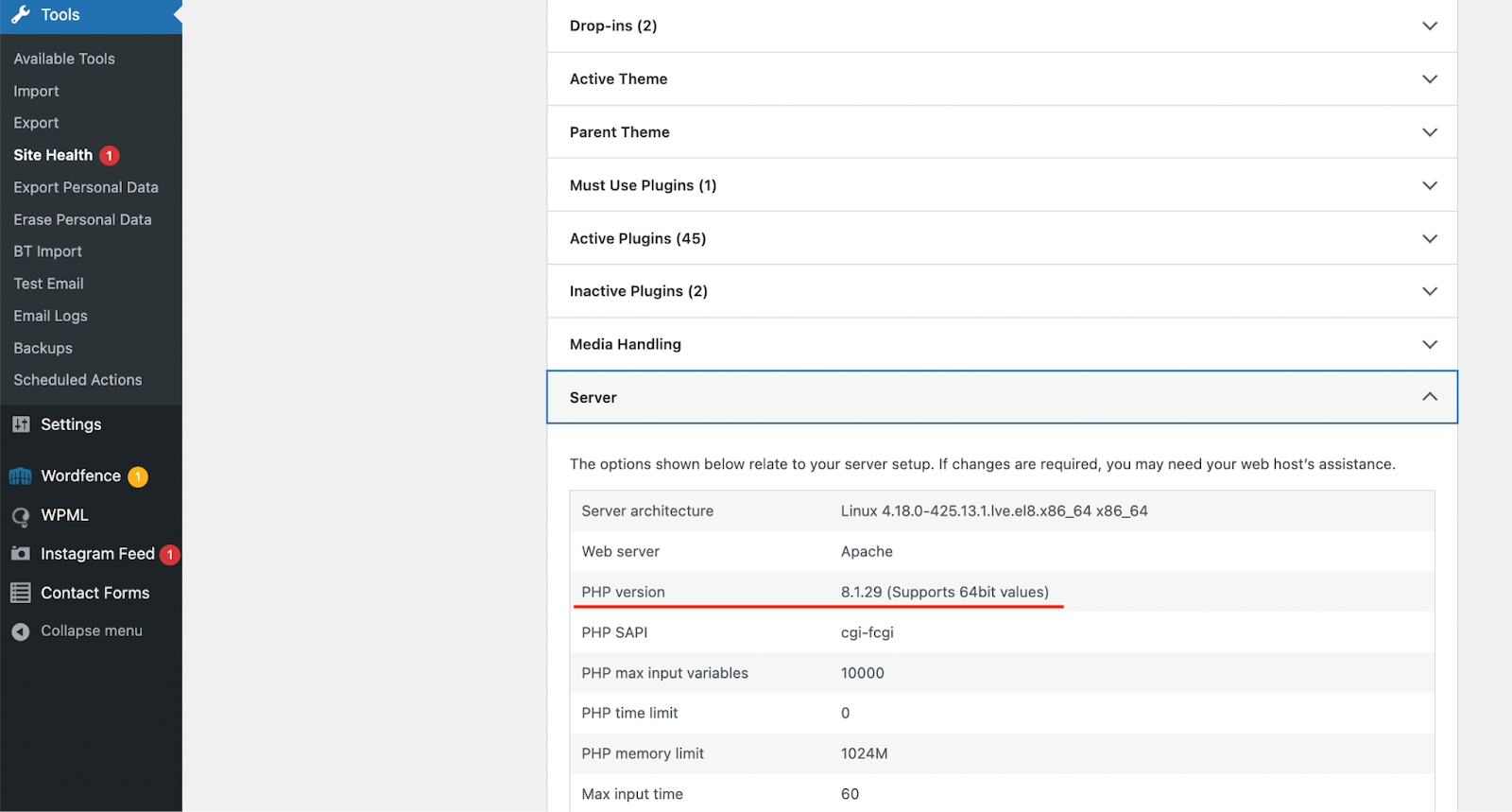
Now, check which version of WordPress you’re running by clicking “Updates” toward the top-left of the dashboard. Your version appears in the center of the page:
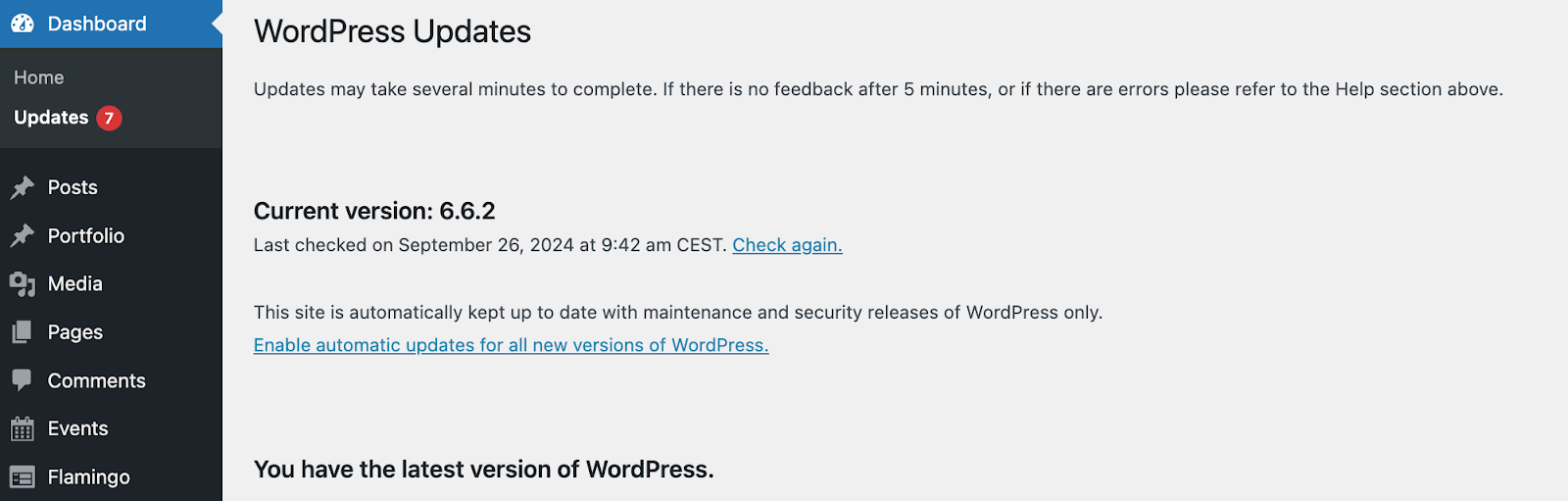
With both version numbers on hand, check our table below and make sure your PHP version matches up with your WordPress iteration:
| WordPress version | PHP versions supported |
| WP 5.0 and 5.1 | PHP 5.2 to PHP 5.6 PHP 7.0 to PHP 7.3 |
| WP 5.2 | PHP 5.6 PHP 7.0 to PHP 7.3 |
| WP 5.3 to 5.5 | PHP 5.6 PHP 7.0 to PHP 7.4 |
| WP 5.6 to 5.8 | PHP 5.6 PHP 7.0 to PHP 7.4 PHP 8.0 |
| WP 5.9 and 6.0 | PHP 5.6 PHP 7.0 to PHP 7.4 PHP 8.0 and PHP 8.1 |
| WP 6.1 and 6.2 | PHP 5.6 PHP 7.0 to PHP 7.4 PHP 8.0 to PHP 8.2 |
If your PHP version isn’t compatible, use our complete guide to updating your PHP version.
2. Does the problem disappear when you disable plugins or themes?
Defective or clashing plugins can cause PHP errors, so if you’ve noticed slowdown or specific errors popping up on your site, deactivate them temporarily.
In FileZilla, head to the wp-content folder and then temporarily rename your plugins folder. You should see it after “languages” and before “themes”:
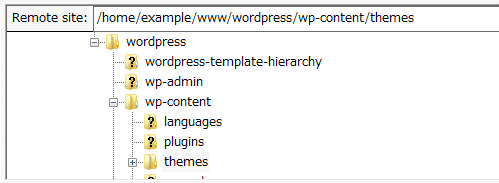
This switches off all your plugins. Now, refresh your website and try using it as usual. Have any errors you’ve been experiencing now disappeared? Does it run smoother with no formatting or display problems?
If so, there’s a chance one or more plugins is causing PHP errors. Rename your plugins folder back to its original title and open it.
You should now see a full list of folders for each plugin you’ve installed. Rename the first one in the list and check for errors again. If errors or performance issues persist, change the plugin’s name back and move down to the next one in the list.
Keep doing this until you find the rogue plugin that’s causing the error(s), and leave it deactivated. Consider finding an alternative or installing an updated version.
You can also check if your WordPress theme is causing similar errors. Go to “Appearance” and “Themes” in your dashboard and switch to a default option such as “Twenty-Twenty-Three”:

Check your website’s performance again. If it’s working great, you might need to avoid the theme you just deactivated!
3. Have you run out of PHP memory?
Most website hosting providers limit how much PHP memory you can use. This is often as much as 128MB, though it can be higher.
Some PHP errors can occur because your limit is too low for the processes you want to run. However, ask permission from your host to increase the limit before you make any changes yourself – or you could violate their terms of service.
If you get the go-ahead, open wp-config.php again in FileZilla. Look for a line in the code that starts “WP_MEMORY_LIMIT”, and look for the number alongside it. As mentioned, this could be 128, to signify 128MB. Try doubling this to 256MB or quadrupling it to 512MB, then save the file.
Check your WordPress website again to see if problems persist.
4. Have you checked for coding errors?
Your error log file or Query Monitor might advise that there are parse errors in your code, which means you need to fix some typos or other errors.
This can happen if you’ve edited your WordPress core files (such as the php.ini file via the wp-admin directory) or have added custom code to your site (for example, to change its look).
However, editing code can be tricky unless you know what to look for. It’s even trickier if you get a coding error warning and you don’t remember making changes!
If you don’t feel confident or comfortable with editing your code, reach out to your host or a StateWP developer for advice.
5. Have you considered rolling back your site?
Rolling back to a previous backup is simple with a plugin such as UpdraftPlus – simply open the plugin from your dashboard and look for an older version of your site to reload.

However, take caution. Rolling back your site can mean you lose changes you’ve made between your backup and now, meaning you could lose a lot of progress. What’s more, there’s still no guarantee that reloading resolves the issue!
If you don’t use a plugin to back up your site, contact your web host or an expert WordPress developer for advice. Many hosts have automated backups you can reload from their user portals.
The Shortcut: Investigate and Resolve PHP Errors with StateWP
The quickest and easiest way to check for PHP errors and fix them is to partner with a leading WordPress developer. After all, not everyone has the time to investigate and fix their websites while trying to run businesses!
By partnering with StateWP, you have access to a team of WP experts who can monitor your WordPress.org site for errors and performance issues around the clock.
What’s more, you can raise any problems you spot with us via Proto, our user dashboard, and get a response (and a fix) within 24 hours.

It’s not always easy to spot PHP errors, and when you can, they’re often confusing and tricky to troubleshoot. Take that hassle off your plate right away and talk to our team now.
Wave Goodbye to WordPress PHP Errors
WordPress PHP errors can be tricky. Sometimes they’re obvious, sometimes they’re not – but regardless, there are plenty of ways to fix your website’s code.
The quickest way is to ask for help from a WordPress developer. With StateWP, you’ve always got someone monitoring your site for PHP errors. And, should any problems arise, you can count on us to get them fixed, fast.
Speaking of monitoring and maintaining websites, check out our complete website maintenance checklist.
Tick off all these points, and you’re well prepared to stop recurring errors in their tracks!