
This is your essential guide to fixing an error message in WordPress.
Website downtime can affect your business’s revenue and reputation – just one hour can equal $300,000+ down the drain.
Use this guide to diagnose and solve the problem right now, then add it to your bookmarks so you’re ready if disaster strikes again.
We’ll start with five general fixes that can diagnose and solve many problems. Then, we’ll provide specific explanations for 25 common WordPress errors.
If, at any stage, you feel unsure or out of your depth, it’s best to hire an expert.
🛑Stop: Before continuing and trying to solve your issue, please back up your site immediately.
Now let’s get your site back online ASAP.
5 Quickest Ways to Diagnose and Solve Most Common WordPress Errors
We’ve compiled a list of quick activities you can do to solve the most common WordPress errors. Think of these methods as an “emergency toolkit” to help you fix (or diagnose) the most common WordPress errors.
If these don’t work, the solution will be more technical – but don’t panic; just keep reading, and we’ll help you in the next section.
1. Clear your cache
Caching lets your browser store static versions of your web pages to improve website loading speed. By clearing your browser cache, you review the latest version of your website.
If your cached content needs to be updated, it can cause WordPress common issues with how you see and interact with your website.
For example, you might see outdated pricing or product information. Before you panic about customers seeing this, consider that the problem may only affect your device!
First, clear your cache on your browser settings, and then use a WordPress caching plugin like WPRocket to clear your website’s cache.

Finally, refresh the page to see if the problem persists.
2. Check the hosting status and contact the hosting provider
Eliminate the possibility that your hosting server is down for maintenance or another issue outside your control (server issues, DDoS attacks, data center issues).
Server downtime can cause accessibility issues for your website. It’s still a cause for concern if you didn’t expect the scheduled downtime and rely on your website for sales!
Contact your hosting provider to investigate – if you’re unhappy with its service, consider switching.
Check out our layman’s guide to website hosting and maintenance for more information about this.
3. Enable WordPress debugging mode
Unless you’ve encountered the error before, it’s hard to know exactly what’s up with your site: It’s just not working.
Before investigating the back end of your site, you might be able to diagnose the problem by:
- Right-clicking on the affected web page
- Selecting ‘Inspect’
- Finding the ‘console’ tab
- Looking for any errors
Otherwise, you can head to your WordPress dashboard and check the “Updates” tab for critical errors that might have occurred during an update.
If that doesn’t work, enable WordPress debug mode (either by installing the WP Debugging plugin or pasting code into your wp-config.php file.
Find the line that says, ‘That’s all, stop editing! Happy blogging.’ and paste the following code in before:
| define( ‘WP_DEBUG’, true ); define( ‘WP_DEBUG_LOG’, true ); |
From there, you can access your error log to see exactly what happened with your website and when:

Now do a quick “Control+F” (or “Command+F” on a Mac) search on this page to find help for your specific issue.
And keep it enabled to quickly diagnose all future errors.
4. Restore a recent backup
You can quickly fix errors caused by automatic updates or new plugins by reverting to a previous version, which is why backing up your site often is so important!
It’s especially useful if you need to get your website back to a working state ASAP while you investigate what caused the problem.
You can restore a recent backup easily with a backup WordPress plugin like UpdraftPlus.
Otherwise, read our step-by-step guide for instructions on manually restoring a previous backup.
5. Temporarily disable plugins and switch to the default theme
If you have time and patience, this troubleshooting approach can help isolate the issue with your WordPress site.
Deactivate all your plugins and switch to a default WordPress theme. Then, reactivate each plugin individually. Refresh the site each time to see if the issue returns.

The last plugin activated before the error message returns is most likely the culprit.
Remember that this can take a while and doesn’t necessarily fix the problem. It just helps you identify what’s causing it.
24 Common WordPress Errors and How To Fix Them
1. The fatal error
The fatal error is a big red flag signaling that something went wrong in your website’s code.

When it happens, your customers can’t access your site, purchase products, or find information about you, so you must fix it ASAP.
A common cause of this problem is plugin conflicts, often seen in eCommerce website payment processing features.
Here are some potential solutions:
- Isolate the problem by switching to a default theme and using the plugin deactivation method to rule out dodgy plugins or theme issues
- Reupload your core WordPress files
- Increase your PHP memory limit
Resolving fatal errors can take a while and require expert-level knowledge of WordPress code, plugins, and themes.
If the simple fixes aren’t working, you could be at a higher risk of worsening the problem. We recommend you hire an expert.
2. The white screen of death
The WSoD is this terrifying display:

PHP code errors, memory limit exhaustion, faulty themes, and conflicting plugins often cause it.
Here’s a breakdown of potential solutions to fix the WordPress White Screen of Death (and remember to back up your website first!):
| Solution | How |
| Plugin deactivation and reactivation |
Rename your plugins folder to disable all your plugins at once – if the error disappears, a plugin is at fault. Next, revert the change and then systematically deactivate and reactivate your plugins one by one. Refresh your site in between to isolate the particular plugin that’s causing the issue. |
| Switch to the default WordPress theme |
Temporarily switch to a default theme like ‘TwentyTwentyOne’ to see if your WordPress theme is to blame. Or rename your themes folder to disable all your themes at once – if the error disappears, a faulty theme is to blame. |
| Clear your cache | Clear browser and WordPress cache to resolve display common WordPress issues on your device. |
| Switch on WordPress debugging mode | Switch on debugging mode via FTP or your website to create a log file showing all the errors on your website. |
| Increase PHP memory limit | The WSoD can be caused by exceeding your PHP memory limit; increasing it will solve the problem. We provide instructions for this later in the article. Be careful because increasing your PHP limit unnecessarily can also cause performance issues. |
| Check file permission issues |
This fix is technical, so we don’t advise proceeding unless you can change your website’s code confidently. If you have SSH access to your server, use it to apply the following rules to file permissions:
|
| Resolve syntax errors | If you edited your site, the tiniest mistype could have caused the WSoD issue. If you don’t know what caused it, restore a backup and try again. We use a staging site to avoid this when updating our client’s WordPress websites. |
These solutions demonstrate why it’s critical to back up your site regularly – and never to edit a live site!
3. The critical error
The critical error on WordPress is very similar to the WSoD – updated versions of WordPress will likely experience this error message instead of the dreaded white screen:

The same solutions for the WSoD apply to critical errors.
These are:
- Enable debugging mode to find specific problems in the error log
- Clear your cache (on your browser and WordPress)
- Revert to a temporary default WordPress theme to see if your theme is buggy
- Deactivate and reactivate plugins one by one to see if one is at fault
- Raise the PHP memory limit (without damaging page load speed)
Another important cause to consider is malware. Infected files could be breaking your site and leading to a critical error message.
If you’re affected by malware, you might notice suspicious files or changes to your website. However, sophisticated malware can be tough to spot and requires an expert to diagnose and remove.
We have over 15 years of experience helping WordPress.org customers stay protected from malware. If you want to rule out that malware is the issue, contact us for immediate support.
4 – 10. 400 errors
The 400 errors are a family of HTTP error codes originating on your or your visitor’s connection. There are 20 types of 400 errors, but most are thankfully rare.
Let’s go through the most common 400 errors:
4. 400 bad request error
This problem is usually with your device rather than the server.
You’ll see “HTTP_Error_400” on your browser. It’s a basic client error, meaning the web server doesn’t understand what your browser asks it to do.

It can be caused by:
- Incorrect links or URLs
- Caching issue on your browser – e.g., there’s too much cached information
- DNS caching issue
- File size too big – if you’re uploading an image, video, or content that’s beyond your server’s configured size limit
Here are some fixes (some of them might seem obvious, but even experts have forgetful days!):
- Refresh the page
- Double-check the URL is correct
- Clear your cache and cookies on your browser
- Clear the DNS cache
- Deactivate your browser extensions
- Try uploading a smaller file (if this happens while you’re uploading content to your website)
5. 401 unauthorized
The 401 error locks you out of your website. It thinks you’re trying to break in for some reason, which is super irritating!
The error message tells you that your browser has failed to authenticate properly with your website’s server:

A simple solution to the problem is to flush your DNS cache, clearing the temporary data stores on your computer.
On Windows, open the Command Prompt window, and type the following to action the command:
ipconfig/flushdns
On MacOS, go to Applications > Utilities > Terminal > then type the command line:
sudo killall -HUP mDNSResponder
Press enter and refresh your website – it should have solved the issue.
If this doesn’t work, you could try systematically deactivating and reactivating individual plugins to see if one of those is causing the issue.
If that doesn’t work, we recommend contacting a WordPress expert or your hosting provider to solve a server-side issue outside your control.
6. 403 forbidden error
The 403 error on WordPress means that the server understands your request but doesn’t give you permission to access what you’re trying to see.
A corrupt .htaccess file, incorrect file permissions, or plugin issues usually cause it.

Here’s how to fix it:
- Modify your file permissions: If something goes wrong with file permissions, you must connect via FTP to adjust them. Right-click on the folder to modify as follows:
Directories: 755 or 750
Files: 644 or 640
wp-config.php: 440 or 400
- Delete and restore your .htaccess file: If your website uses the Apache server, this might be causing the error.
Connect to your server via FTP > find the .htaccess file and make a copy of it first on your local computer > delete the .htaccess file > Go to your WordPress dashboard >Settings > Permalinks
Your WordPress will generate a new .htaccess file. Refresh your site to see if it solves the problem.
- Temporarily deactivate your CDN: Go to your CDN provider (e.g., Cloudflare, StackPath, Sucuri) and look for an option to pause or disable the CDN from its dashboard. Then, clear your cache and refresh your website. If the 403 error disappears, it’s your CDN, so contact your provider about it.
- Disconnect from your VPN: If you use or have recently downloaded a VPN, your site might be blocking it. Try disabling your VPN temporarily, and if the issue goes away, contact your provider or try a different VPN.
Read our tutorial about the 403 error and how to fix it for more details.
If the issue persists, it’s time to call in the experts!
7. 404 error
The 404 error means your server can’t find your desired page.
We’ve all encountered these when browsing other websites, but it’s stressful when it’s your site and you know a page should be there!
On the plus side, you can get creative with your website’s 404 page, so even if visitors do experience it, it can be engaging, like this one:
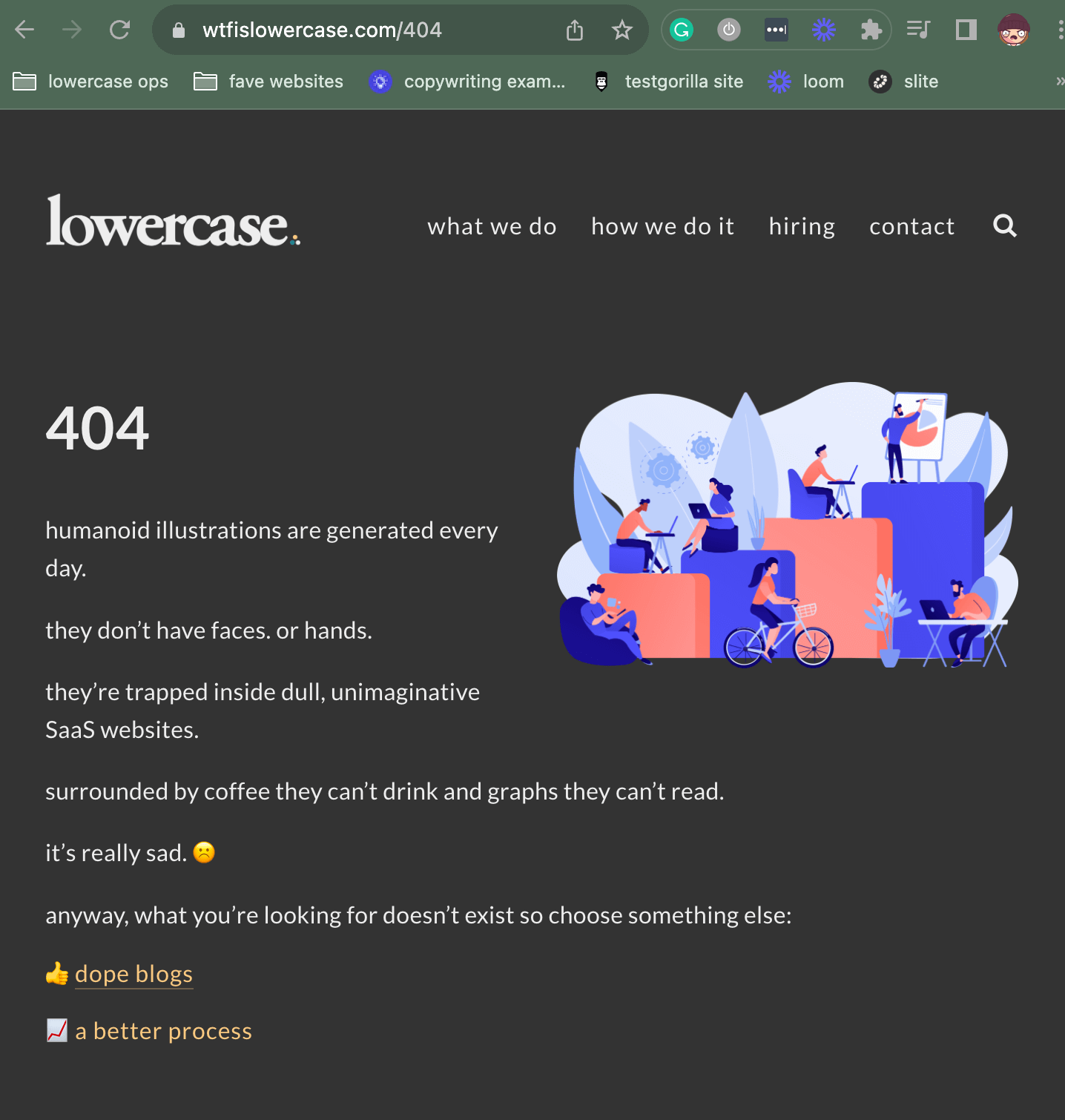
Aside from simply misspelling the URL, the 404 error may happen due to:
- Migration issues
- Permalink structure changes without redirecting the old URL
- Issues with file permissions
- Poorly coded plugins or themes
Aside from the solutions we covered earlier, here are some specific solutions that can fix the problem:
| Solution | How |
| Set or reset your permalink structure |
Your permalink structure affects how search engines crawl, rank, and index your site. SEO-friendly URL structures help search engines index content more easily, supporting your ranking. To update your permalink settings:
|
| Restore your .htaccess file |
|
| Set up a 301 redirect |
If you change the URL of a specific page but don’t have a redirect yet, this causes a 403 error. The easiest way to set up a 301 redirect is to download a redirection plugin and set it up by going to your Dashboard > Tools > Redirection > Add new redirection. |
8. 405 method not allowed error
This stressful error can cause headaches for your customers. It can show up as:
- 405 Not Allowed
- Method Not Allowed
- HTTP 405 Error
It looks like this:

The 405 error is an issue on your website when the server doesn’t allow a specific action for a particular link. The server receives a request but rejects the way it’s asked to do something.
Here’s how you can fix it:
- First, check you entered the URL correctly
- Roll back any recent updates if this error occurs following a WordPress update – but always create a backup first!
- Check through your plugin database to see if any of your plugins have received updates recently – this might have caused the problem, and you’ll need to remove the plugin and find an alternative
If none of these work, you can check your server-side logs to find issues in custom code or scripts on your site to see if there’s an issue. However, because these are expert-level solutions, we only recommend doing this if you’re confident with WordPress.
Otherwise, contact your hosting provider or an experienced WordPress maintenance service provider to help you.
9. 413 request entity too large error
The 413 error happens when your web server has reached a limit on the size of files you can upload, and the file you’re uploading exceeds that limit.

To ensure that file size issues are causing this error, try uploading a larger file size and see if the same problem occurs. Aside from this, another problem could be that you don’t have permission to upload this file, so double-check your permission settings to make sure.
If you’re confident using an FTP client to make manual changes, here are two solutions to try:
| Method | How |
| Edit your WordPress functions.php file |
@ini_set( ‘_max_size’, ’64M’ );
|
| Modify your WordPress .htaccess file |
php_value upload_max_filesize 64M
|
If your website is on the Nginx server, you can also try to modify your nginx.conf file:
- Edit the nginx.conf file and add a line to increase the client_max_body_size
These steps involve adjusting settings and files on your server, so proceed with caution and consider seeking help from your hosting provider if you’re unsure.
10. 429 too many requests error
This error code can mean two possible things have gone wrong:
- Your website is overwhelmed by how many people are trying to access it
- It’s blocking connections from a specific IP address because it detects suspicious behavior
The error page looks like this:

The best-case scenario is that you are trying to access your site’s login page repeatedly – if this is the case, just leaving your website alone for a few minutes should clear up the issue.
If the error persists, rule out technical issues because this might indicate a malicious attack on your website.
First, follow our general guidance at the start of this article to rule out issues relating to your theme, caching, and plugins.
If that doesn’t help, someone might be trying to break into your site. Contact us or your hosting provider for support – we’re here to help.
11 – 14. 500 errors
500 errors are a type of internal server error – common issues caused by your website server, usually due to:
- Plugin or theme problems
- Corrupted .htaccess file
- Database problems
- Caching issues
- Hosting issues
- PHP memory limit exceeded
Our general guidance at the start of this article should help you diagnose and solve most 500 errors.
An additional last resort solution that can help 500 errors specifically is to refresh your wp-admin and wp-includes folders via an FTP client:
- If you haven’t already, download and install an FTP client like FileZilla or Cyberduck
- Connect to your server by opening the FTP client, entering your credentials, and connecting to your server
- Locate the WordPress Directory by navigating to the root directory of your WordPress site (often called “public_html”)
- Backup “wp-admin” and “wp-includes” by right-clicking on “wp-admin” and “wp-includes” and downloading a backup to your computer

- Delete the “wp-admin” and “wp-include” folders
- Download the latest version of WordPress
- Upload the fresh copies of “wp-admin” and “wp-includes” to your server
- Select correct permissions by setting folders to 755 and files to 644
- Refresh your site to see if that fixed your issue

If that doesn’t solve the problem, read through the specific solutions for each error below. Remember to back up your website before proceeding!
11. 501 not implemented error
The 501 HTTP error or 501 Not Implemented error is caused by the server not being ready to handle your request, often because of server maintenance or overload.

In most cases, this is a minor problem with your server, and the best thing to do is to:
- Refresh your browser
- Clear cache and cookies
Otherwise, just wait a little while and try again. If the issue only lasts 10 minutes or so, your website will come back online, and it won’t affect your SEO ranking.
If the issue persists, contact your web hosting provider to follow up on the problem immediately.
12. 502 bad gateway error
The “Bad Gateway” indicates an error with a server, not a website. The website is the ‘gateway’ that cannot deliver the requested data between servers.
Because it’s likely a server issue, a 502 error is often out of your control.
However, the error can make your site unavailable to visitors, negatively affecting your SERP position and reputation – making it essential to solve ASAP.
Before contacting your hosting provider about the issue, here are a few potential solutions that are within your control:
- Clear your cache and cookies
- Refresh your DNS
- Check for recent automatic updates to themes and plugins
- Temporarily disable CDN or firewall to see if that resolves the issue
- Restore a backed-up version of your website
Follow these best practices to minimize the risk of this error occurring again:
- Instead of automatically updating plugins (which can break your site), update plugins manually or via expert WordPress maintenance services
- Keep your WordPress site in debugging mode so that, if this happens again, you can access your error log to see what’s causing the issue
- Make sure you’re happy with your hosting provider
14. 504 Gateway Timeout error
Just like the 503 error, this is an issue occurring between servers. One server was waiting too long for the other server to respond to its request, so it just gave up.
Fair enough.
But there can be other reasons, such as your hosting provider taking the server down for scheduled maintenance or another urgent issue.
This problem has many potential causes, and if your site is down for several hours, it negatively impacts your SEO.
Here’s how you might be able to solve it if the issue is on your end:
- Reload and reboot your browser by clearing your cache – you could even switch browsers to see if that changes anything
- Test your local proxy and VPN settings if you know how
- Check your domain propagation status if your domain has recently been registered or transferred – you can use a tool like DNSMap to check
- Temporarily disable your CDN to see if that’s causing the problem
If none of that works, contact your hosting provider to evaluate server issues – or see if there’s been a security threat.
Time is ticking, so reach out to an expert if you can’t solve it quickly.
15. PHP memory limit error
This error is related to the programming language PHP, which WordPress uses to create and manage website elements.
WordPress has a default PHP memory limit of 32MB, which media-rich and interactive content may exceed.
The PHP memory limit error can be caused by:
- Poor-quality plugins that waste memory
- Outdated PHP versions – 61% of websites are running outdated PHP!
- Memory-hungry images and videos
When designing your website, balance memory and performance. There’s no point trying to make your website more engaging if visitors are turned off by how slow it is.
If you encounter this issue, upgrading your hosting provider or advancing to the next pricing tier could fix it.
Otherwise, if you’re confident making these changes, you can increase your WordPress PHP memory limit manually:
| Log into your FTP client | We recommend FileZilla because it’s free and pretty easy to use |
| Find the wp-config.php folder | See the folders containing your site’s files, find the root folder (often has the same domain name or just “public_html” or “www.”) and your wp-config.php file should be inside. |
| Find the memory limit line |
Open up the wp-config.php file and find the line that says: define( 'WP_MEMORY_LIMIT', '256M' ); |
| Increase the number | 265M should be enough, but you can increase this number to be appropriate for your website. |
If this doesn’t work, you’ve exceeded the maximum limit allowed by your hosting provider and need to find a new hosting service.
16. Error Establishing Database Connection
This super common issue is related to the WSoD.
It usually results from an incorrect login or database corruption. It prevents your site from retrieving essential data, which downs your entire site and prevents you from accessing your WordPress dashboard.
An error establishing a database connection in WordPress directly impacts your revenue, reputation, and ranking, so it’s critical to solve this problem quickly.

Common causes of this error include:
- Incorrect database login credentials
- Corrupted databases, like theme or plugin changes or accidental deletions
- Corrupt files in WordPress due to FTP issues, hacking, or problems with your hosting provider
- Issues with your database server
- Spikes in traffic
Here are some solutions to the problem:
| Solution | How |
| Check your WordPress database credentials |
|
| Repair corrupt WordPress databaseHow |
|
If these don’t work, contact your hosting provider because it’s probably a server issue.
Solving this problem requires understanding server and database configurations, which might be a stretch if you’re not a developer. Skip ahead to hire an expert to see how we can help.
17. Maximum Execution Time Exceeded
The wording of this common issue makes your stomach drop.
It means your website script takes longer than the predefined limit to process server requests. Your hosting provider sets a limit to protect servers from resource-heavy scripts, which helps your website perform optimally.
There’s a default execution time limit in your hosting plan (it’s generally 30-60 seconds).
Changing hosting providers and poorly coded plugins or scripts that unnecessarily exceed the time limit can trigger this error.
Fixing this problem means identifying the nuisance plugin or manually increasing the maximum execution time.
Before proceeding, we recommend consulting with an expert. Increasing your execution time can impact performance.
Manually increase maximum execution time:
- Locate the .htaccess file in your cPanel’s File Manager.
- Insert the code: php_value max_execution_time 300 (adjust if needed)
- Save changes and check if the error persists.
Increase maximum execution time using a plugin:
- Install the Increase Maximum Upload File Size plugin
- Set the Maximum Execution Time to 300 or your preferred value
- Save changes and check for error resolution
Investigating the tasks causing timeouts can be complex, and incorrect changes can worsen things. We recommend hiring an expert for this one.
18. Failed auto-updates
Updates can fail due to incompatibility issues with plugins, server overload, or because you accidentally exited from your browser while it was updating.
First, we don’t recommend auto-updating your WordPress website’s plugins because this can break your site. Read our blog on the subject to learn more.
But if you’re confident with continuing with an auto-update, here’s how to solve the problem:
1. Access backend and delete file:
- Use your hosting account’s cPanel or FTP (FileZilla) to connect to the server
- Locate and delete the .maintenance file

- Your website will try to complete the update again
- Clear the website cache and check for the error.
We highly recommend using a staging site for any website changes to prevent this from happening again.
Before activating and updating a plugin, you must check its compatibility with your site. It takes an expert eye, and it’s something StateWP’s developers do very carefully when maintaining clients’ sites.
Troubleshooting file permissions and server configurations may be beyond your capabilities if you’re not a WordPress developer. Consider hiring an expert for this one.
19. Failed to write file to disk
You must add new files to your website to continually grow and improve your site with new images, pages, and products.
File permissions, temporary folders, and disk space issues often cause the “failed to write file to disk” WordPress error.
If you’re comfortable with adjusting file permissions, clearing temporary folders, and upgrading your hosting plan, you can solve the problem yourself:
1. Adjust file permissions:
- Use File Transfer Protocol (FTP) to access your server
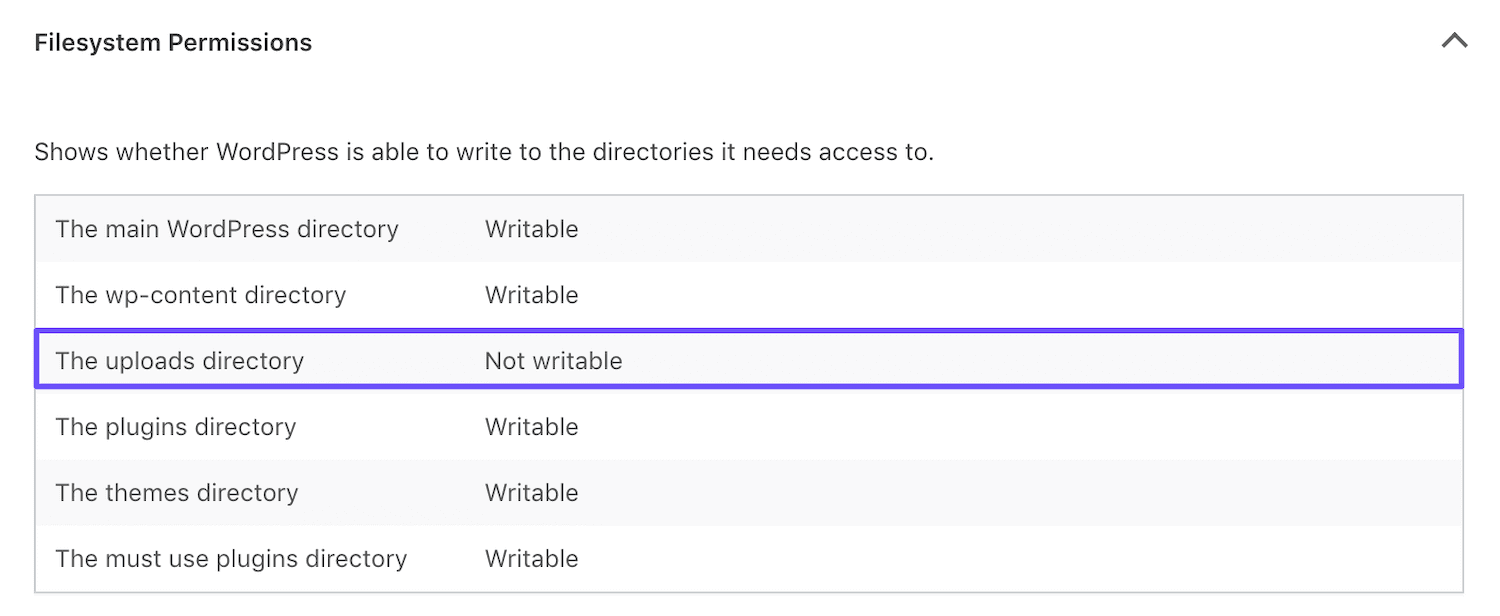
- Go to the uploads directory and change permissions to 755
- Verify changes using the Site Health tool. Your uploads folder should be “Writable,” unlike below:
2. Empty WordPress Temporary Folder:
- Contact your hosting provider for assistance in emptying the temporary folder
- The support team can check if the folder is full or causing the error
3. Upgrade Hosting Plan:
- If you’ve used up the allotted disk space, consider upgrading your hosting plan
- Check your disk usage in your hosting account dashboard and follow your provider’s instructions to upgrade
Addressing disk space issues and understanding server configurations might be challenging, so we recommend hiring an expert.
20. Stuck in maintenance mode
This common error is mainly caused by the .maintenance file not being deleted after an update – WordPress usually does this automatically.
To solve this, you can go to your cPanel or use an FTP client to delete the .maintenance file from the public_html folder.

If you can’t find the .maintenance file, you’ll need to refer to our general advice on identifying the broken plugin that might cause the problem.
Avoid auto-updating plugins and themes simultaneously and installing non-compatible plugins or themes in the future.
21. Connection not private error
This is an SSL error. SSL stands for Secure Sockets Layers, an encryption technology that securely connects browsers to your WordPress hosting server.

Enabling SSL makes your website HTTPS instead of HTTP – and you’ll see a padlock sign next to your website address, signaling it’s secure.
This error means your browser can’t validate the SSL certificate provided by the site.
The following issues can cause it:
- Your computer’s clock is incorrect
- Your website has activated your antivirus software’s firewall
- Your browser’s SSL certificate is outdated
- You’re using public WiFi
It could be minor, like your computer’s incorrect clock setting, or more technical, like issues with the SSL setup.
Here are some potential solutions:
| Solution | How |
| Get an SSL certificate |
|
| Configure WordPress for HTTPS |
|
| Validate your SSL certificate |
|
| Renew your SSL certificate |
|
22. Locked out of your admin page
Depending on your situation, you could be locked out of the WordPress admin account only or completely locked out of your site.
Being locked out of your WordPress page is a significant security issue if you have multiple team members with your website login credentials – employees are your biggest threat to data security as a business.
The easiest fix is restoring a backup of your website, which should resolve the problem.
Always have a recent backup before changing database or server files.
A variety of issues can cause it:
- Incorrect login credentials
- Loss of admin privileges
- An issue with security plugins
- WSoD, database connection errors, or PHP syntax errors
Here are some potential solutions:
- Reset your password (you may need to do this manually via phpMyAdmin)
- Create a new admin user via phpMyAdmin
- Temporarily disable security plugins via FTP
We highly recommend contacting an expert as soon as possible to fix this quickly. StateWP is best to help here – check out our case study with Sun Pacific to see how we aid teams who lost control of their WordPress site.
23. Sidebar appearing below the main content
The sidebar below content error is common and happens when a WordPress template uses a two-column layout for the content and sidebar. Still, a change in the code causes the sidebar to appear below the content rather than next to it.
The most common cause of this issue is an HTML or CSS error, where an unclosed tag or unwanted closed tag affects the layout:
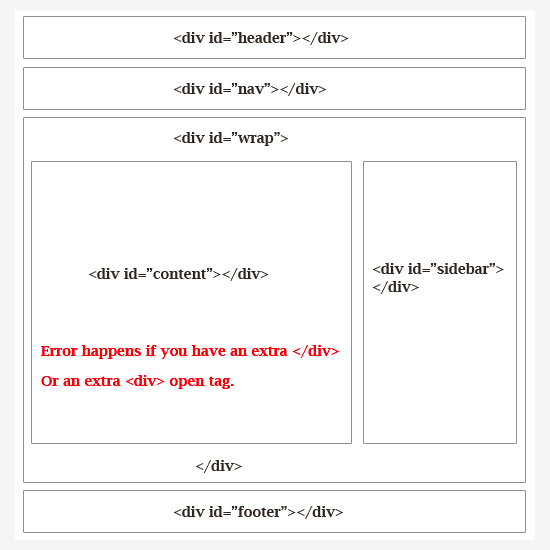
We wrote a detailed solution to the sidebar not appearing in WordPress, but here’s a quick summary of how to solve the problem:
1. Undo recent changes to your WordPress theme
- Check recent changes to your theme files
- Revert any changes that might have caused the issue
2. Rule out problematic plugins
- Systematically deactivate and reactivate based on our general guidance
3. Find the HTML tags breaking the layout
- Use the Inspect tool to check CSS width issues
- Also, use this tool to help
- Consider the width, alignment, and floating content and sidebar areas
4. Clear your WordPress cache
- Use a caching plugin or paste this into your WP-CLI (the command-line interface for WordPress):
wp cache flush
With StateWP’s dashboard, Proto, you can directly message our developers with a problem like this, and we’ll fix it within one day.
24. Hacked WordPress
For WordPress site owners, getting hacked is the scariest thing that can happen. Thousands of websites are hacked daily – and hackers are only becoming more skilled.
You’re more vulnerable to hacking if your WordPress site has insecure passwords, outdated software, or insecure code.
But how do you know if someone hacked you or something broke on your website? Here’s how to tell:
- Use secure passwords and 2FA
- Keep your site updated
- Install an SSL to enhance security
- Avoid insecure plugins or themes
- Remove unused plugins and themes
- Avoid cheap hosting providers
- Set up one of the best web application firewalls
- Install a WordPress security plugin
It’s important to act fast, but don’t panic. Do the following to minimize the risk and reclaim your website as soon as possible.
First, put your site in maintenance mode to show visitors that your site is down and minimize reputational impact.
You can do this manually by pasting this code into your functions.php file:
function wp_maintenance_mode() {
if (!current_user_can('edit_themes') || !is_user_logged_in()) {
wp_die('<h1>Under Maintenance</h1><p>We apologize for the inconvenience, but our site is currently undergoing scheduled maintenance. Please check back soon.</p>', 'Maintenance Mode');
}
}

add_action('get_header', 'wp_maintenance_mode');
|
Then, call an expert service to reclaim your website ASAP. StateWP can rescue your website within a few hours.
Once the crisis is over, consider these preventative measures to reduce your risk of being hacked:
- Use secure passwords and 2FA
- Keep your site updated
- Avoid insecure plugins or themes
- Remove unused plugins and themes
- Install an SSL to enhance security
- Avoid cheap hosting providers
- Set up one of the best web application firewalls
- Install a WordPress security plugin
The Easier Way: Get WordPress Experts To Monitor and Fix WordPress Errors
It’s empowering to fix your website yourself – especially when many useful guides are available online that any WordPress beginner can follow.
But DIY website fixes are still risky, and here’s why:
- You can break your website further – bringing even greater cost and downtime
- The opportunity cost involved can be huge in terms of time wasted when a developer would have solved it much quicker
Having a developer help with WordPress issues is great – but not all support teams provide the same urgency and care.
Solutions can be very expensive or significantly delayed – sometimes both. Maintenance services often charge an additional fee for emergency services outside regular business hours.
StateWP is a great solution for businesses and agencies using WordPress because you get ongoing maintenance and support with the peace of mind that if something goes wrong, you have a team ready to solve it within a day.
Our monthly plans provide the appropriate level of WordPress support to clients of all sizes, from small businesses operating one site to large agencies and eCommerce platforms working on platforms like WooCommerce and Shopify.
Our WordPress maintenance dashboard, Proto, shows you exactly what we’re doing to keep your website healthy – plus, you can contact our developers directly if something goes wrong.

We can also help you with issues like WordPress login not working.
With StateWP as your fractional technical team, you can work on your business with confidence and prevent common WordPress errors from happening in the first place.
Imagine Having WordPress Developers On Speed Dial…
That’s how our clients feel when they have our team protecting and enhancing their WordPress site 24/7, so they don’t have to worry about WordPress permalinks not working or the WordPress password protect page not working.
While we support you in learning to fix common WordPress errors yourself, we value your time as a business owner above all.
Ask yourself: Is spending hours figuring out how to fix my website valuable, or should I hire an expert to solve it for me?
Chances are, you have many more important things to attend to. An experienced WordPress developer can solve your problem in a fraction of the time, getting your business back online faster.
If you like the sound of a fractional technical team watching over your website, look at our maintenance plans to find the one that suits you – we can get you onboarded today.
If you found this article useful, you’ll like our hassle-free website maintenance checklist.