
But relax, there’s good news, too!
With the proper WordPress website maintenance practices, you can keep your site fast, secure, and reliable.
We’ve outlined eight simple WordPress maintenance tips to help you stay ahead of problems and protect your investment.
Would you rather hand off the maintenance and security work? Our seasoned team can handle everything – affordably, efficiently, and with zero hassle on your part.
8 Expert WordPress Maintenance Tips from StateWP
WordPress maintenance involves a range of tasks – some quick and routine, others more technical and time-sensitive. While certain checks, like malware scans, should happen daily, others, such as testing contact forms, can be done weekly or monthly.
If you’re building your maintenance routine or running through a WordPress website maintenance checklist for the first time, it’s best to kick off the process with the essentials.
Here’s what to focus on first:
| Tip | Why it’s important | Frequency / Priority |
| Choose a trustworthy host | Good hosts protect your site, boost performance, and support growth | One-off, but check other options frequently |
| Regularly back up your site | Regular backups let you restore data quickly after hacks and accidents | Daily |
| Update everything frequently | WordPress and software updates patch vulnerabilities and boost site performance | As soon as updates and security patches are released |
| Practice security basics | Cyber attacks are highly sophisticated, so it pays to be on top of security practices like password changes | Change passwords every two months, perform preventative maintenance like malware scans daily, and update security certificates ASAP |
| Use a staging site to test updates and features | You can edit your site without it affecting the live version and disrupting visitors | Whenever you want to make changes that affect user experience (UX) |
| Keep an eye on performance | Performance checks help you keep your site accessible and loading quickly | Check traffic analytics and online forms weekly; Test site speed, fix broken links, and check SEO statistics monthly |
| Delete unused software and code | Unused software makes sites less secure and leads to slow load times | Perform monthly audits of your plugins and use code minification tools |
| Hire StateWP as your maintenance partner! | Our maintenance and security experts handle all of the above and more, saving you time, hassle, and money | There’s nothing for you to do – we schedule and take care of all your regular maintenance tasks 🙂 |
Now, let’s dive deeper into these WordPress maintenance best practices.

1. Choose a trustworthy hosting provider
Your web hosting provider keeps your website alive and kicking. The company gives you hosting server space, provides a domain, and supports you with firewalls, data backups, and code editing.
However, not all hosts offer such a fantastic service. We suggest looking for the following when comparing providers:
- Dedicated or virtual private (VPS) servers, where you have exclusive access to bandwidth and resources
- At least 1 GB of storage and between 10 and 20 GB of bandwidth, at least to start with
- Advanced security features, such as a firewall, network monitoring, secure socket layer (SSL) certification, and regular data backups
- Efficient web server speeds (check case studies and what customers have to say)
- A user-friendly, centralized control system or portal
If this sounds overwhelming, we can take the headache away for you. Hosting is now included with our Premium and Elite maintenance plans, or you can add it to the Starter plan for just $34/month.
Not only does our hosting offer unrivaled speed and performance, ample bandwidth and storage, but we also guarantee you 99.9%+ uptime, too. That’s thanks to data centers split across six continents and custom resource management, all of which means you’re protected when traffic spikes.
2. Regularly back up your site
Say your site gets hacked due to a security breach, or you edit it and accidentally lose data or functionality. The best case scenario is that you have a data backup to restore, so you don’t have to rebuild everything from scratch!
However, WordPress doesn’t back up sites automatically. Your host can help, or you could use a reliable backup plugin like UpdraftPlus.
Head to your WordPress dashboard, find the Plugins tab, and search for UpdraftPlus in the browser. Install the plugin, find it in your dashboard, and follow the instructions:
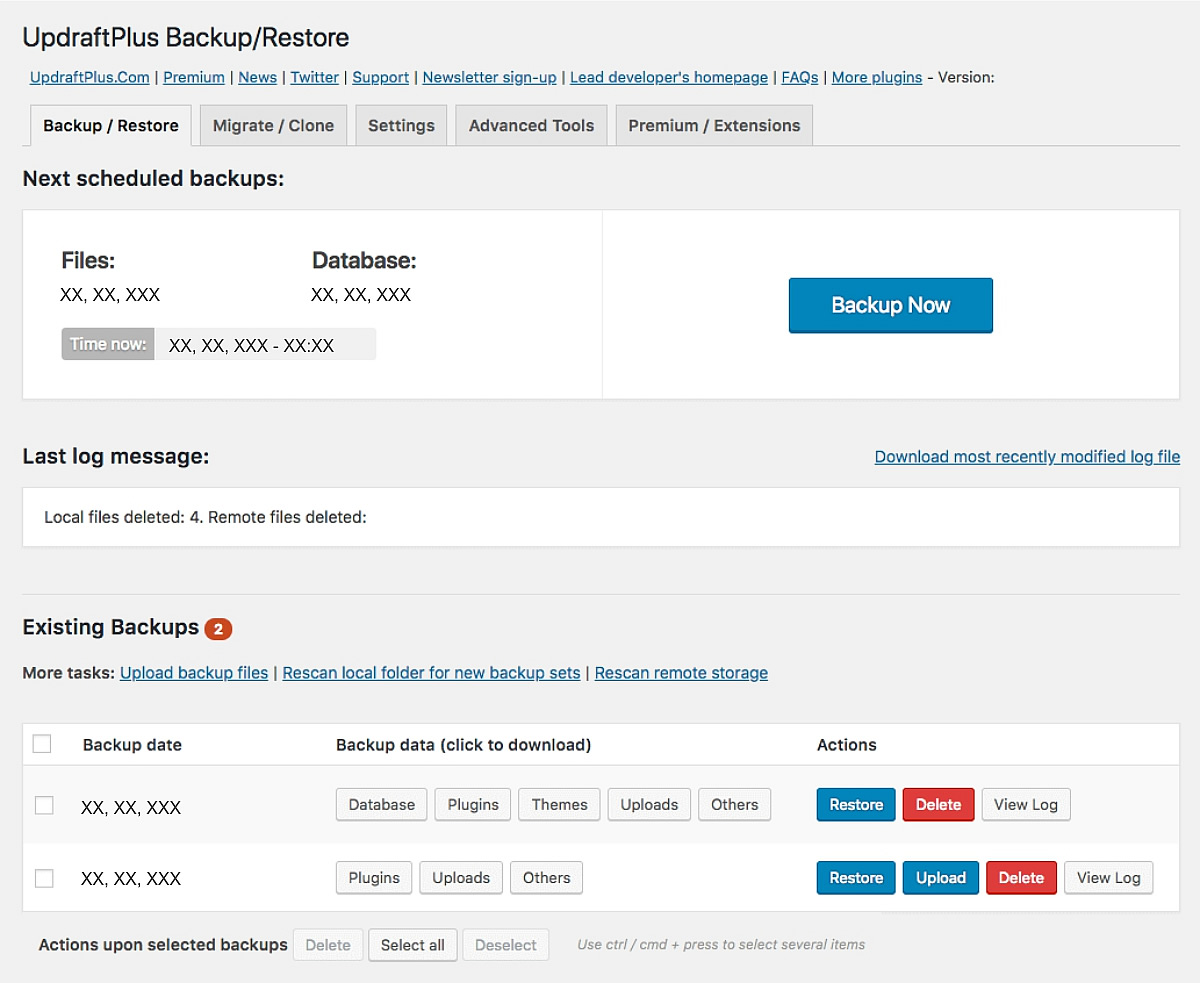
We recommend you set up automatic daily backups to run at least daily or just before you make any changes or update your site (just in case something goes wrong).
3. Update everything frequently
WordPress’s core file, plugin, and theme updates patch weaknesses and resolve common security issues. Ignoring them makes it easier for hackers to break in, and you won’t benefit from WordPress’s latest performance tweaks.
The attack factor is no joke. According to Sucuri, almost half of the hacked WordPress sites they investigated were outdated at the point of attack.
Therefore, you should always update your site and its software as soon as new versions become available. Check the “Updates” tab in your WordPress dashboard:
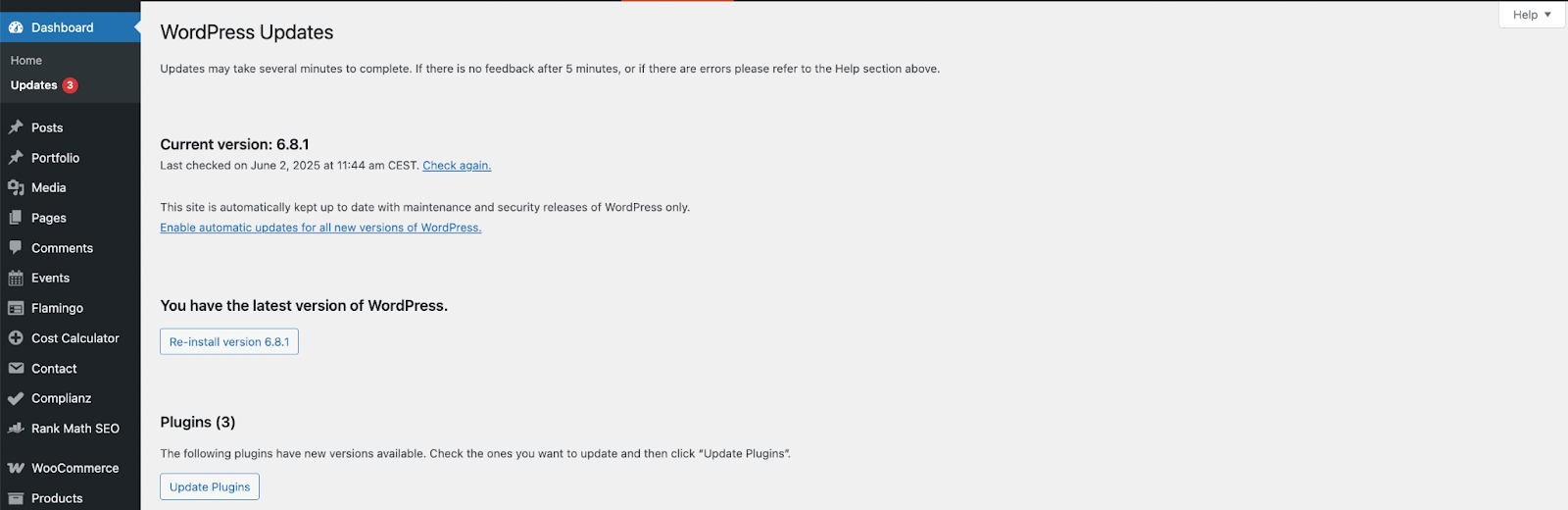
However, don’t be tempted to automate these updates for the sake of saving time.
Automatic WordPress updates can cause compatibility issues if left unchecked. That’s why it’s always best to check updates manually (perhaps by testing them on a staging site first) or by hiring a maintenance partner to do it all for you.
4. Practice security basics
Sadly, you can’t expect WordPress’s built-in security shell to keep you protected against sophisticated cyber attacks. There are a few essential security practices worth adding to your regular maintenance schedule.
To start, we suggest managing user roles and permissions monthly and changing your user passwords at least once every two months, or in response to a security threat.
Also, make sure the chosen passwords are highly secure. As CISA recommends, a strong password should comprise at least 16 characters, including random strings of uppercase and lowercase letters, numbers, and symbols. This makes them more resilient against brute-force attacks.
Then, use a plugin such as WP 2FA for multi-factor authentication (MFA). MFA adds extra steps to logging in, such as requiring a backup code sent to an authorized email address.
You should also use a web application firewall as an extra line of defence and install a security plugin or a malware scanner (like Sucuri) to run daily security scans and check for hidden nasties.

5. Use a staging site to test updates and features
A staging site acts like a rough draft or a maintenance mode version of your website, where you can try out new plugins or plugin updates, features, coding, and design elements. It’s a key benefit of our Elite package.
Using this tool means you don’t have to worry about accidentally changing your live site, potentially harming UX, or affecting sales.
And, if you do make a mistake on your staging site, it’s super easy to bounce back from, and you can see where you went wrong before customers ever notice.
What’s more, staging sites:
- Make testing more precise because you’re not rushing to make sure your live site is accessible.
- Help with approval processes, as senior members can review content the way it would appear to customers, rather than in mockups.
6. Keep an eye on performance
No matter how great your site looks, certain hidden issues could be driving down your load speed or affecting UX.
For example, you might not know you have broken links affecting your search engine rankings unless you explicitly look for them!
So, start checking your site’s performance vitals regularly. Getting a Core Web Vitals report and analyzing user behavior via Google Search Console (GSC) is a great place to start if you want to fine-tune your site for optimal performance. GSC breaks down how many visitors you get, what traffic patterns are emerging, how many pages Google is indexing, and how fast your pages load on average.
After registering your site with GSC, look for “Core Web Vitals” under “Experience”:
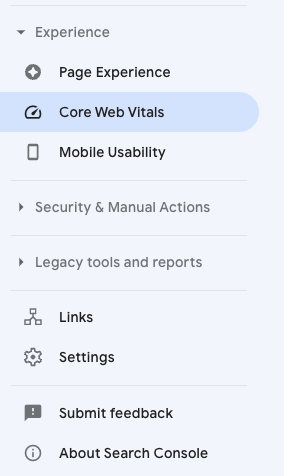
Click “Open report” to get a breakdown of your pages’ performance and on which vitals they might need improvement (such as responsiveness and slow loading time).
 If this seems tricky, don’t worry. A maintenance partner can help you make sense of the metrics.
In fact, you can use our FREE web auditing tool to get a deeper breakdown of your website’s performance stats. It helps you understand where page load speeds are bottlenecking, what pages need a boost to improve SEO rankings, and how you can give site visitors a more positive user experience and increase conversion rates.
After analyzing these reports, you can improve your site’s performance by:
- Using a plugin to cache web pages, meaning you store data to load later (and reduce server load)
- Trying lazy loading, a technique where images on pages load later than essential content
- Installing a plugin that compresses images to free up bandwidth
- Running a database optimization from time to time
- Using a plugin to minify or shorten code to reduce page load demand
- Ensuring your links all lead to where you need them to go (for instance, with a broken link checker like WPMU DEV’s) and fixing any broken ones
- Testing your contact forms to make sure they send mail to the correct inbox
7. Delete unused software and code
Any code, themes, or plugins you’re not using just sit there, swallowing bandwidth and grinding performance to a halt.
Not only that, but the more unused software you have sitting idle, the more attack points you offer to hackers and the more security vulnerabilities you invite. It’s best to keep your site lean, secure, and up to date.
So, keep plugins you absolutely need (such as Sucuri for malware protection), and remove unnecessary or unused plugins – you’ll improve your site’s database performance and overall speed. For example, Akismet is an essential plugin, while Hello Dolly is a fun gimmick that can be removed:

Deleting unused themes is another great opportunity for an easy win. That said, getting rid of unused code gets trickier. If you’re going it alone, you can use plugins like WP Rocket to search for and remove surplus entries you genuinely don’t need.
That said, there’s an even easier option…
8. Hire StateWP as your maintenance partner!
You could spend hours away from your business, scratching your head over all these maintenance tips, only to lose focus and revenue.
Or, you could hire StateWP to take care of every aspect of your website’s maintenance while you double down on dazzling your customers!
We make sure your site’s always updated on time, fully optimized for speed, performance, and SEO, ready to compete in search results relevant to your business.
With StateWP, you know your website is secure and performing at its best, because our experts have got your back.
Take our client, Heffernan Insurance Brokers. They trust us to keep their site running smoothly and quickly while they grow their practice and win new clients.
They love Proto – our all-in-one dashboard for tracking and analyzing performance – and their dedicated account manager. With a single, accountable point of contact, they get lightning-fast responses to questions, near-instant fixes for any potential issues, and professional support to optimize their web content.
The Proto dashboard is intuitive and simplifies task management. Quick and knowledgeable support ensures requests are handled promptly. The maintenance dashboard and ticketing system keep the site current and high-performing, enhancing our workflow. ~SVP Marketing & Communications at Heffernan
Put Our WordPress Maintenance Tips into Practice
Maintaining any website is a regular, long-term commitment, and the WordPress maintenance tips we’ve shared here are great for helping you get started.
Pretty soon, you’ll have a website that’s fast, secure, and easier to use than ever. That said, it’s a lot of work, and it’s much easier to hire a partner to do it all for you.
From $99/mo, StateWP is in your corner as your website’s on-call maintenance crew.
We get WordPress sites performing at their best (and keep them that way).
Get in touch today and start reaping the rewards of long-term maintenance support!
WordPress Maintenance Guide: FAQs
Let’s close with some commonly asked questions about WordPress website maintenance tips.
What maintenance is required for a website?
Long term, proper maintenance means monitoring your site’s search engine optimization (SEO) performance, load speeds, uptime, and traffic analytics, and testing updates and features using a staging site.
What is the best way to maintain a website?
- Build a checklist of regular tasks you can follow up on a daily, weekly, and monthly basis.
- Prioritize security and performance tasks.
- Hire a team of WordPress experts to handle all the maintenance nitty-gritty for you, saving you money, time, and effort. StateWP’s Premium and Elite plans are top options!
How do you make a website maintainable?
- Only ever install plugins you need, such as malware scanners and SEO plugins.
- Use caching and code minifying plugins to reduce load times.
- Back up your site automatically.
- Update your site’s software and critical files as soon as patches are released.
- Set a plan to check your site’s performance regularly.
How do you write a maintenance checklist?
Make a list of all your site’s most important assets and create a schedule to check and maintain them regularly. For example, prioritize security monitoring, content updates, performance optimization, and site functionality checks over all others.
Even better – check out our website maintenance checklist and hit the ground running faster!
How much is maintenance for a website?
The cost of maintaining your site depends on the complexity of your website and how much time you spend managing it all yourself.
However, when delegating to experts, WordPress site maintenance costs between $100 and $300/mo, excluding hosting, for most sites. Advanced website maintenance services – like our full-service Elite plan – generally start at around $630/mo and can cost up to $2,000/mo.