
Your WordPress site just isn’t working as it should.
You’re struggling to log in. You’re getting strange messages from your host about “suspicious activity” and the dreaded WordPress 403 error.
“Has my WordPress site been hacked?”
It’s a possibility – which means you need to act fast.
Any website running WordPress hacked through malicious code, phishing, or vulnerabilities risks leaking data into the wrong hands.
And, the longer you leave fixing the hack, the more business you lose.
But memes aside, there’s no need to panic. Our tutorial is here to help you:
- Learn how to tell if your website is hacked
- Start fixing your hacked site
- Find extra support from WordPress site owners
If you want to get straight to the website recovery tips, jump ahead!
WordPress Site Hacked: 8 Signs Your Website Is at Risk
A hacked WordPress site has a few telltale signs, and we’ve rounded up the most common indicators below.
However, don’t always be quick to assume your site is hacked if you’re experiencing issues such as the WordPress critical error or you can’t log into your site.
Before leaping to the worst-case scenario, always:
- Refresh your internet browser and delete its cache and cookies
- Try accessing your website on a different browser and device
- Reset your WordPress password
- Access your website through FTP
- Contact your hosting company to report the issue
Beyond these checks, here are our top eight signs your WordPress site is hacked:
- Your site isn’t loading, and you get an error message
- You can’t log into wp-admin or your WordPress dashboard
- Your site has changed randomly, or there are changes in traffic and performance
- There are weird ads on your site that redirect somewhere shady
- Your browser warns you against accessing your site
- Google warns your site is unsafe when you click search page links
- Your security or malware plugin notifies you of a problem
- Your host notifies you of unusual activity
Here’s how to check if your WP was hacked:
1. Your site isn’t loading, and you get an error message
A site that fails to load or shows an error message could be a sign of hacking, but several WordPress errors can occur due to problems behind the scenes.
For example, the common 503 error can arise due to firewall configuration problems, and 500 errors often happen due to host, server, or plugin issues.
Before assuming a non-loading site is a sign of hacking, try a different device.
2. You can’t log into wp-admin or your WordPress dashboard
Does this look familiar?:
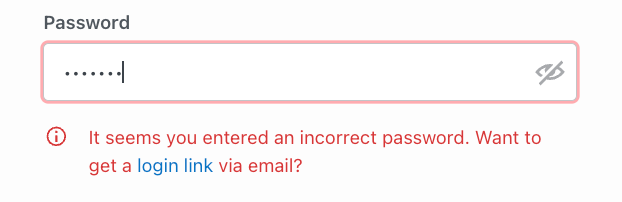
If so, try and reset your password via your registered email or get WordPress to send a login link.
A hacker may have changed passwords or removed your user account if neither option works.
3. Your site has changed randomly, or there are changes in traffic and performance
Defacing sites is the most common action hackers take after accessing WordPress accounts:

If something looks strange on your homepage or you have no recollection of changing your site, check with other users if they made the changes.
Then, check Google Analytics to see if your web traffic has dropped or performance has dipped.
Hackers could use malware to redirect website visitors, or Google might redirect them because they flag it as unsafe.
4. There are weird ads on your site that redirect somewhere shady
A WordPress redirect hack tricks people into clicking away to malicious sites through false ads and links.
Malicious ads can be challenging to spot. For example, if your website uses display network advertising, you might not know which ads are circulating.
If some ads don’t seem legitimate, trust your gut. Your host or a WordPress admin can help you suspend advertising.
5. Your browser warns you against accessing your site
Some web browsers spot malware before users click through.
For instance, your WordPress site might be hacked if you see the following when accessing via Chrome:

However, these errors can also occur if you’re running a custom WordPress theme or plugin with faulty code or if you need to update your website.
6. Google warns your site is unsafe when you click search page links
Google might warn you about your site being unsafe if you click a link to one of your pages through a search engine results page or SERP.
Google typically sends these messages if your sitemap is compromised or if it flags suspicious activity.
7. Your security or malware plugin notifies you of a problem
If you’re using a reputable security plugin for WordPress, you should receive notifications of hacking attempts.
Sucuri, a leading security plugin, sends users emails when it traces brute force attacks and failed login attempts:

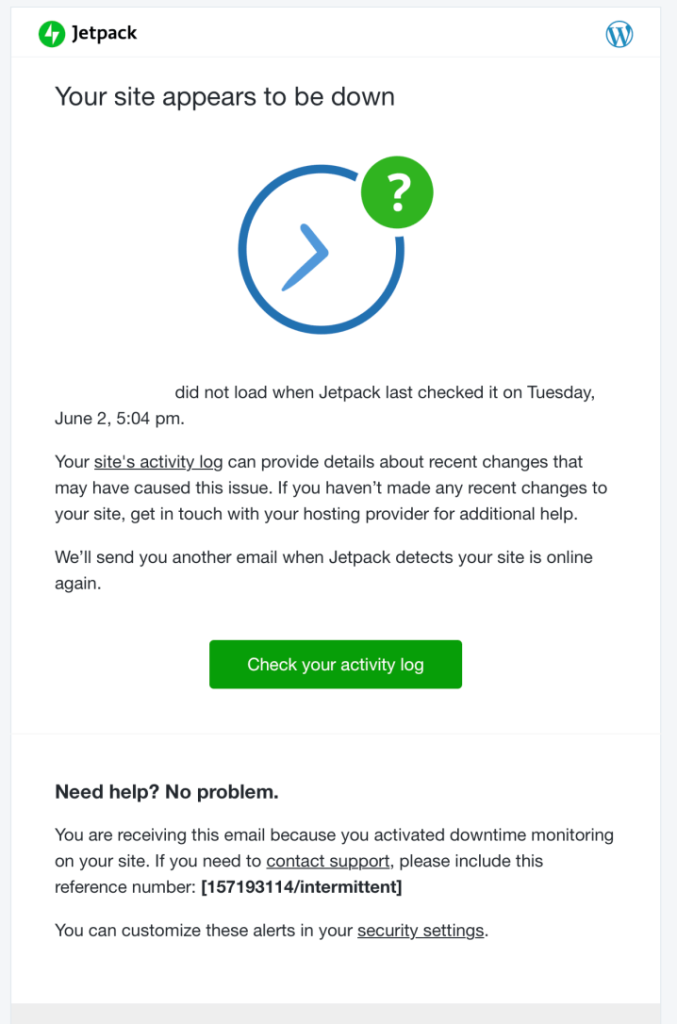
Jetpack, meanwhile, informs users when their websites are down unexpectedly:
8. Your host notifies you of unusual activity
The best web hosting providers should inform you if they notice strange login patterns or changes.
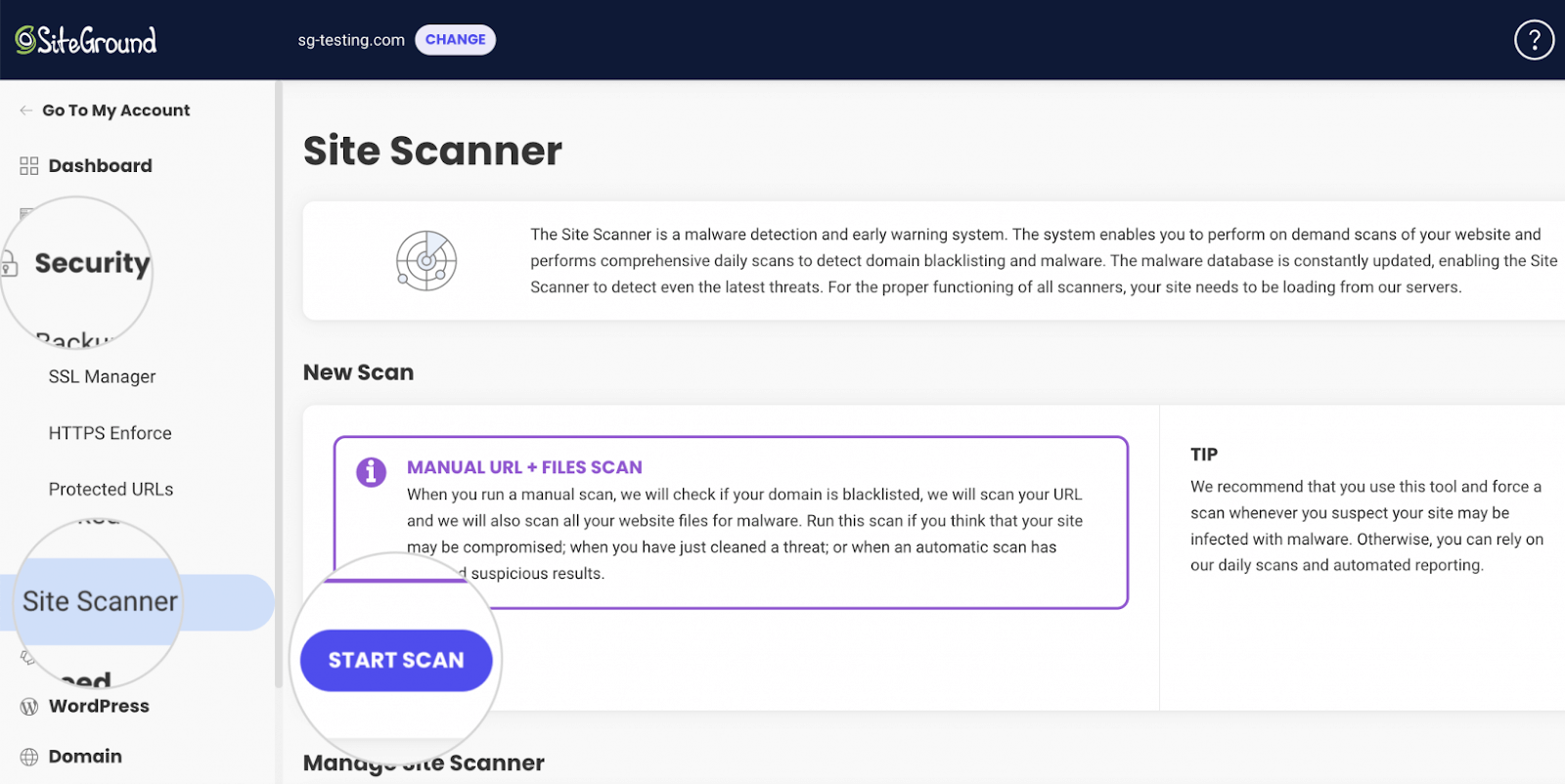
SiteGround, to demonstrate, has a Site Scanner that runs automated malware checks and sends email notifications if it spots malicious content:
How Did My WordPress Site Get Hacked?
Don’t take it personally. As mentioned, hackers target all WordPress sites.
The difference is whether or not your website has enough security measures against their attempts.
Let’s run through some common reasons why website owners suffer hacks.
Password insecurity or theft
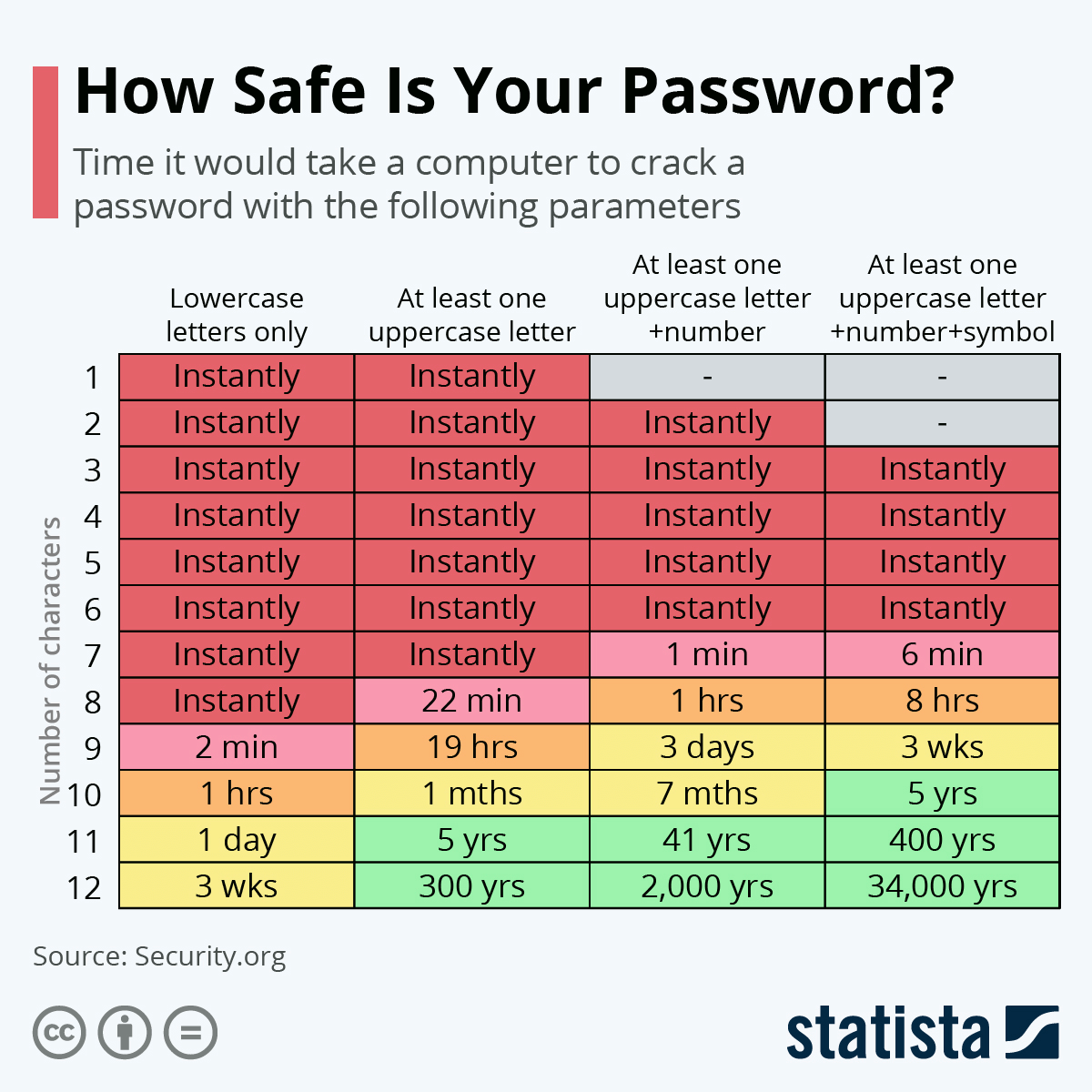
Hackers “brute force” password-guessing using automated software and scripts – meaning they can process thousands of guesses per minute to crack weak passwords instantly.
Even a six-character password with uppercase, numbers, and symbols is at risk of being hacked within minutes. Here’s a diagram showing how safe your password might be:
Following a strong password etiquette is an excellent first step. However, you’re at additional risk from brute force attacks if you:
- You don’t WordPress regularly
- Avoid using a firewall
- Don’t use two-factor authentication
Outdated themes and plugins
Hackers can exploit outdated or faulty software by using them as “backdoors” into websites.
Around a third of WordPress websites are lagging on critical updates. If you’re part of that group without the latest version of WordPress, you invite hackers who already know how to exploit outdated WordPress files.
Insecure code from disreputable sources
It’s wise to stick to installing plugins and themes from legitimate sources. Insecure or unverified code could, again, fall prey to hacking exploits.
There’s a further chance of you getting hacked through intentionally harmful plugins and themes. Stick to WordPress’s library.
If you write code for your website (such as custom theme elements), we recommend using a code playground or W3 Developer Tools to test it before adding it raw to your site.
Insecure hosting
The more reputable your host is, the more secure you can expect your site to be. Don’t rely on the cheapest hosting account options for the best security.
Very cheap web hosts frequently run shared servers, meaning you’re at the mercy of other websites’ security vulnerabilities.
A secure host such as Bluehost or Hostinger ensures your web server is protected.
Incorrect file permissions
File permissions decide who has access to read, execute, and write files on your WordPress website. Ideally, only admin accounts should have access to resetting file permissions.
You can edit file permissions through an FTP program or CPanel by using a plugin such as All In One WP Security or by contacting a WordPress developer.
How Do Hackers Get Inside Your WordPress Site?
Hacking has evolved beyond the point of just sending viruses through spam emails and guessing passwords.
Here are the most common methods hackers try when breaking into WordPress sites.
| Potential hacking route | Description |
| Backdoors | Routes hackers find in vulnerable code to, for example, encourage visitors to install harmful software |
| Pharma hacks | SEO malware that redirects visitors to spam content by injecting keywords |
| Brute-force login attempts | Repeated password guessing through malicious software |
| Malicious redirects | Rogue code inserted into websites to force people to visit external pages |
| Social engineering and phishing | Techniques used in email and instant messaging where hackers pretend to be legitimate contacts and trick recipients into clicking harmful links |
| Man-in-the-middle attacks | Strategies hackers use to intercept website communications |
| Cross-site scripting (XSS) | Code injection techniques that enable hackers to redirect visitors, capture keystrokes, and steal cookies |
| DNS hijacking | Interception of visitors’ DNS requests to steal credentials and redirect them to harmful sites |
| Distributed denial-of-service (DDoS) attacks | A complete shutdown of a website or network. typically through flooding servers with requests |
Clean and Recover a Hacked WordPress Website in 13 Steps
Here’s what to do if a hacker has brought down your website and what you can do to recover quickly.
How to clean a hacked WordPress site
| Step | In brief |
| 1. Clear your head |
|
| 2. Activate “maintenance mode” |
|
| 3. Identify what has happened |
|
| 4. Remove injected files or unwanted scripts |
|
| 5. Clean out your database |
|
| 6. Reset all your passwords |
|
| 7. Update WordPress and its plugins and themes |
|
| 8. Remove any unknown users |
|
| 9. Remove unused plugins |
|
| 10. Use WordFence or Sucuri to remove unwanted files |
|
| 11. Restore your site from an earlier backup (and update issues that led to the breach) |
|
| 12. Clean your sitemap and resubmit it to Google |
|
| 13. Handle the brand reputation fallout among your clients |
|
1. Clear your head
Take a deep breath. You’re not the first hacking victim, and you’re not the last. There’s a way back from this.
If you’re worried or would rather someone else help you recover from a WordPress hack, jump to the next section and speak to an expert.
2. Activate “maintenance mode”
WordPress’s “maintenance mode” disables your site, informing visitors you’re working on it and protecting them from attacks.
Installing a plugin via your WordPress dashboard is the easiest way to activate this mode.
Log into WordPress and find the “Plugins” menu and “Add New.”
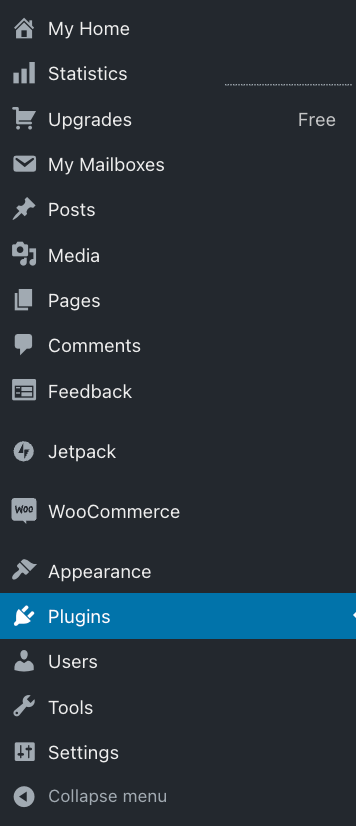
Then, use the plugin search bar to look for a maintenance mode program. We suggest using LightStart or CMP.
Once you find either of the plugins, click on your choice and read the description:

Click the “Activate” button to the right.

Once activated, access “Plugins” and select the “Settings” of your chosen program. Alternatively, plugins such as Lightstart appear in your dashboard as a new option:

Follow your plugin’s options to activate your maintenance page. Refresh your site to see it take effect.
3. Identify what has happened
It often helps to know exactly what a hacker has done to your website so you know where to focus your efforts.
Many WordPress security plugins inform you when changes occur to your website or when they notice strange activity.
Some, such as Jetpack, have built-in activity logs that record the most recent actions taken on your website:

When checking activity logs, note changes you don’t recognize and remove affected plugins, themes, and users.
4. Remove unwanted scripts
Hackers might have altered your website’s scripts, so it’s worth checking if you can remove or roll them back.
Consider using a code cleanup plugin such as Asset CleanUp, which removes unnecessary code and “minifies” it to boost website loading speeds.
Search for “Asset CleanUp” in the plugins library and install the program.
Then, load it from the “Plugins” screen and follow the options to “Optimize CSS” and “Optimize JavaScript.”
You can also access individual posts and pages and click “Manage CSS & JS” to find scripts you can offload.
Both options help to slim down your code to what you need. However, this step can get a little technical – so reach out for help if you need it!
5. Clean out your database
To clean out your database, we recommend using a plugin such as WP-Optimize, which can delete post revisions, drafts, and temporary data, effectively clearing files that might be compromised.
Search for and install WP-Optimize in WordPress. Once installed, you should see it as an option in your dashboard.
Select “Database,” and the next window reveals a list of optimization tasks the plugin can carry out:

Check the boxes for all the database files you wish to clean, and then click “Run all selected optimizations.”
6. Reset all your passwords
The quickest way to reset passwords is to head to “Users” in your dashboard and select “All Users.”

Select the user whose password you want to change and click “Edit.”

Then, scroll down to “Account Management” and click “Generate Password.” Click “Update User” when ready.

Change your own WordPress password, and any for your FTP, your database, and your host dashboard.
7. Update WordPress and its plugins and themes
WordPress should automatically update, however, you can check for new versions of the software on the top left of your dashboard:

If you see this message, you’re missing out on one or more essential security patches. Click “Please update now,” and on the next screen, click the blue button, “Update to version X.X.”
Now, head to “Plugins” and “Installed Plugins.” If a manual update is available for a plugin, a message appears, and you can click to update:

You can also filter plugins by those needing updates using the “Updates Available” widget at the top of the page:

Take note of the plugins that don’t need updating. You ideally need to remove and reinstall them in step nine.
Finally, to update themes, head to “Appearance” and “Themes.” If you’re using a theme available through WordPress.org, you should have the option to click “My Themes.”
Click on “Update now” if the option appears:

If you install a theme outside WordPress.org, you should contact the developer directly for updates.
8. Remove any unknown users
Head to the “Users” tab and select any you wish to delete. You can do this manually using checkboxes or group users to delete based on their “role,” such as “Subscriber.”

Once you select the users to delete, select “Bulk Actions” and then “Delete,” followed by “Apply.”
If the users you’re deleting made posts, a new screen appears. Here, you can choose whether to delete their content or to attribute them to active users:

Click “Confirm Deletion” and remove the users for good.
9. Remove unused plugins
Ideally, you should remove and reinstall any plugins you didn’t update in step seven.
Therefore, remove them individually through the “Plugins” and “Installed Plugins” screens as listed in the step above.
Avoid removing and reinstalling backup and malware plugins at this stage.
Once removed, search for them again using WordPress’s library and reinstall.
10. Use WordFence or Sucuri to remove unwanted files
Both Sucuri and WordFence are WordPress malware removal plugins that clear up any remaining nastiness you’ve been unable to remove.
Let’s assume you’re using WordFence. Head to “WordFence” in your dashboard and select “Start New Scan.”

Select “All Options” to the left and then check “High Sensitivity” under “Basic Scan Type Options.”
Run the malware scan and wait for the results. Then, select files to clean or delete. WordFence also shows you the difference between plugin, theme, and WordPress core files, and you can choose to “Repair” each file.

Before you delete any files, create a new backup for your site using a plugin or your host dashboard.
11. Restore your site from an earlier backup (and update issues that led to the breach)
If you back up your WordPress site through your hosting provider, log into their dashboard and choose a previous save to restore.
Otherwise, you can use a plugin to restore backups, such as UpdraftPlus. Let’s use it as an example here.
Look for “UpdraftPlus Backups” under WordPress’s “Settings” tab. It should bring up a new window with a list of “Existing Backups.”

Click “Restore” next to the backup you’d like to revert to, check the boxes next to what you’d like to replace, and click “Restore” in the popup:

12. Clean your sitemap and resubmit it to Google
You can use an SEO plugin to clean and restore your website’s sitemap. You need to do this so Google can start crawling your site again and stop flagging malware warnings to SERP visitors.
Start by searching for Yoast SEO in WordPress’s plugins library. Install it, head back to the dashboard, and look for “Yoast SEO” in the side menu:

Click this to reveal “Settings,” which, when clicked, brings up a new window:

Then, head to “APIs” and “XML Sitemaps Card,” followed by “Enable Feature.” Switch this on to generate your XML sitemap.

You can then click to view your XML sitemap, which breaks down the precise layout for your site.
From here, you need to log into Google Search Console and select your website from the sidebar:

Then, click “Sitemaps” under “Index”:
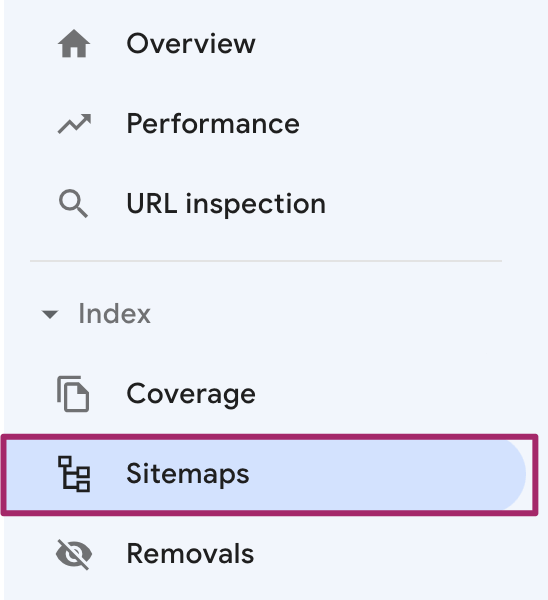
If there’s an existing sitemap already in the list, remove it and paste the URL for the XML Yoast generated in step 11 in the “Add a new sitemap” section. Click “Submit.”

Google now knows to start crawling your site again. It can take some time for SERPs to fully update.
13. Handle the brand reputation fallout among your clients
Return to your maintenance mode plugin and deactivate it so visitors know you’re back up and running.
Now, you need to address the problems you’ve faced with your site via social media and email lists.
If there’s a risk of customer data loss, you must advise your clients and confirm the steps you’re now taking to prevent hacking in the future.
Bouncing back from a hack can be tricky in the public eye, but provided you’re clear with clients on what happened and how you’re fixing the problem, you lay the groundwork for loyalty to come.
The Easier Way: Hire Experts to Fix Your Hacked WordPress Site
Fixing a website post-hack is a lot of work which can get extremely sensitive and technical.
Therefore, consider asking an expert to take care of a hacked website for you. Professional WordPress developers know all the right checks and measures and can recommend beneficial plugins, too.
It’s quickest and easiest to have a developer on standby to support you and your WordPress site from the get-go.
For example, by logging into a Proto account from StateWP, you can manage your entire WordPress site from a single screen.

Proto’s dashboard lets you check vitals such as traffic and performance to easily spot a hack.
If, when using Proto, you find all the telltale signs of a hack are clear, you don’t have to repair everything yourself.
Instead, raise a support request, describe your concerns, and wait for a StateWP expert to pick up your message. Experts aim to fix WordPress hacks within a day of receiving messages.

Staying Safe: 6 Ways to Prevent Your Site from Being Hacked Again
Don’t go through the stress of a WordPress hack again – follow these tips to keep your site healthy and avoid being hacked in the first place.
Tips to stop WordPress hacks in their tracks
| Prevention tip | In brief |
| Make all your passwords secure | Use random sequences of letters, numbers, and symbols to make passwords harder to crack |
| Regularly update your website | Check WordPress, plugins, themes, SSL certification, and firewall software regularly for updates to prevent backdoor attacks |
| Only install reputable plugins and themes | Install software approved through WordPress.org or its libraries and avoid installing malicious code |
| Keep your WordPress installation clean | Only use the settings and software you need, and use optimizing plugins to prevent the chance of attacks |
| Choose a quality host | Register your site with a well-reviewed host and avoid shared servers (you share website problems, too) |
| Have experts on hand for all the above and to monitor your site | Partner with a WordPress developer who can fix errors, check for problems, and help you bounce back quickly from hacks |
1. Make all your passwords secure
When resetting passwords in WordPress, you can generate secure phrases automatically.
However, if you want to create passwords from scratch, avoid using recognizable words. Hackers can use dictionary attacks to force word guessing.
Instead, use Security.org’s password checker, which tells you how long it could take a computer to crack your chosen phrase:

2. Regularly update your website
Updating your website means watching out for new versions of WordPress, plugins, and themes.
Software downloaded through WordPress.org typically updates automatically, but it pays to be vigilant. The moment software goes out of date, hackers already know it’s open to exploit.
You should also install and update a reputable firewall to filter traffic and spot the first signs of malicious attacks.
In addition, it’s wise to keep SSL (secure sockets layer) encryption updated. This protocol keeps data private between browsers and servers – ask your web host or a developer to help you install SSL certificates.
3. Only install reputable plugins and themes
Installing reputable programs vetted by WordPress means there’s less chance of exploits developing, and if there are any problems, updates roll out swiftly.
When you install off-site plugins and themes, you not only risk patching malicious code into your site as-is, but you’re relying on an external developer to maintain said code.
4. Keep your WordPress installation clean
By using WordPress plugins such as WP-Optimize and Asset CleanUp, you can ensure your ecommerce site or website is always free from unnecessary files and scripts.
Remove unnecessary users, plugins, themes, comments, posts, and other media that could be vulnerable to hackers. The cleaner and more up-to-date your WordPress site is, the less likely you are to have vulnerable security issues.
5. Choose a quality host
Don’t leap onto WordPress hosting packages just because they’re cheap. As mentioned, shared server packages can leave you wide open to problems developed through other people’s websites.
A responsible web host with reporting tools, such as SiteGround, keeps you up to speed on your site’s health.
Look at customer reviews on web hosts available, and don’t be afraid to spend a little more money to get better protection.
6. Have experts on hand for all the above and to monitor your site
With an expert developer on standby, you can raise the alarm whenever you notice something suspicious.
Whether that’s through your host’s dashboard or through an all-in-one WordPress manager like Proto, you’re saving time and stress when an expert’s got your back.
WordPress Hacked? You’ve Got This Cracked
Unfortunately, hackers are likely to try attacking most WordPress websites – but they don’t always succeed.
That said, the type of hacker WordPress users worry about is one who’s willing to try everything to break in.
By taking preventive measures to secure your site against malicious attackers, you never need to worry about losing custom, reputation, or access to your website.
But don’t be afraid to ask for help from an expert if you’re unsure what to do for the best.
You stand an even better chance of fighting back against hacking attempts with a team of expert developers by your side. Raise a support request through Proto, and StateWP can bring you back from the nastiest of hacks.
In the meantime, why not brush up on automating your website backups and try a few of our website security checks?