
When you install a theme, you want it to work. But issues with theme functionality on WordPress are frustratingly common.
WordPress theme issues aren’t always directly related to the theme itself, either. They may reflect problems with how your theme interacts with other areas of your site, which often makes it hard to identify the root cause.
If you’re tired of tearing your hair out, we’re here to help.
In this guide, we’ll cover how to solve common WordPress theme issues with tutorials – and what to do (and who to contact) if you can’t.
#1: Your Site Is Broken After Installing a New Theme
If your site on WordPress is broken, your theme may be the problem – especially if you’ve just installed it. But what does a “broken” site actually look like?
You might be seeing a “fatal error” or “critical error” message, which typically looks like this:
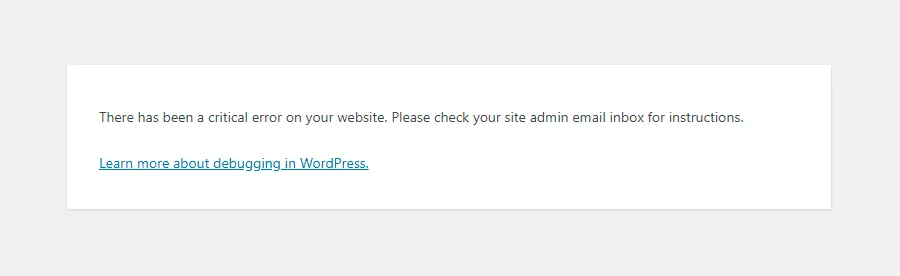
Or you could be seeing an internal server error, also known as a 500 error. Errors like this may display a wide range of messages, including:
- HTTP Error 500
- 500 Internal Server Error
- The website cannot display the page
- Sorry, something went wrong
- There was an error, please try again later
- Internal Server Error
Switch to the default WordPress theme to see if it resolves the issue. If it does, the most likely issue is that your premium theme (or one or more of your plugins) isn’t compatible with the current version of WordPress.
The solution: Check theme compatibility with current WordPress version and plugins
You can usually check the theme developer’s website to see the latest version of WordPress that will work with your theme. If the theme isn’t compatible, you will need to choose a theme that is compatible.
The other potential problem lies with your plugins. Even if all your plugins are compatible with your theme, conflicts between plugins (or between a plugin and the latest WordPress version) may still lead to WordPress theme issues.
But until you know which plugin is breaking your functionality, you won’t know how to resolve this error.
Here’s how to fix a broken theme in WordPress by identifying a problem plugin:
- Deactivate all your plugins, then turn them back on one at a time, refreshing your live site each time, until you find the plugin that’s causing the issue. You can then uninstall that plugin and check if the error’s been resolved.
- Check your server’s error logs, which list error messages by date and time. Search for the date and time you experienced the error, and see if you (or a WordPress expert) can tie it back to a plugin your site is using.
- Use a tool like Plugin Detective to help you debug the problem plugin, without the hassle of deactivating all your functional plugins.
#2: The Theme’s Stylesheet Is Missing
This issue sometimes crops up when you try to install a new theme you’ve downloaded or purchased. You’ll know it’s happening when you see this error message:
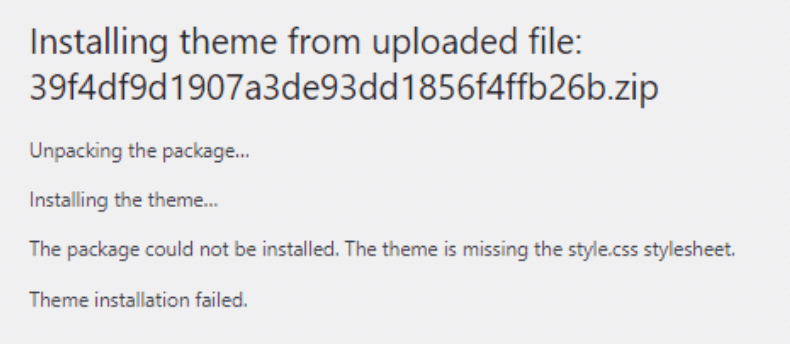
If WordPress is telling you “The package could not be installed. The theme is missing the style.css stylesheet,” the stylesheet is unlikely to be the real problem. Instead, you’re probably missing the root theme folder.
The solution: Upload the root theme folder manually
If an error message tells you that the stylesheet is missing from your WordPress theme, you need to find and manually upload the root theme folder. Here’s how to do it step-by-step:
- Find and open the folder containing your theme on your desktop.
- Locate the missing theme files. They may be immediately obvious in the main folder, or they may be in a sub-directory (many theme files contain an “installable theme” sub-folder for all the uploadable files).
- Compress the missing theme files into a “zipped” folder. On Windows, you can do this by selecting the files, then right clicking and choosing “Compress to ZIP file”.
- Go to your WordPress dashboard, then “Appearance”, then “Themes”.
- Click “Add new”, then “Upload theme”.
- Choose the zipped theme file and upload it.
- Click “Install now”.
- Once the installation is complete, click “Activate”.
#3: You See a White Screen After Activation
Although it doesn’t offer an error message, the WordPress White Screen of Death is easy to spot:
It’s just a blank, white screen that replaces your WordPress site.
It’s not uncommon for the White Screen of Death to appear after you’ve activated a new theme. Needless to say, because the WSoD prevents users from seeing your site, it’s an issue you’ll want to resolve as quickly as possible.
The solution: Update your PHP version and check plugin compatibility
When the White Screen of Death strikes after you’ve activated a new theme, there are two common causes. The first is that your server is running on an outdated PHP version. Here’s how to troubleshoot this problem:
- Either check with your hosting provider (or verify for yourself in your WordPress host’s cPanel) which version of PHP your server runs on.
- If it’s not running at least PHP version 7.4+ or 8.0+, you will need to update your PHP. This can be pretty technical, and the exact steps depend on your hosting provider, so see our in-depth guide for more details.
If your PHP version looks current, the most likely cause is a plugin conflict. We’ve covered the different ways you can handle this situation up above, and all of those methods still apply here.
#4: Your WordPress Site Has Slowed Down Noticeably
If you notice that your WordPress site slows down dramatically right after installing your new theme, it’s safe to conclude that your theme is the likely culprit.
Even if it only runs slower under certain circumstances – for example, a new computer runs your site just fine, but older PCs take longer to load it – it’s still a user experience problem.
That’s because users hate slow sites. The likelihood of a user leaving your site rises by 32% as your page load time increases from one second to three.
When two seconds’ load time makes the difference between a conversion and a closed tab, you can’t afford to be cavalier about site speed.
The solution: Optimize theme performance settings
A theme that makes your site run slowly may include large files, complex web design components, or excessive code. If you suspect this may be the case, and your theme comes with performance settings you can adjust, it’s worth taking a look:
- From the WordPress dashboard, check for a link to “Theme Options” (or similar) in the left hand sidebar.
- On this page, look for any performance-related sliders that you can turn on and off. These may include animations or JavaScript features that are common causes of site slowness.
- Turn off any non-essential theme features, and see if that speeds up your site.
If your theme doesn’t have these options, or if adjusting them doesn’t help, you may need to update your theme. Check the site where you downloaded the theme to see if a more up-to-date version is available.
And if you’re already running the most up-to-date version of your theme, you have a few options:
- Try using a plugin like WPRocket to speed up your site
- Choose a more streamlined theme that will run faster
- Contact experienced WordPress developers who can help you keep your site running quickly and smoothly
#5: Your WordPress Theme Isn’t Displaying Correctly
When your WordPress theme is not displaying correctly, it makes your site look messy and unprofessional – an immediate turn-off for would-be customers.
On the bright side, it’s usually easy to identify theme display issues. You may see images displaying at incorrect resolutions, or interactive parts of your site like dropdown menus not working at all.
The solution: Adjust image settings and check plugin compatibility
If the problem is with your images, it’s fairly easy to fix. Your previous theme and your new theme probably set different default sizes for image thumbnails, and now that your new theme is installed, the old settings are still in place, making images look strange.
To fix it, follow these simple steps:
- From your WordPress dashboard, go to “Settings”, then “Media”.
- Look for “Image sizes”, then “Thumbnail size”.
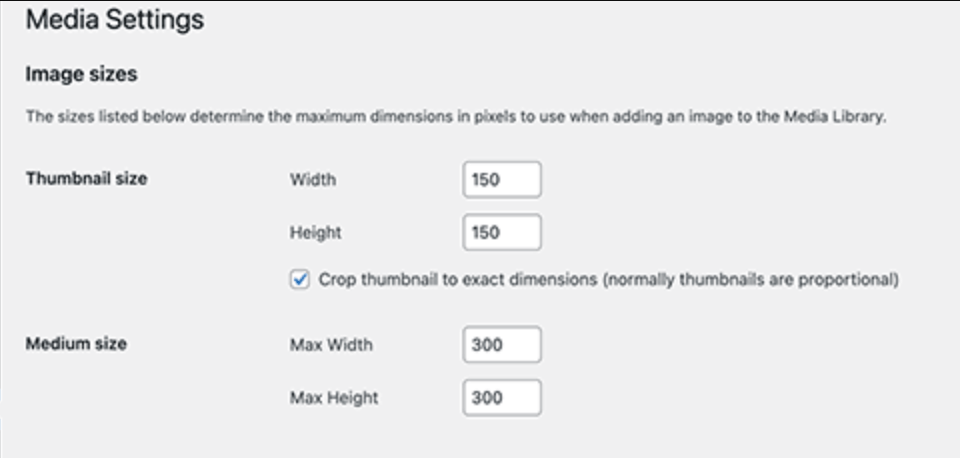
- Change the default height and width of your thumbnails in pixels – you may need to experiment with image sizes in your page builder until you find the right fit for your theme.
- Save your changes and refresh your page to see if the new size works.
If your interactive elements aren’t working, the problem is likely an incompatible plugin.
We’ve already covered the ways you can check plugin compatibility, and they work just as well to resolve issues with WordPress themes not displaying correctly. Follow those steps to isolate the plugin that’s causing issues, then uninstall it.
#6: Your WordPress Theme Isn’t Displaying Like the Demo
Have you ever been sold on a WordPress theme by a beautiful demo, only to find that it doesn’t look nearly as good on your actual site?
If so, you probably feel a little like this:

Most themes require a little work to set up so the featured image in their demo versions – but if you didn’t already know that, it’s understandable to feel caught off guard when your WordPress theme is not displaying like the demo.
The solution: Calibrate your theme options, or create a homepage page template
As long as you don’t have any content on your WordPress site yet, the easiest way to make your theme look like the demo is to import your theme’s demo content. Be aware that this will overwrite any content you have already added to your site.
You can usually find the demo content from the same place where you downloaded your theme – look for an option to download a “demo site”.
Here’s how to import it:
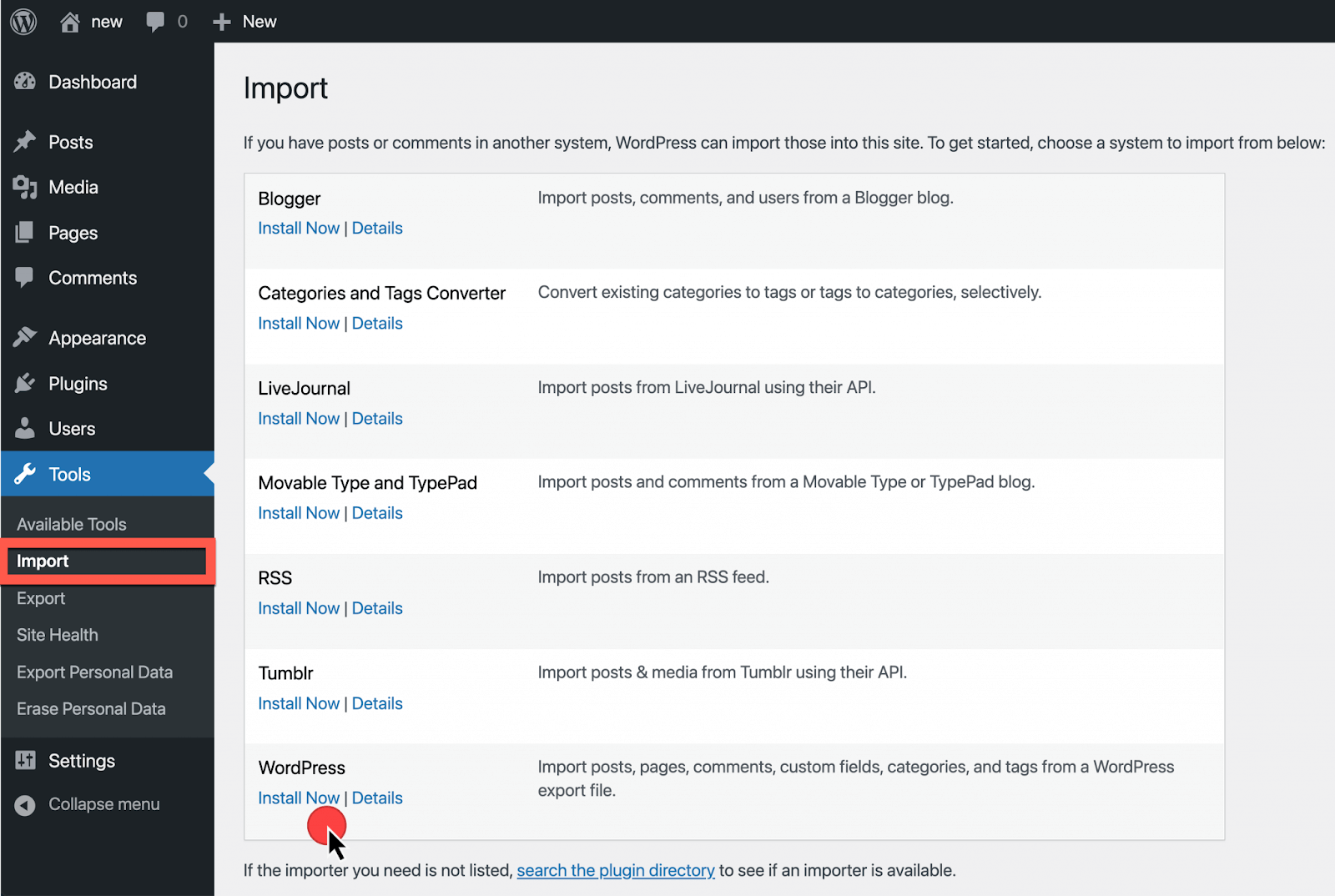
- From your WordPress dashboard, navigate to “Tools”, then “Import”, then “WordPress”.
- Click “Install Now” to set up the importer plugin – this will enable you to import demo content.
- Look through the demo site content you downloaded for an XML file. Upload that to WordPress.
- Your site should now have the same settings as the theme demo. You can delete or repurpose the actual demo pages.
If you already have content on your site, try navigating to the theme options panel and reviewing the theme options. Consult your theme’s documentation to identify what each option does, and adjust your sliders accordingly until your theme displays like the demo.
If this doesn’t help, your theme may have a homepage page template that needs to be set up in your staging site. Your theme’s documentation will tell you if you need to follow these steps:
- Create a new page. Title it “Homepage” for your reference and leave the content blank.
- On the right hand side, select “Homepage” under “Page Templates”. Publish the page.
- Hover over “Settings” and click on “Reading”.
- Check the box for “A static page”.
- Under “Front Page”, select the blank “Homepage” page you just published from the dropdown menu.
- Save your changes.
#7: Your WordPress Theme Has Navigation Menu Issues
If you’ve installed a new WordPress theme, you may find that your navigation menu is blank.
Just like the white screen error, this is an issue you can spot based on what isn’t visible. If you aren’t seeing any links in your navigation menu, and you’ve just installed and activated a new theme, you’re probably dealing with this problem.
It tends to arise because the developer who designed your new theme didn’t build in default menu settings. The result is that, without any setup for your navigation menu, your menu simply doesn’t appear.
The solution: Set up your menu manually
This issue has a fairly simple fix. First, you need to make sure you have a navigation menu set up in the first place:
- From your WordPress.org dashboard, navigate to “Appearance”, then “Menu”.

- If you don’t see any menu settings to edit, you need to create a new menu. Click on “Create a new menu” to get started.
- Learn how to create a menu in WordPress’s documentation.
If you already have a menu set up, make sure it’s assigned to a location. This setting is located at the bottom of the “Menu Settings” section, under “Display Location”.
Choose where you want your menu to appear, then click “Save Menu” to confirm.
#8: You’re Getting 404 Errors
After you’ve done the work of choosing and installing a brand new WordPress theme, the last thing you want is a 404 error.
Unfortunately, sometimes installing a new theme breaks your site’s internal links. This leads to 404 errors that leave some of your webpages inaccessible.
But 404 errors are easy to identify. If you see an error message containing the code “404” after clicking a link, you’re probably dealing with this issue.

The solution: Adjust your permalink settings or update your .htaccess file
Don’t panic – your pages haven’t disappeared! The links to access them are just broken. This is a common problem when installing themes that use custom post types, and the easiest fix is to reset your permalink settings:
- From your WordPress dashboard, navigate to “Settings”.
- Click “Permalinks”.
- Don’t change anything – just click “Save”.
In most cases, this will work. But in the event that it doesn’t, you may need to update your .htaccess file manually. This is highly technical, and if you’re new to WordPress (or just don’t have time for serious coding), we strongly recommend seeking expert help.
Otherwise, here’s how to do it:
- Log into your server using a FTP client.
- Download the .htaccess file and open it in any text editor.
- Visit the WordPress .htaccess support page, and copy the version of the code that suits your website type.
- Paste it into your .htaccess file.
- Save the file and upload it to the live server.
#9: Your New Theme Has Created “Ugly” URLs
No, we don’t mean URLs that look visually ugly on the page!
In this context, an “ugly” URL is one that isn’t streamlined or SEO-friendly. You’ll see it in the menu bar, and it will typically look like a mish-mash of the post ID, post title, publication date, and even the post category.
For example, instead of a simple, clean URL like “http://www.yourwebsite.com/about”, WordPress may generate a URL like “http://www.yourwebsite.com/?p=12345” after you install a new theme.
The second URL looks messier, doesn’t reflect the intent of your page, and doesn’t help your site’s search engine ranking. You need to convert it, and any others like it, into a more user-friendly URL.
The solution: Adjust your permalink settings
Fortunately, it’s very simple to change the way your URLs look from your WordPress dashboard. Here’s how:
- Go to “Settings”, then “Permalinks”.
- You’ll see a list of different URL styles you can choose from.

- Select the style that works best for you. For usability and SEO-friendliness, we recommend “Post Name”, which generates URLs for new pages based on the header or title of the post.
Your site should now generate URLs based solely on post name, which speak to the content of each page and give WordPress users (and bots) a clear idea of where they’re going.
#10: You Can’t Make Styling Changes (or All Your Old Changes Are Gone)
This issue with your WordPress theme occurs when you’ve made changes to the look of your theme, but they don’t show up – or when all the changes you’ve made previously are no longer visible on your site.
Needless to say, it’s frustrating when you’ve put time and effort into customizing your site and your changes aren’t visible. Fortunately, it’s one of the easiest WordPress theme issues to fix.
The solution: Clear your browser and plugin caches
Most of the time, you can solve this problem by clearing either your browser or your plugin caches. Here’s how to clear your browser cache:
- On most browsers, press Ctrl + Shift + Delete (or, on a Mac, Command + Shift + Delete) to open the cache clearing window
- Select the extent of the browsing data you want to clear
- Set the window of time for which you want to clear browsing data
- Click “Clear data”
- Close and reopen your browser
- Return to your WordPress site and refresh it
If you’re using a caching plugin, you should also try clearing that plugin’s cache. Here’s how:
- From your dashboard, navigate to “Settings”, then the relevant plugin’s settings page
- Press “Clear cache”
- Return to your WordPress website and refresh it
The Easiest Solution: Outsource Your WordPress Maintenance
As you’ve probably noticed, all these solutions are time-consuming and fiddly. When you’re trying to run a business, digging through support forums for answers about web development and scrambling to fix minor WordPress theme issues as they occur isn’t the best use of your time.
But don’t worry – we have a solution to this problem, too.
At StateWP, we offer meticulous, proactive WordPress maintenance services that mean you’ll never have to deal with a site error again. Here’s what we can do for you:
- Experienced WordPress experts: With years of experience building and maintaining award-winning sites, we know everything worth knowing about WordPress.
- 24/7 site care and maintenance: We offer around-the-clock support to manage routine maintenance tasks, backend upgrades, updates for WordPress plugins, HTML cleanups, and more.
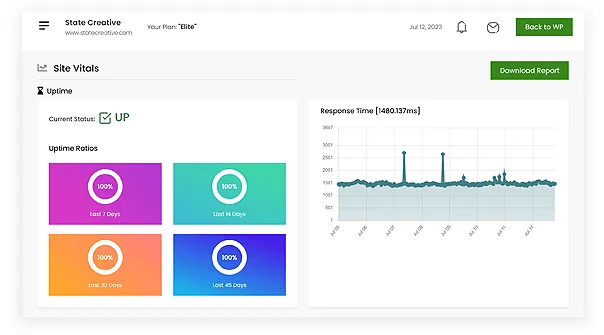
- One-stop site analytics: Check in on your site’s health and performance at any time via Proto, our all-in-one dashboard tool, so you’re always in the loop.
- Robust security practices: We take every possible step to protect your site from hackers and bad actors, maximizing your uptime.
- Lightning-fast response times: Submit requests, queries, or concerns at any time via Proto, and we’ll get back to you in less than a day.
- Monthly reporting: You’re in the driver’s seat. Our in-depth, jargon-free monthly reports on the state of your site help you make informed decisions about your website’s future.
We can help you choose the best theme for your WordPress website, ensure that it’s compatible with the latest WordPress version and all your plugins, and handle errors in a snap if they occur.
You’ll never have to worry about issues with your WordPress theme again – guaranteed.
Put WordPress Theme Issues Behind You With StateWP
If you want your business to succeed, you need a well-maintained site that runs like a dream. A website that your customers can rely on is a cornerstone of success.
You can’t afford WordPress theme issues. And with expert WordPress support from StateWP, you don’t have to.
With experts on hand to fix your broken themes in WordPress whenever problems arise, you can set the little things out of your mind and focus on what you do best.
Get in touch today to learn more. Or check out our blog to learn more about other errors we can help you resolve, from jQuery to database connectivity.